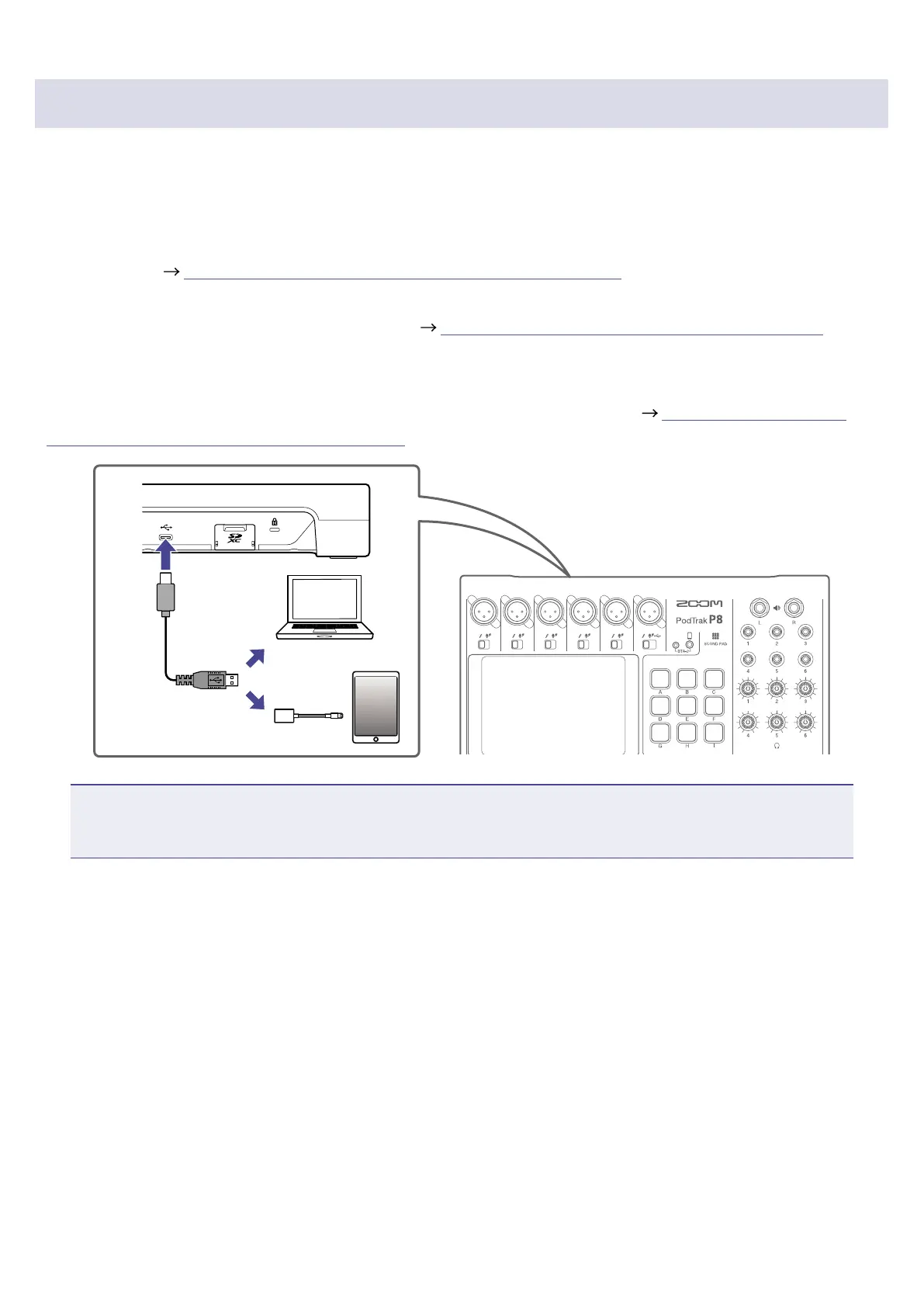
Connecting a computer, smartphone or tablet by USB
The following operations are possible when a computer, smartphone or tablet is connected to the USB
port (Type-C).
Audio interface function
•Background music playing or communication audio on a computer, smartphone or tablet can be input
on channel 6. (
“Inputting USB audio return on channel 6” on page 30)
•
Sound input through the
P8
and sounds played with SOUND PAD buttons can be sent to a computer,
smartphone or tablet and streamed live as is. (
“Audio interface function overview” on page 29)
USB le transfer function
•Recording les on SD cards can be transferred to computers, smartphones and tablets. These les
can then be uploaded to hosting services and servers that you are using. (
“Transferring les to a
computer, smartphone or tablet” on page 72)
USB Type-C
port
NOTE
Use a Lightning to USB Camera Adapter (or Lightning to USB 3 Camera Adapter) to connect to an iOS/
iPadOS device with a lighting connector.
28



 To Next Page
 Loading...