Adding music and other background sound
Background music (BGM) can be added to audio les.
Use a computer beforehand to store the audio le to be used for BGM on the SD card in any directory
other than the P8_Multitrack and P8_Settings folders. ( “Transferring les to a computer, smartphone or
tablet” on page 72)
■
File format overview
Select an audio le with the following format for BGM.
•Format: WAV
•Sample rate: 44.1 kHz
•Bit rate: 16/24-bit
•
Mono/stereo
NOTE
•The currently selected le cannot also be added as BGM. The le name will appear gray.
•If a le is not compatible as BGM, its name will be gray and it will not be selectable or an error pop-up
message will appear when it is selected.
•Some les that are not supported as BGM can be selected on the File List Screen and converted to a
compatible le format in advance. After conversion, such les can be used as BGM.
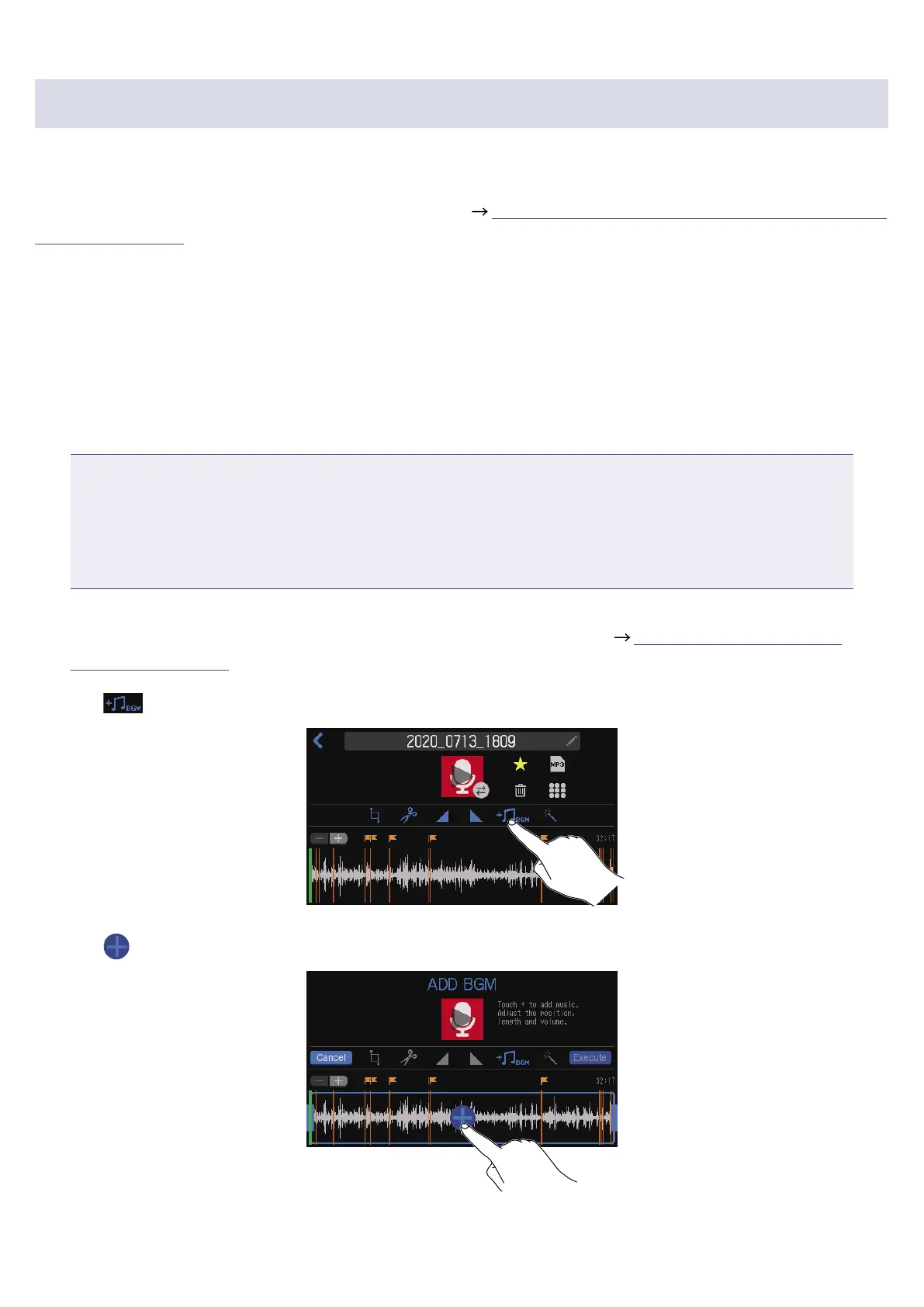
1.
Open the editing screen for the le to which you want to add BGM ( “Opening the File Editing
Screen” on page 56).
2.
Tap .
3.
Tap .
66



 To Next Page
 Loading...