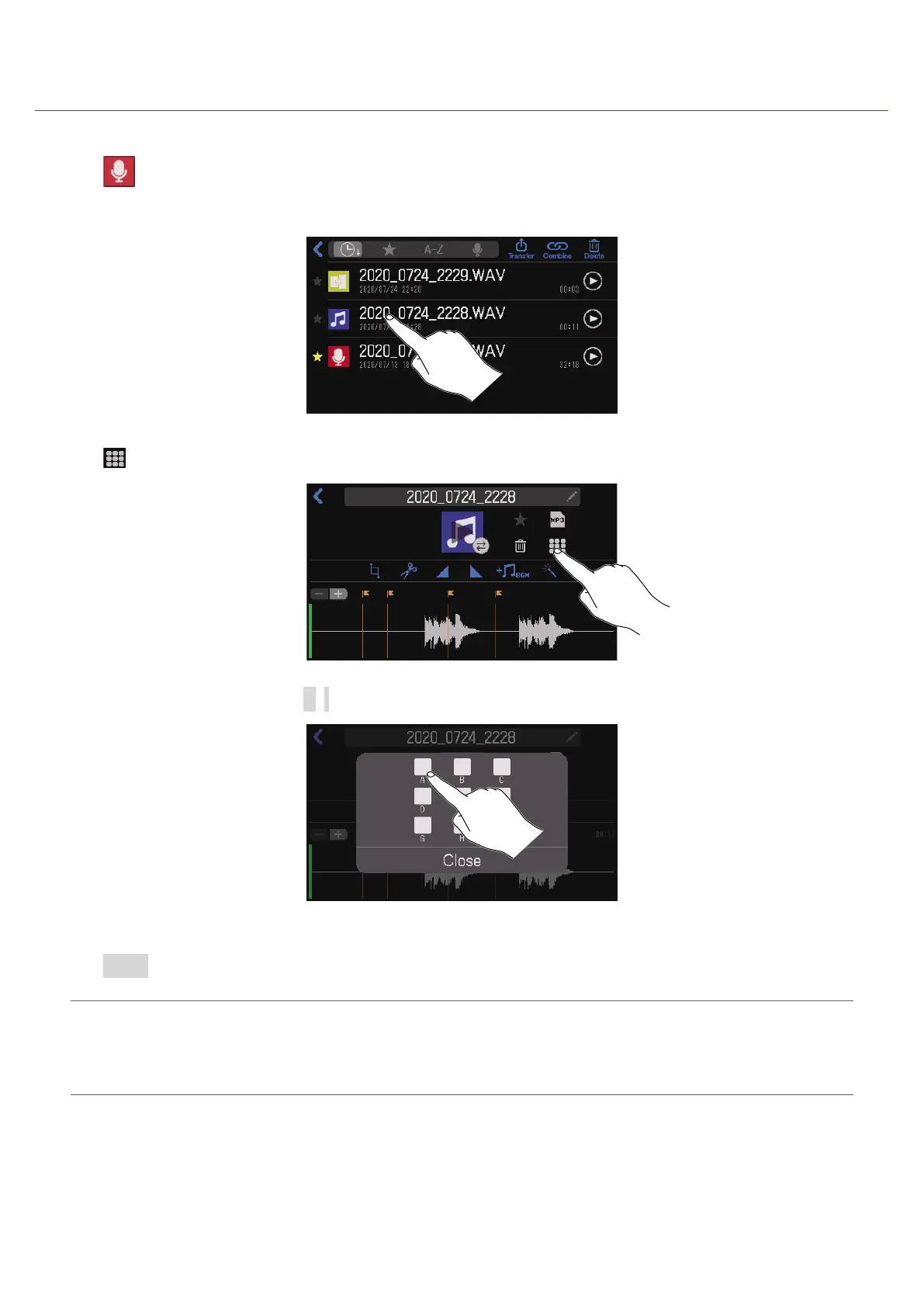
Assigning audio les from the File Editing Screen
1.
Tap on the Home Screen.
2.
Tap the audio le that you want to assign.
3.
Tap .
4.
Tap the SOUND PAD button (A–I) to which you want to assign an audio le.
This assigns the le selected in step 2 to the selected SOUND PAD.
Tap Close to cancel assignment.
HINT
•This assigns audio les to SOUND PAD buttons in the currently selected bank.
•When the Home Screen or SOUND PAD settings screen is open, SOUND PAD buttons that have audio
les assigned will light.
45



 To Next Page
 Loading...