ZPrinter
®
350 / ZPrinter
®
450 User Manual Setup And Print The Build
3dscentral.3dsystems.com 19 All Rights Reserved
10/31/12
2.2.3 Parts Containing Cylindrical Features
Cylindrical features will be more accurate when the cylindrical axis is parallel to the Z-Axis.
2.2.4 Parts Containing Overhangs
For delicate parts and parts with overhangs, create a Fixture, or create a Fixture for the area of the part
that needs support. Unsupported overhangs are placed on the rear-most side of the Build Bed, as close to
the bottom of the Build Bed as possible.
A Fixture is a grid-shaped object with a top surface between the bottom-most surface of the part, (without
actually touching the part), and the bottom of the Build Bed. Generate a Fixture under a part, or a portion of
a part, to create a “cradle” that is easily handled during transport, depowdering and post-processing. An
optional bumper feature is available to provide additional protection for especially delicate parts, or multiple
parts in the same build.
For details on creating and optimizing fixtures, refer to the ZPrint User Manual.
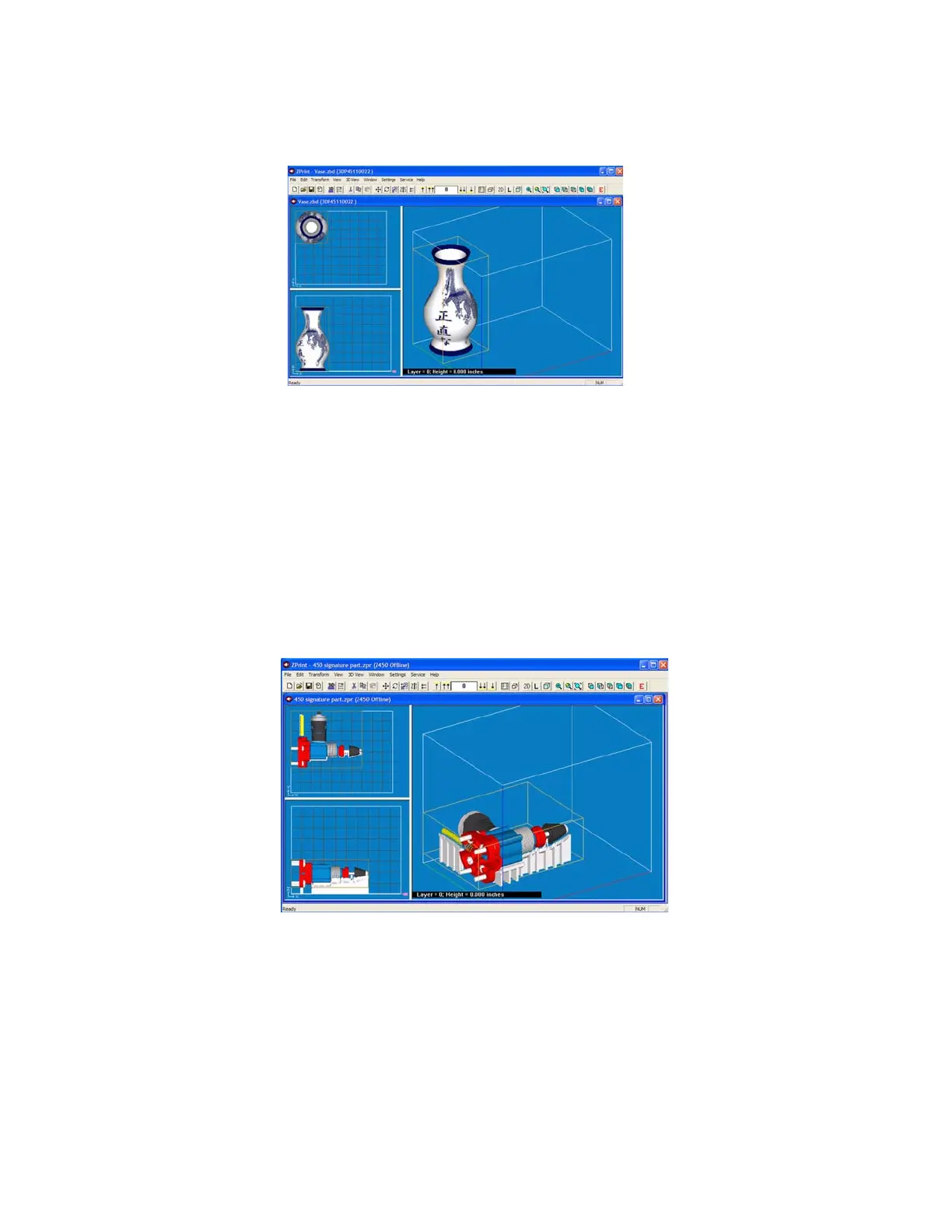
An example of a part with two Fixtures to support the overhangs
The remainder of this chapter takes you through setting up your build in ZPrint and printing a part.
2.3 Open A Part In ZPrint
1. Launch the ZPrint Software. The Splash screen will close on its own after a few seconds, or you can
click the OK button to immediately close the screen.


 To Next Page