ZPrinter
®
350 / ZPrinter
®
450 User Manual Setup And Print The Build
3dscentral.3dsystems.com 21 All Rights Reserved
10/31/12
2.4 Check The Default Settings
Before you start your build, check the settings for both the printer and the powder.
2.4.1 Printer Settings
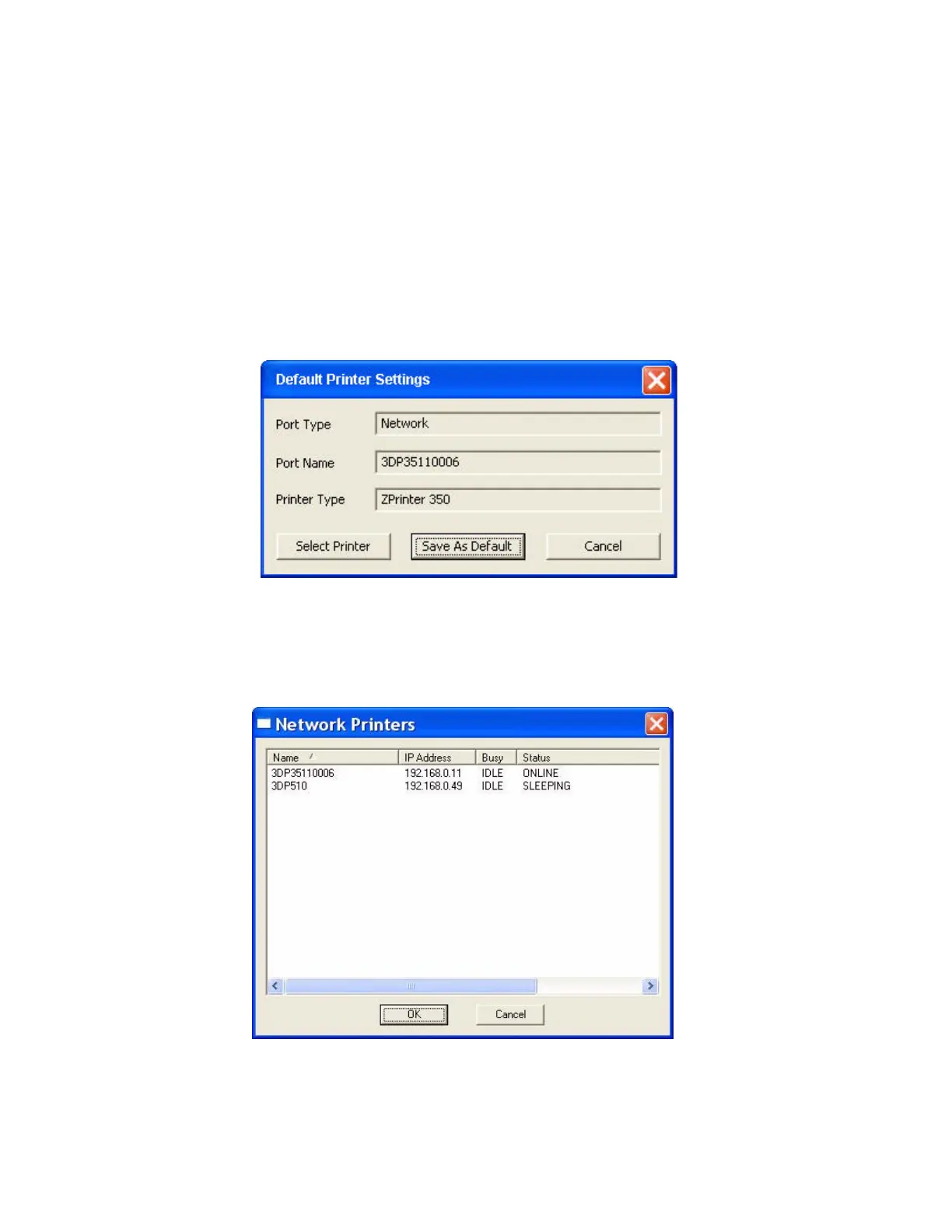
1. Select Settings > Printer Settings to display the Default Printer Settings dialog.
2. In the Default Printer Settings dialog, check that the default printer is the printer that is connected to
your computer.
• If it is not, click Select Printer and proceed with Step 3.
• If it is, click Cancel and skip the rest of this procedure.
3. In the Select 3D Printer dialog, choose Network as the Port Type. Click the Find button to locate the
printer on the network. If the printer is connected to the network, it will appear on the list. Select the
printer and click OK.


 To Next Page