ZPrinter
®
350 / ZPrinter
®
450 User Manual Setup And Print The Build
3dscentral.3dsystems.com 20 All Rights Reserved
10/31/12
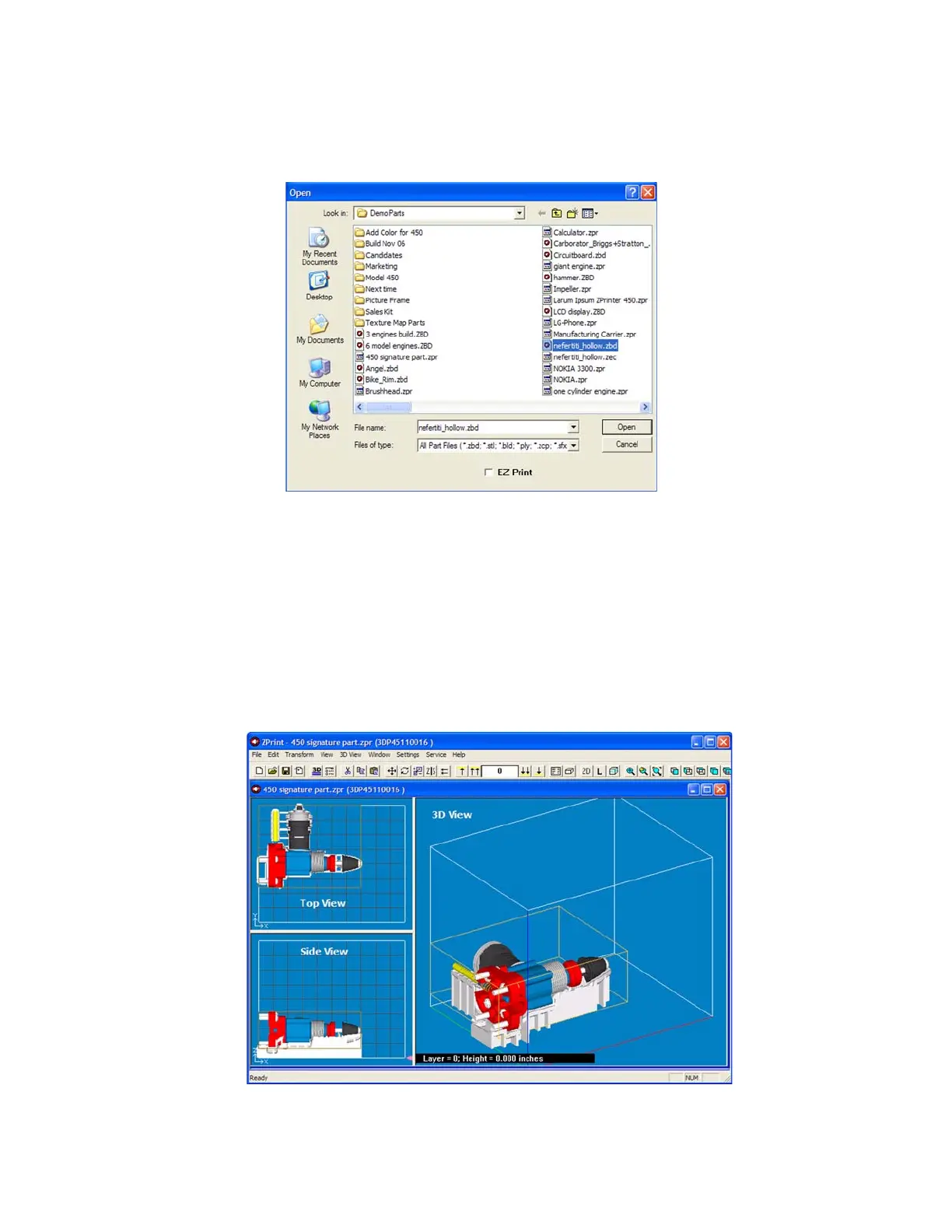
2. In the Open dialog, select a file to print, or browse to a file on your computer. Click the Open button, or
double click on a file to open it in ZPrint.
3. If the Choose Units dialog opens, choose the display units that correspond to the part dimensions and
then click Next. The file is opened in a new ZPrint window using the units specified in this dialog.
4. If you would like to add additional files to the build, select File > Import and select more files. By
default, ZPrint will position each file in the Build Bed for the fastest print time.
2.3.1 ZPrint Main Window
After the file is opened, the part will be displayed on the ZPrint Main Window. Here it will be shown in a 3D
View on the right, and 2-D views on the left showing a top view and a side view. See the ZPrint User Man-
ual for a complete description of the Main Window and its features and toolbars.


 To Next Page