ZPrinter
®
350 / ZPrinter
®
450 User Manual Setup And Print The Build
3dscentral.3dsystems.com 22 All Rights Reserved
10/31/12
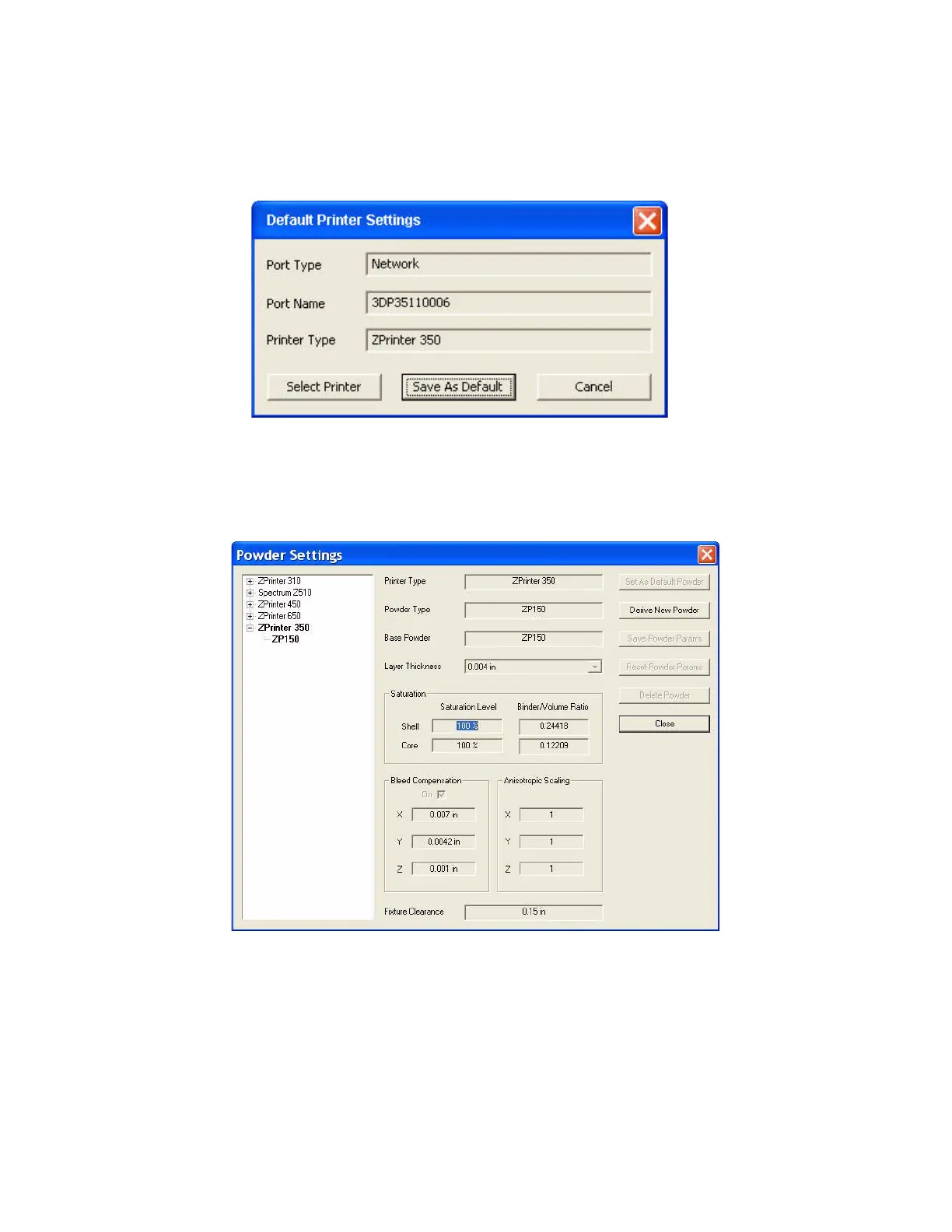
4. The Default Printer Settings dialog reopens showing your new default settings. To save your set-
tings, click the Save As Default button. You can change these settings at any time by repeating Steps
1 - 4.
2.4.2 Powder Settings
1. Select Settings > Powder Settings to display the Powder Settings dialog.
2. Select the printer and the powder type from the left-side panel to view the settings for that combination.
• ZPrint defaults to the recommended powder settings for the Saturation Levels, Binder/Volume
Ratio, Anisotropic Scaling and Fixture Clearance.
Important: Most of the powder settings cannot be changed, but you can override the settings for
the Layer Thickness, Bleed Compensation, Anisotropic Scaling, and the Fixture Clearance
for the current build only. We do not recommend changing these, but should you need to:
•Select Transform > Anisotropic Scaling to change the values for Anisotropic Scaling.


 To Next Page