ZPrinter
®
350 / ZPrinter
®
450 User Manual Routine Cleaning
3dscentral.3dsystems.com 35 All Rights Reserved
10/31/12
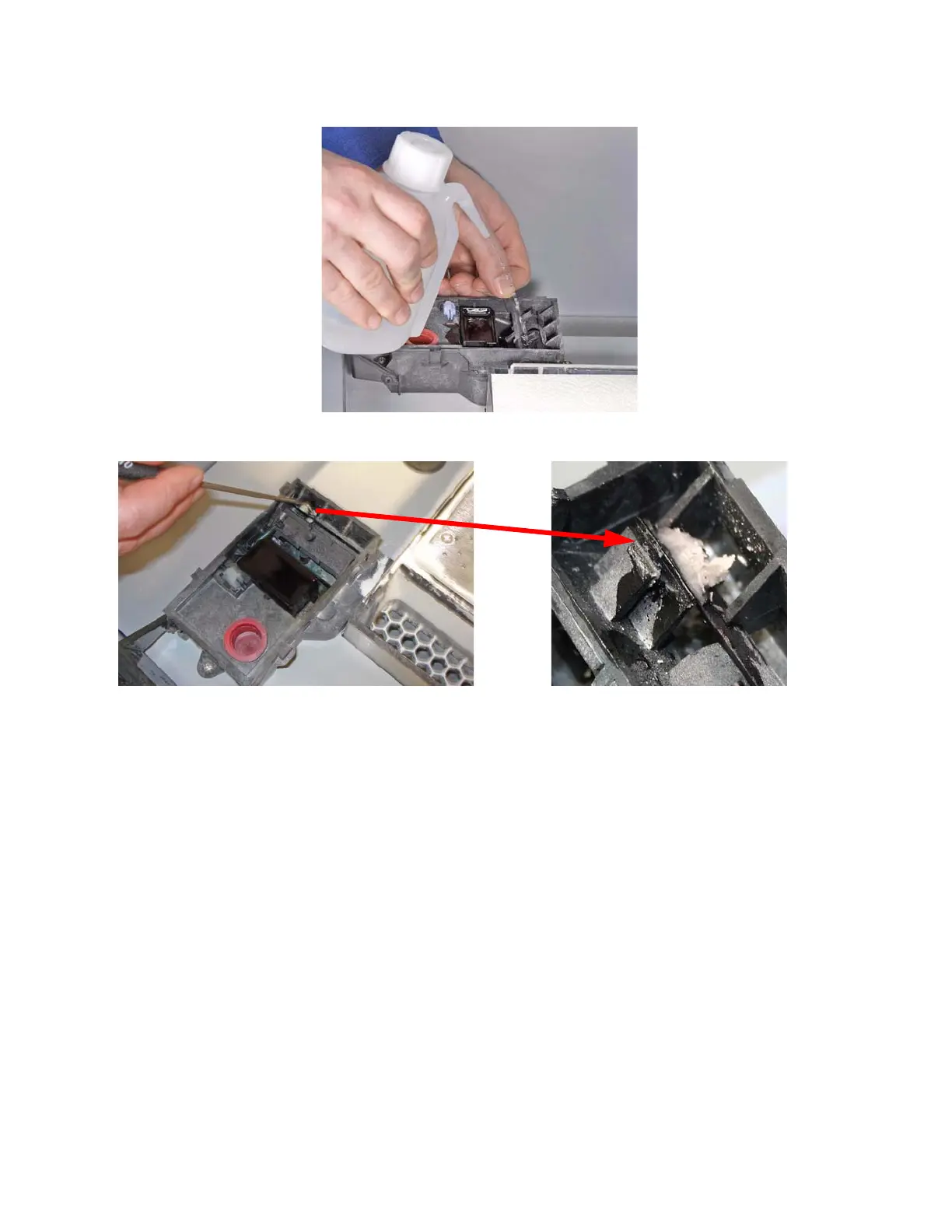
4. Position the squirt bottle close to the station and squirt water into the service station.
5. Use the cotton swabs or a paper towel and wipe the service station thoroughly.
6. Use a brush or the Pick to scrape excess powder out of any corners.
7. Thoroughly wipe the Service Station clean.
8. Wipe up any water that may have spilled onto the Deck or Build Bed. Vacuum up any loose powder.
Do not vacuum the service station itself.
Important: Never vacuum up water or other fluids - it will clog the vacuum system.
9. Remove the paper towels from the front overflow.
10. Close the service station cover, then close the printer top cover.
3.5 Clean the Parking Caps
On older ZPrinter 450 units (Type 1 and Type 2) there were Parking Caps which covered the print heads
when the printer was not printing. The Parking Caps are not present on ZPrinter 350 and ZPrinter 450
Type 3.
The Parking Caps provide a clean, surface for seating the print heads between builds.
Before you begin:
• Get several dry paper towels
• Get the squirt bottle included in your Accessories Kit
• Fill the squirt bottle with distilled water


 To Next Page