User’s Manual
Enterprise Access Point ENGLISH
Copyright © 4IPNET, INC. All rights reserved.
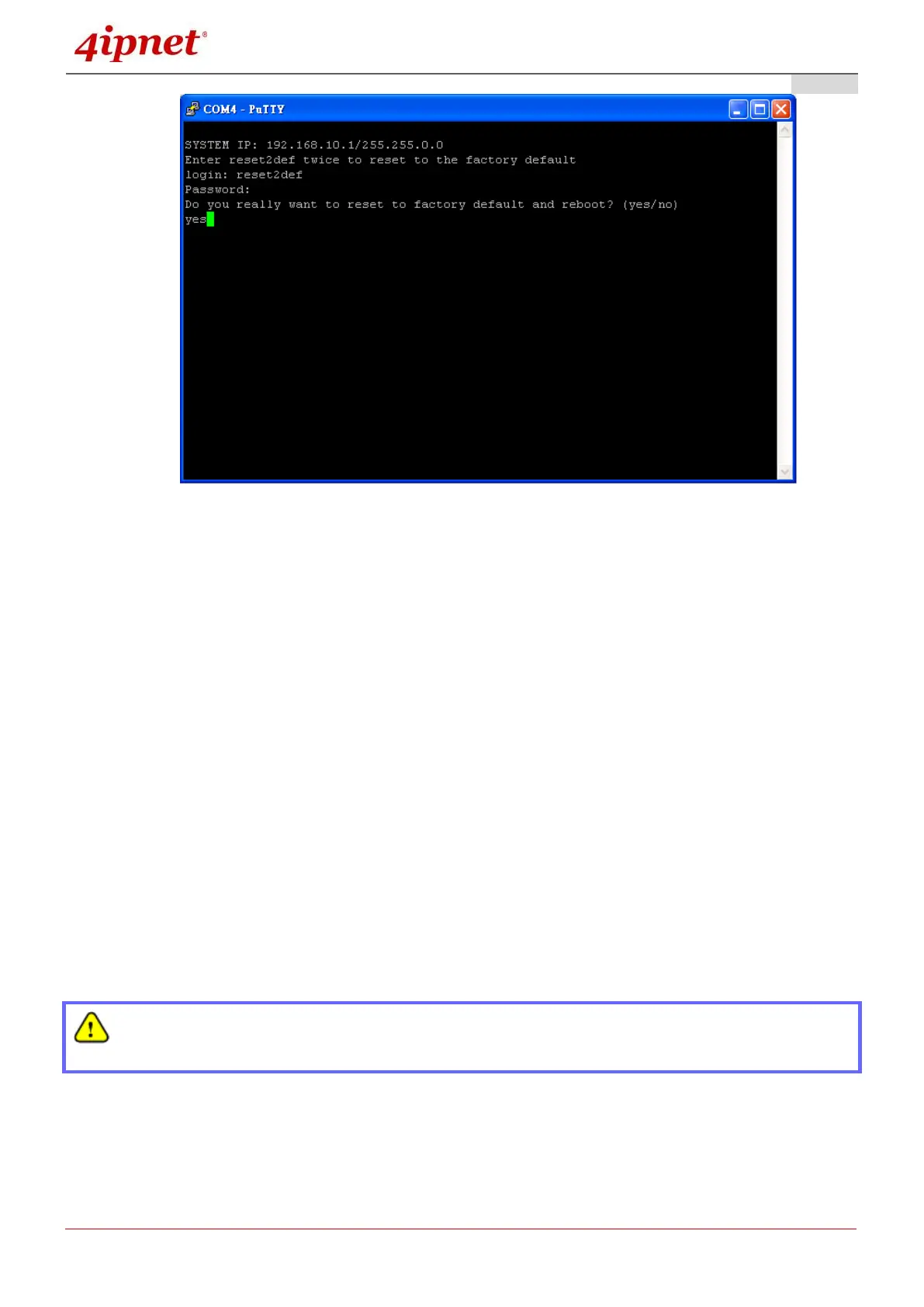
Login as “reset2def” and enter “reset2def” as your password. Type “yes” to reset the AP to
factory default.
2) Console connection via SSH - the IP address of the AP can be retrieved with an IP Discovery
Utility provided by 4ipnet. Simply connect via an Ethernet cable and run the Discovery Utility.
Note that the laptop/PC connecting to the AP must run in Windows XP compatible mode and a
static IP must be set.
Login as “reset2def” and enter “reset2def” as your password. Type “yes” to reset the AP to
factory default.
Backup System Settings: Click Backup to save the current system settings to a local disk such as
the hard disk drive (HDD) of a local computer or a compact disc (CD).
Restore System Settings: Click Browse to search for a previously saved backup file, and then click
Upload to restore the settings. The backup file will replace the active configuration file currently
running on the system.
After network parameters have been reset / restored, the network settings of the administrator PC
may need to be changed to ensure that the IP address of the administrator PC is on the same
subnet mask as the AP.


 To Next Page