User’s Manual
Enterprise Access Point ENGLISH
Copyright © 4IPNET, INC. All rights reserved.
7.4.3 System Upgrade
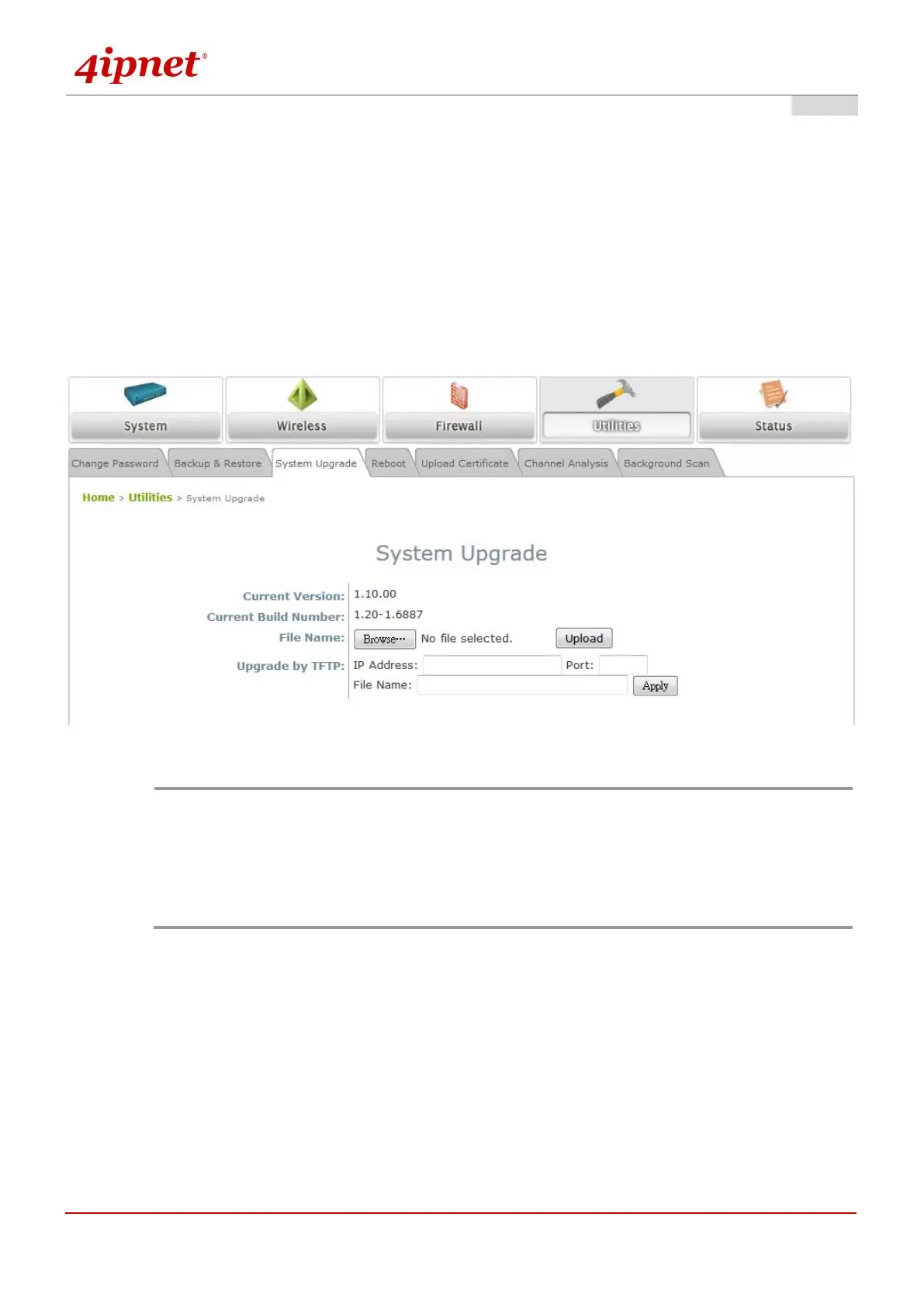
The EAP Access Point supports two methods of firmware upgrade: from the web management interface
or through TFTP. The administrator can download the latest firmware from the 4ipnet Support Team and
save it on the administrator’s PC. To upgrade the system firmware, click Browse to choose the new
firmware file you downloaded onto your PC and then click Upload to execute the process. There will be a
prompt confirmation message to notify the administrator to restart the system after a successful firmware
upgrade. To upgrade by TFTP, enter the designated IP address, Port, and File Name, then click “Apply”.
Please restart the system after upgrading the firmware.
System Upgrade Page
It is recommended to check the firmware version number before proceeding further.
Please make sure you have the correct firmware file.
Firmware upgrade may sometimes result in the loss of data. Please ensure that all
necessary settings are written down before upgrading the firmware.
During firmware upgrade, please do not turn off the power. This may permanently
damage the system.
Upgrade by TFTP may be limited on selected AP models.
7.4.4 Reboot
This function allows the administrator to restart the AP safely. The process takes approximately three
minutes. Click Reboot to restart the system. Please wait for the blinking timer to complete its countdown
before accessing the system’s Web Management Interface again. The System Overview page will appear
after a successful reboot.
Occasionally, it is necessary to reboot the AP to ensure that parameter changes are submitted.


 To Next Page