- 104 -
000904AG
7 - Operation
Commissioning
'RQRWSODFHREMHFWVRIDQ\NLQGRQWKHLQYHUWHUGXULQJRSHUDWLRQ
Do not touch the heat sink while the inverter is operating!
Some parts may be very hot and cause burns.
Before proceeding with commissioning, make sure you have carried out all the following checks:
- Check the correct connection and polarity of the DC inputs, and the correct connection of the
AC output and ground cables.
&KHFNWKHFRUUHFWFRQQHFWLRQRIWKHSRZHUDQGVLJQDOFDEOHVEHWZHHQ5($&7812DQG
REACT2-BATT
&KHFNWKHVHDOLQJEDUULHURIWKHFDEOHGXFWVDQGLQVWDOOHGTXLFN¿WFRQQHFWRUVWRSUHYHQWDF-
cidental disconnections and/or avoid compromising the IP65 environmental protection rating.
Commissioning is carried out via Wi-Fi connection to the REACT2’s internal
web user inteface. Initial setup of the REACT2 system must therefore be
carried out via a tablet, notebook or smartphone with a Wi-Fi connection.
To establish the connection and operate with the REACT2, it is neces-
sary to power up the inverter by connecting its input to the DC voltage of
the photovoltaic panels or its output to the AC grid.
6XSSO\WKHLQYHUWHUZLWK'&LQSXWYROWDJHIURPWKHSKRWRYROWDLFJHQHUDWRU
and/or via AC GRID voltage.
Where the system is powered by the photovoltaic generator (DC) make sure irradiation is sta-
ble and adequate for the REACT2’s commissioning procedure to be completed.
6XSSO\JULG$&YROWDJHWRWKHLQYHUWHU
Pre-commissionig phase 1 - Connection to the local Wi-Fi network
- DEVICE USED TABLET/SMARTPHONE.
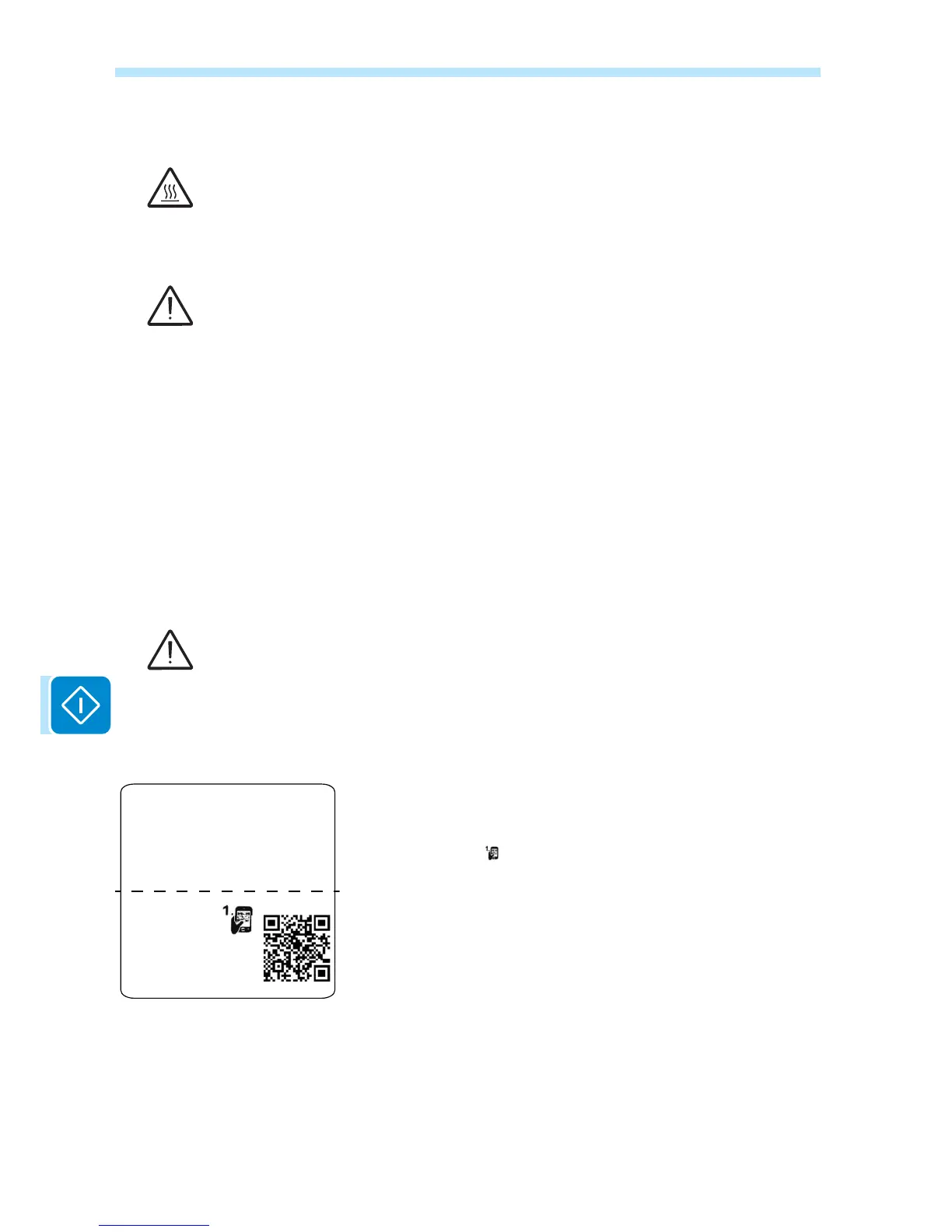
Once powered, launch a QR reader for mobile and SCAN the QR
code marked with
on the label on the right side of the inverter and
connect to inverter network (tap connect).
The name of the Wi-Fi network created by the system, that the con-
nection should be established with, will be:
$%%;;;;;;;;;;;;ZKHUHWKH;LVWKH0$&DGGUHVV
After this step wait 10 seconds to allow the WLAN connection
- DEVICE USED LAPTOP.
Enable the wireless on the device you are using for the commissioning
DQGVHDUFKIRUWKHQHWZRUNQDPHG$%%;;;;;;;;;;;;ZKHUH
³;´LVDQKH[DGHFLPDOQXPEHURIWKH0$&$GGUHVVWKH0$&$GGUHVV
LVLQGLFDWHGRQWKH³ZLUHOHVVLGHQWL¿FDWLRQODEHO´RQWKHVLGHRIWKH
inverter).
When prompted, type the PK (product key), including the dashes.
Example: 1234-1234-1234-1234 as the network password.
SN WLAN: SSSSSSSSSS
PN WLAN: PPP.PPPPP.PP
MAC: XX:XX:XX:XX:XX:XX
SN Inverter: SSSSSSSSSS
MAC: XX:XX:XX:XX:XX:XX
PK: KKKK-KKKK-KKKK-KKKK
Remove and apply
on the Quick
ŝŶƐƚĂůůĂƟŽŶŐƵŝĚe



 To Next Page