Doc : AM220-001E Release: 1.5 updated : October 2014
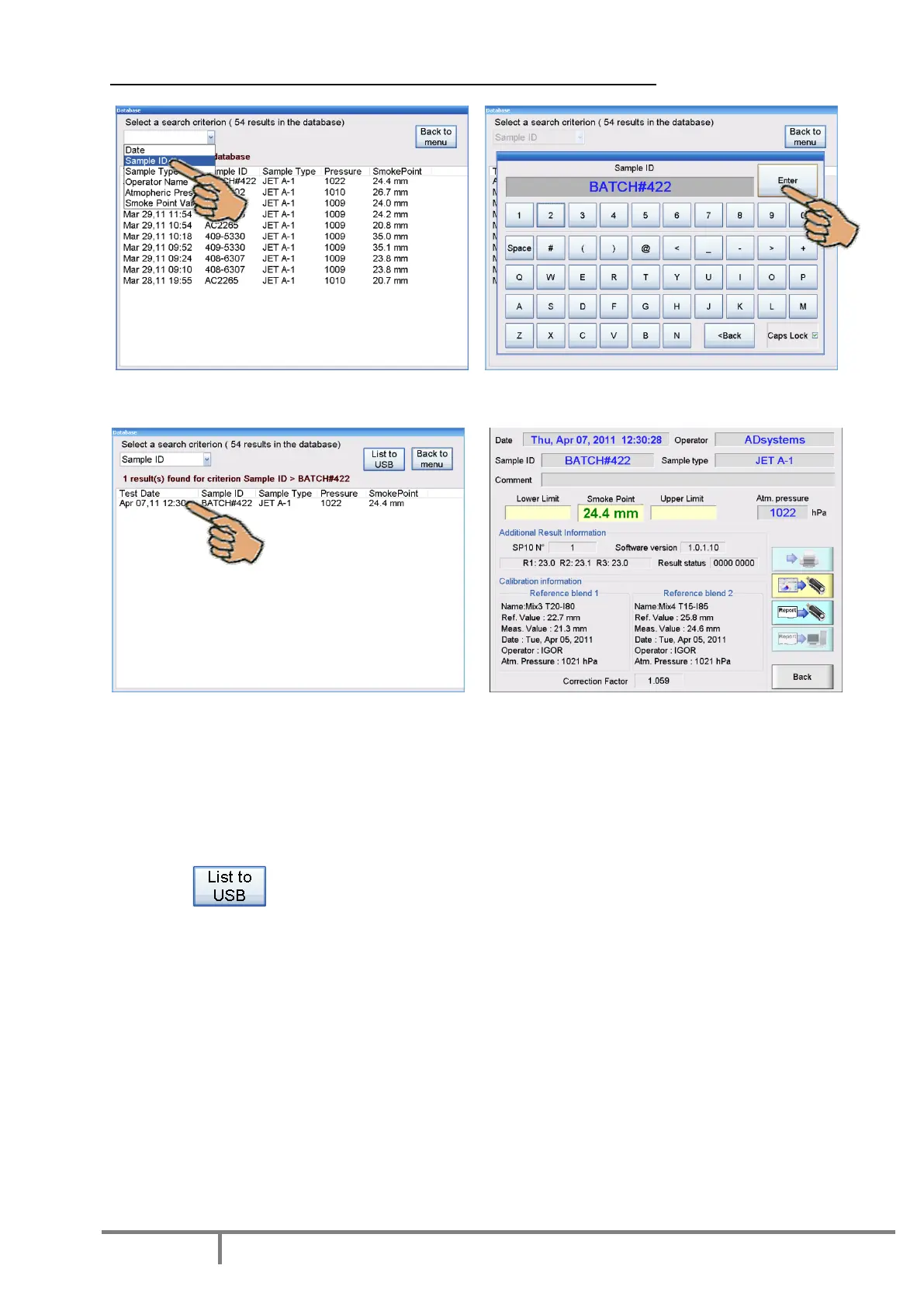
The example on how to find and display a result for a Sample ID “BATCH#422”:
Select “Sample ID” as search criterion. Enter Sample ID
In the found list, touch the line with result. The test report is displayed. It is possible to print
it, save on USB and send to LAN by using control
buttons.
Use the “Back” button to return to the search results or to return to the Main Menu.
Backup of results from the database
The button allows automatic saving on USB drive of all results displayed.
Use the search criteria to select results of interest. For example, if you don’t use the automatic storage of
results by LAN connection (this functionality is available in the SP10) , every month you can backup results
of performed tests on USB storage device.
For this example, select criteria Date / Month, connect an USB storage device to the SP10 (there are 2
USB ports available: one on the front panel and one on the rear side of analyzer); press button “List to
USB”.
All results of the month will be stored on the USB drive in the folder /SP10_Reports (if folder doesn’t exist,
it will be created automatically). Results are stored in ASCII files according LAN/USB storage settings
(menu SETUP/STORAGE SETTINGS).
Refer to the section USB STORAGE SETTINGS of the manual for more details.


 To Next Page