Doc : AM220-001E Release: 1.5 updated : October 2014
FIRMWARE UPDATE
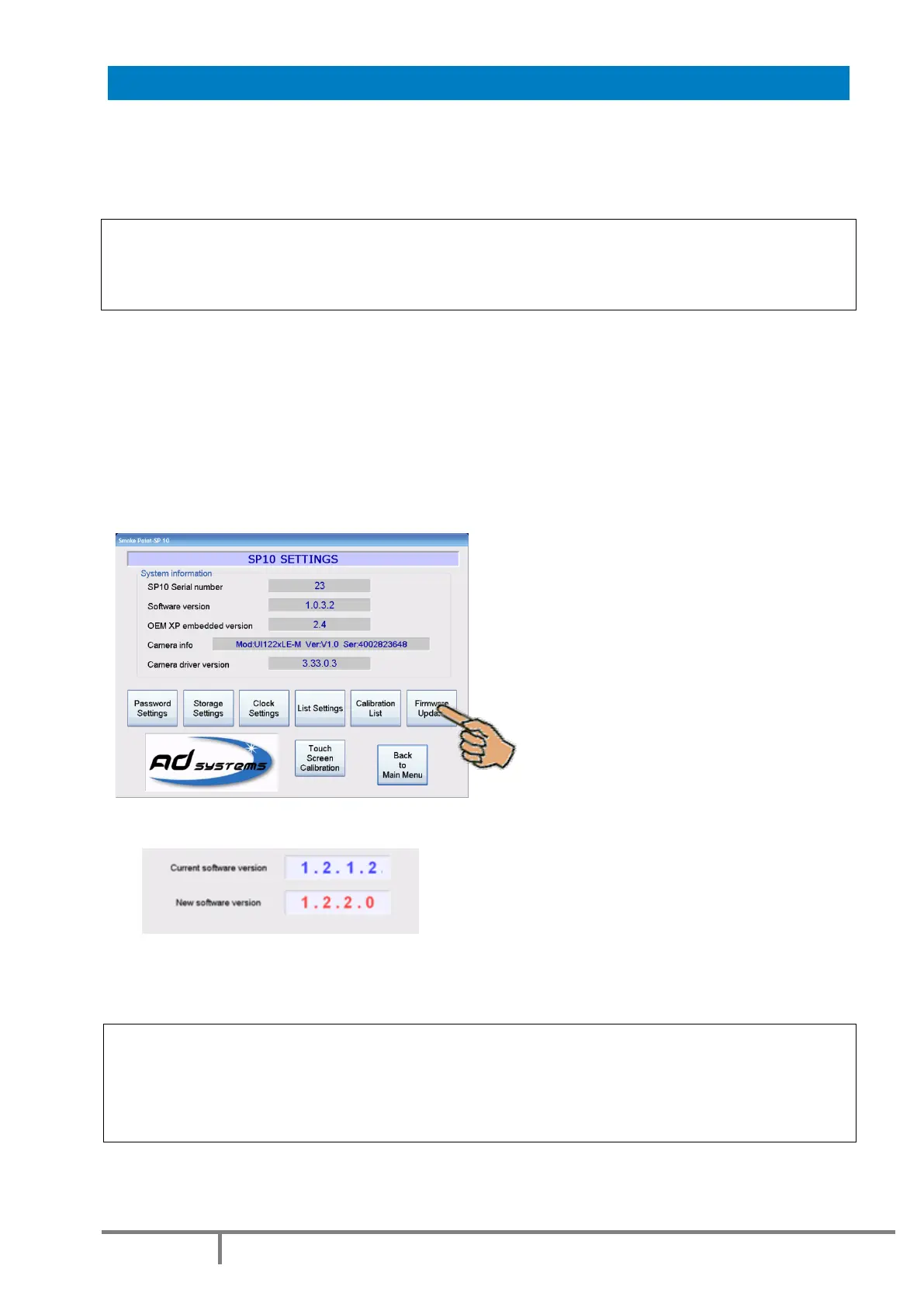
To update the analyzer software, use the “Firmware Update” button of the “SETUP” menu.
In order to prevent unauthorized changes, this menu is password protected.
IMPORTANT!
Perform this procedure only with the manufacturer or its distributor authorization.
Follow exactly the instructions provided.
Typical analyzer firmware update procedure consists of following steps:
- Unzip contents of compressed folder with setup files into root directory of the USB storage drive
After file unzipping, the USB drive should contain the folder \ADsystems\SP10 with sub-folders and
files in it
- Switch on the analyzer, wait till the Main Menu appears
- Connect the USB drive to the analyzer,
- Wait a few seconds to be sure that the instrument recognizes the connected USB drive
- Go to “SETUP” menu and press the “Firmware update” button
- Enter the password
- The upgrade setup tool will check the current version of the instrument before starting to copy files
-
- Press “Ok”
- The installation process is fully automated. Follow on screen instructions.
- When the automated process is completed, the analyzer automatically reboots.
CAUTION!
Don’t switch off the instrument during the software update procedure!
Wait till the instrument automatically restarts. If the SP 10 does not restart, please immediately
contact AD Systems Service Department or its local distributor.


 To Next Page