Chapter 9: Monitoring Status and Activity ● 118
2 Select Broadcast events to logged-in users, then click Save changes.
3 Restart Adaptec Storage Manager to apply the change.
Changing an Operating System’s Event Log Setting
In addition to the Adaptec Storage Manager event log, all Warning- and Error-level events on a
system are recorded in its operating system event log. You can customize the level of events that
are recorded, or you can disable operating system event logging.
To change or disable operating system event logging on a system:
1 In the Enterprise View, select the system.
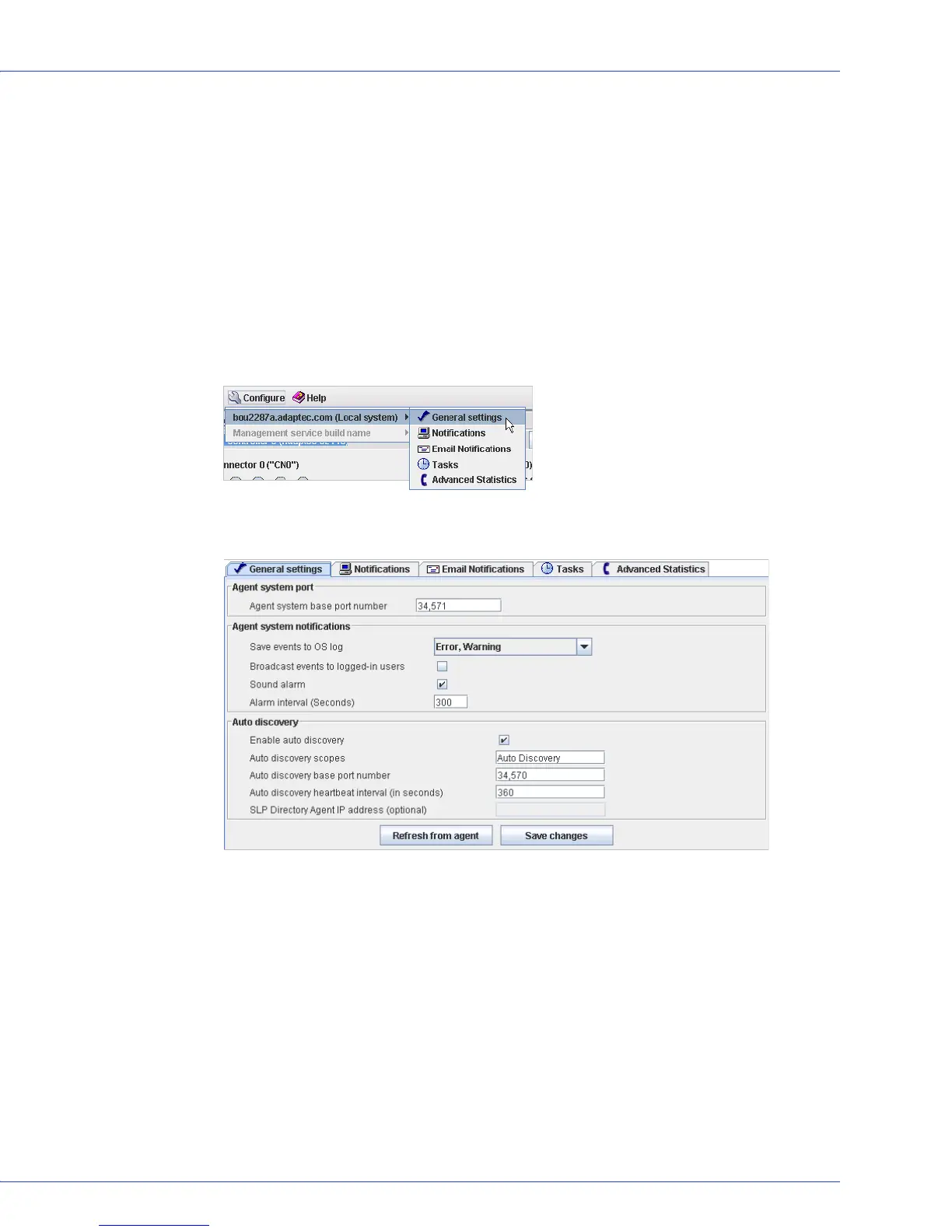
2 In the tool bar, click Configure, point to the system, then click General Settings.
The Adaptec Storage Manager Agent General Settings window opens for the system you
selected.
Note:
You can access other utilities in this window, such as the Task Manager (see Scheduling
Recurring or Resource-Intensive Jobs on page 80), by clicking their tabs.
3
In the Save events in OS log drop-down menu, select the type of event logging that you
want, then click Save changes.
4 Restart Adaptec Storage Manager to apply the new setting.


 To Next Page