Appendix D: Buttons and Icons At-a-Glance ● 171
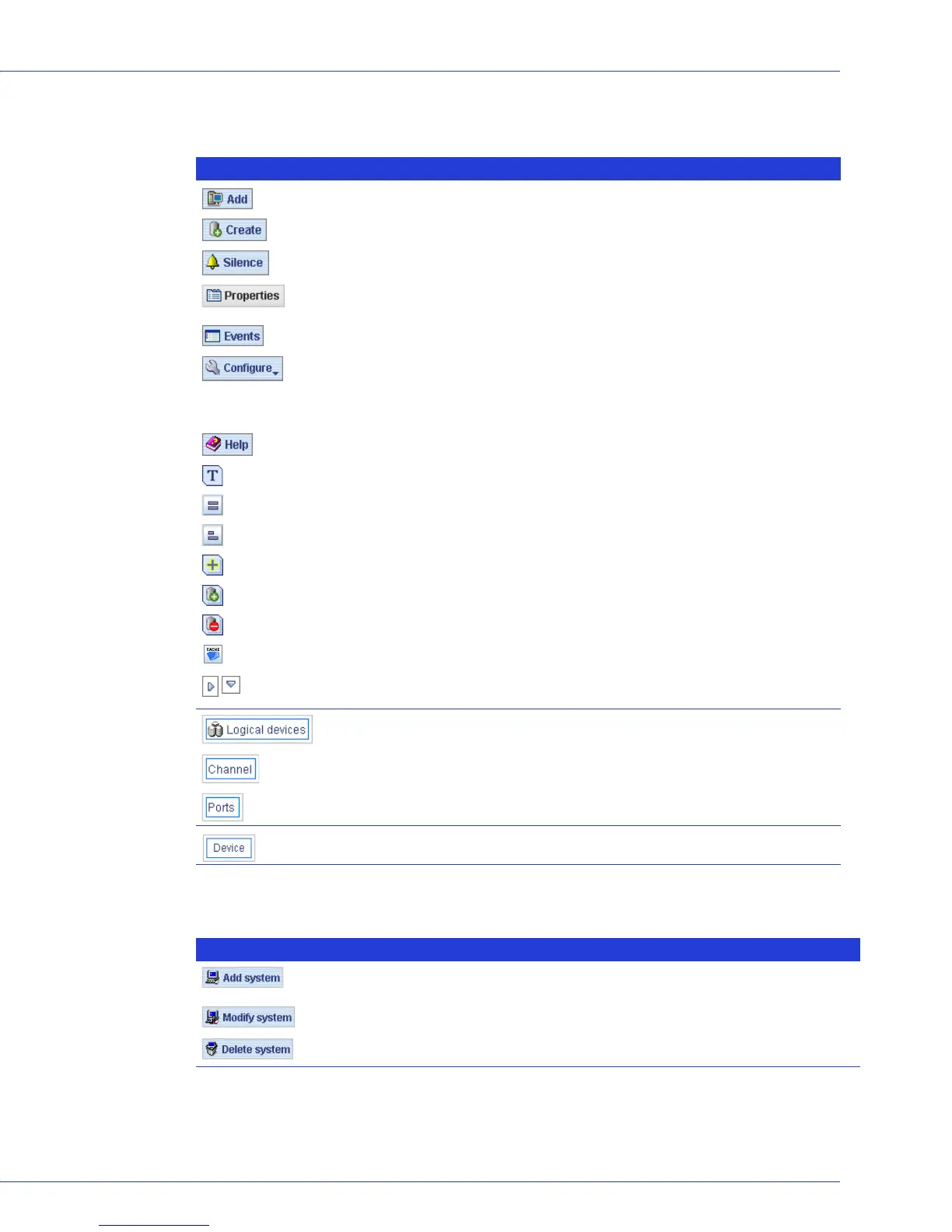
Buttons in the Main Window
Buttons in the Notification Manager
Button Click to... More on...
...add a remote system ...page 32
...create a logical drive; open the Configuration wizard ...page 25
...silence the audible alarm ...page 94
...check status and other properties of a controller, disk drive, or
other component
...page 87
...view the full Event log ...page 103
....configure notification settings
...configure email notification settings
...check the status of scheduled tasks; monitor and modify
scheduled tasks
...page 106
...page 111
...page 80
...open the online Help ...page 50
...see a text description of your disk drives ...page 49
...see the size capacities of your disk drives ...page 49
...see the size capacities of your disk drives relative to each other ...page 49
...create a global hot spare ...page 54
...create a logical drive ...page 25
...delete a logical drive ...page 71
...configure MaxIQ cache pool ...page 78
...expand and collapse additional information about disk drives and
logical drives
...page 49
...access logical drive-specific functions, such as deleting ...page 87
...access channel-specific functions, such as rescanning ...page 87
...access port-specific functions, such as blinking ...page 87
...access device-specific functions, such as initializing ...page 87
Button Click to... More on...
...add a system that will receive notifications generated by the
Notification Manager
...page 106
...update a system’s address, host name, or notification level ...page 109
...remove a system from the Notification List ...page 109


 To Next Page