Chapter 6: Modifying Your Direct Attached Storage ● 70
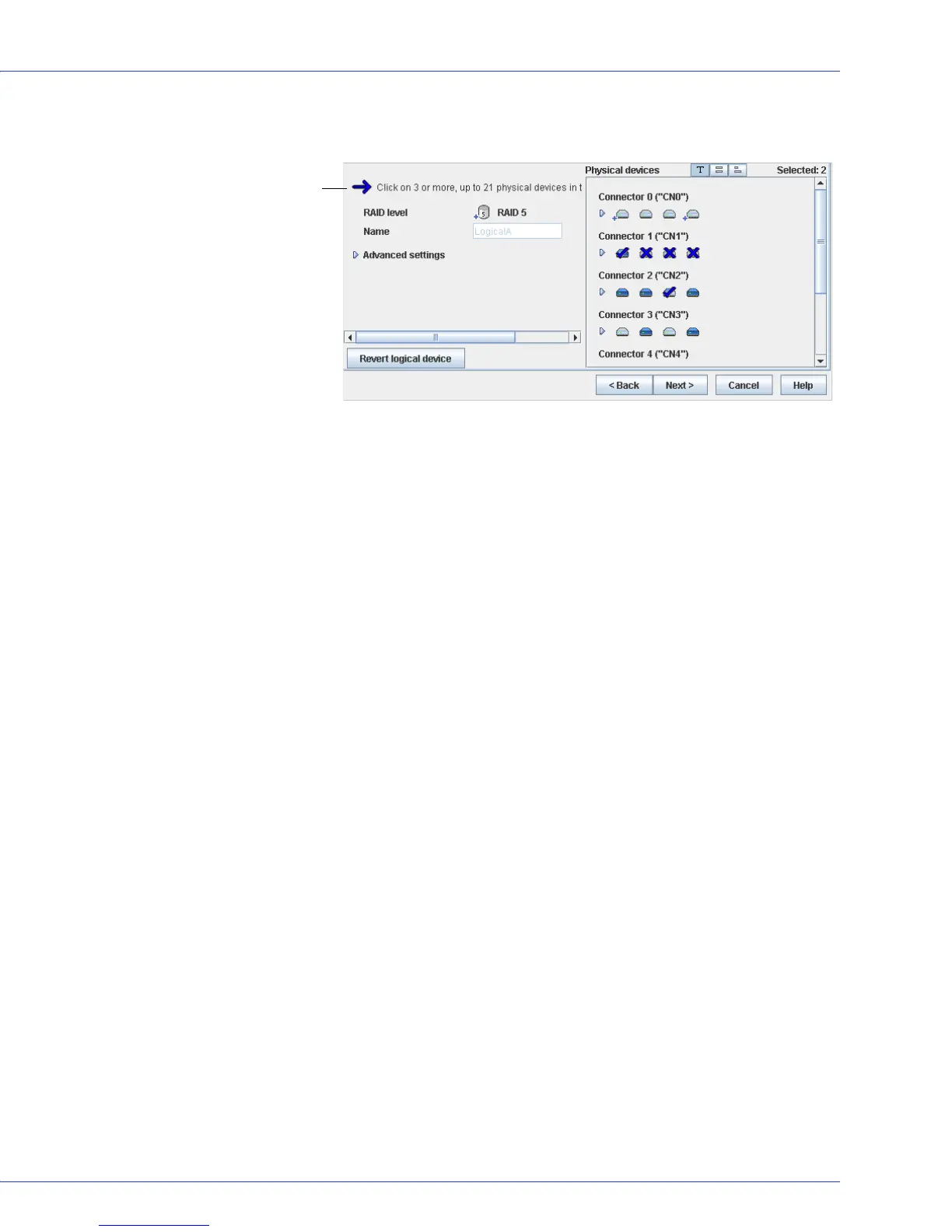
An X indicates that the selected disk drive will be removed from the logical drive, and you
are prompted to select another disk drive (of greater or equal size) to replace it.
6 Modify the Advanced Settings, if required. (See Fine-tuning Logical Drives on page 63.)
7 Click Next.
8 Review the new logical drive settings. To make changes, click Back.
Note:
Some operating systems have size limitations for logical drives. Before you save the
configuration, verify that the size of the logical drive is appropriate for your operating system.
9
To update your logical drive immediately, click Apply, then click Ye s .
To schedule the changes for later, click Schedule, set the date and time, then click Apply.
(For more information on scheduling tasks, see page 81.)
Extending a Partition on a Logical Drive
(Windows 2003, Windows XP, and Windows 2000 only) If you have expanded a logical drive,
you can extend the partition on that logical drive to use the newly added space. Refer to your
operating system instructions for more information.
Changing the RAID Level of a Logical Drive
As your requirements change, you can change the RAID level of your logical drives to suit your
needs. You may want to do this to add redundancy to protect your data, or improve data
availability for speedier access to your data. See Selecting the Best RAID Level on page 152 for
more information.
Changing the RAID level normally requires one or more disk drives to be added to or removed
from the logical drive. Adaptec Storage Manager won’t allow you to continue unless you have
the right number of disk drives available.
To change the RAID level of a logical drive:
1 In the Enterprise View, click the controller associated with the logical drive.
2 In the Logical Devices View, click the logical drive.
3 In the menu bar, select Actions, then click Expand or change logical device (see page 69).
A wizard opens to help you change the RAID level.
4 Select a new RAID level, then click Next. Only valid options are offered.
Flashing arrow
prompts you to
replace the
deselected disk
drives


 To Next Page