Chapter 8: Maintaining Physical Devices ● 95
Silencing a System’s Alarm
When a Warning- or Error-level event occurs, you can silence the alarm on your local system
while you fix the problem.
To silence the alarm, click the Silence button (shown at right) in the main Adaptec
Storage Manager window.
Alternatively, in the menu bar, click Actions, then select Agent actions. Select Alarm actions,
then click Test alarm.
Changing a System’s Alarm Settings
By default, an audible alarm sounds every five minutes (or 300 seconds) until silenced or until
the event is resolved. You can change the frequency of the alarm, if required.
To change alarm settings on a system:
1 In the Enterprise View, select the system.
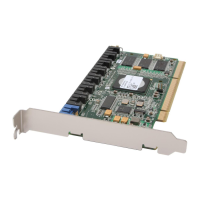
2 In the tool bar, click Configure, point to the system, then click General Settings.
The Adaptec Storage Manager Agent General Settings window opens for the system you
selected. The alarm settings are circled in the next figure.
Note:
You can access other utilities in this window, such as the Task Manager (see Scheduling
Recurring or Resource-Intensive Jobs on page 80), by clicking their tabs.
3
Edit the alarm settings as required.
Note:
You can disable an alarm in this window by deselecting Sound alarm. Alternatively,
follow the instructions in Disabling a System’s Alarm on page 96.
The changes take effect immediately.


 To Next Page