13
2.3.1 Manual Pairing
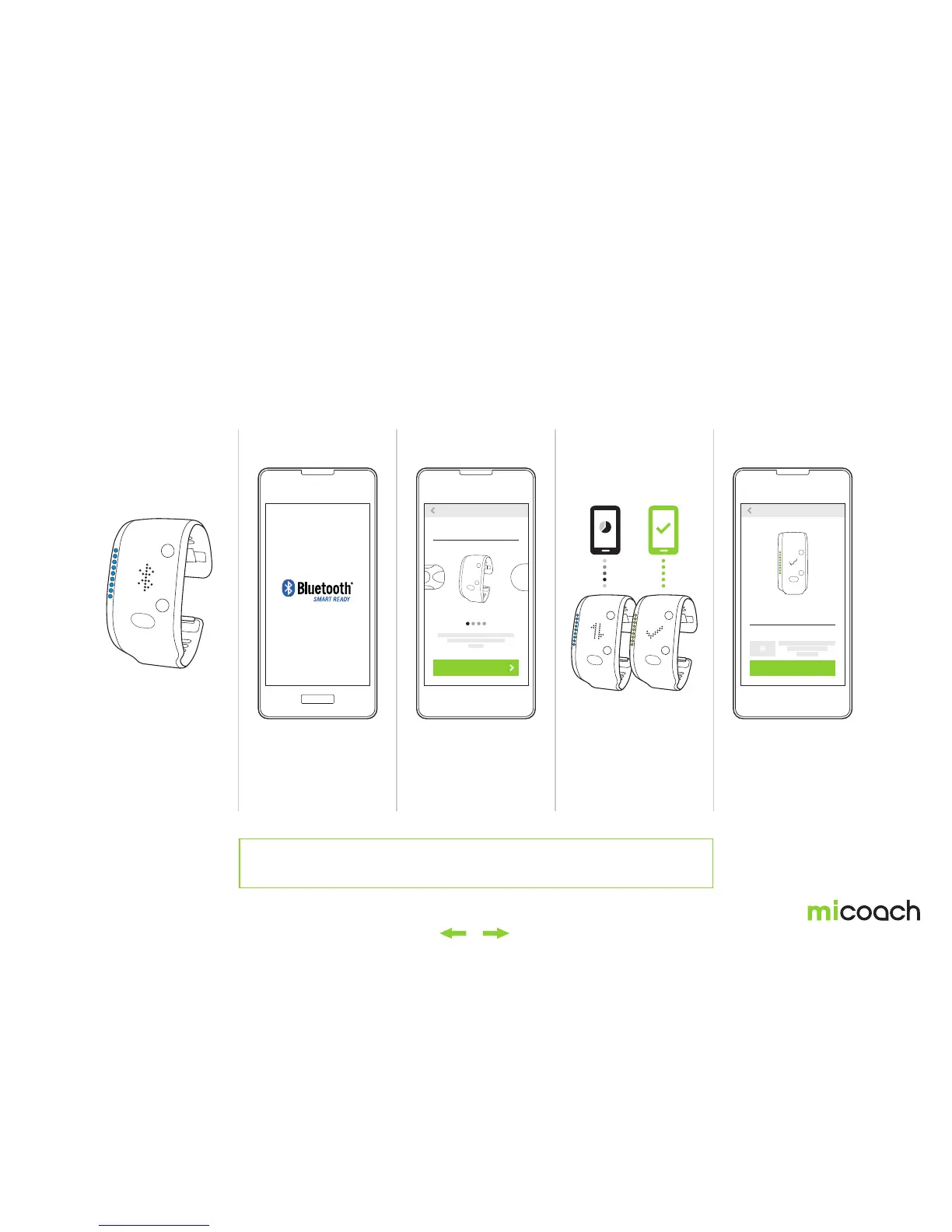
Manual paring involves putting the FITSMART into pairing mode and then adding it as a device to the train & run app. Use this pairing method if your FITSMART displays the
Bluetooth® pairing screen when first powered on.
1. Put FITSMART into
pairing mode
2. Enable Bluetooth® 3. Add FITSMART 5. Pairing and Sync
complete
4. Syncing
Sync in
progress
Sync
completed
Navigate to the pairing
menu and select ‘PAIR’.
To cancel, or back out of
pairing mode, press the
center button.
Turn on Bluetooth® in your
mobile device’s settings.
Open the miCoach train
& run app, and add FIT
SMART to the app under
devices.
Once paired, the app will
automatically sync with
your FITSMART.
Once the initial pairing
and syncing is complete,
your FIT SMART will
automatically sync when
on and in range of your
mobile phone.
ADD DEVICE FITSMART
SUCCESS!
Your FITSMART is paired and ready!
ADD DONE
Select Device
FITSMART
During synchronization, your mobile device may trigger a software update in case your FITSMART
doesn’t have the most recent version. When this happens, update to ensure you have the latest functions
and features. After the software update, your FITSMART will restart automatically.


 To Next Page