49
5. Your FITSMART settings
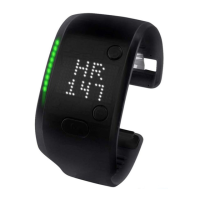
To configure the In-Workout display of your FITSMART, go to the Devices menu in
the miCoach train & run app, select your FITSMART, go to Settings, and tap “IN-
WORKOUT DISPLAY.” Here you can set how many metrics you want to see, how you
want to see them and whether or not you want to see metric names.
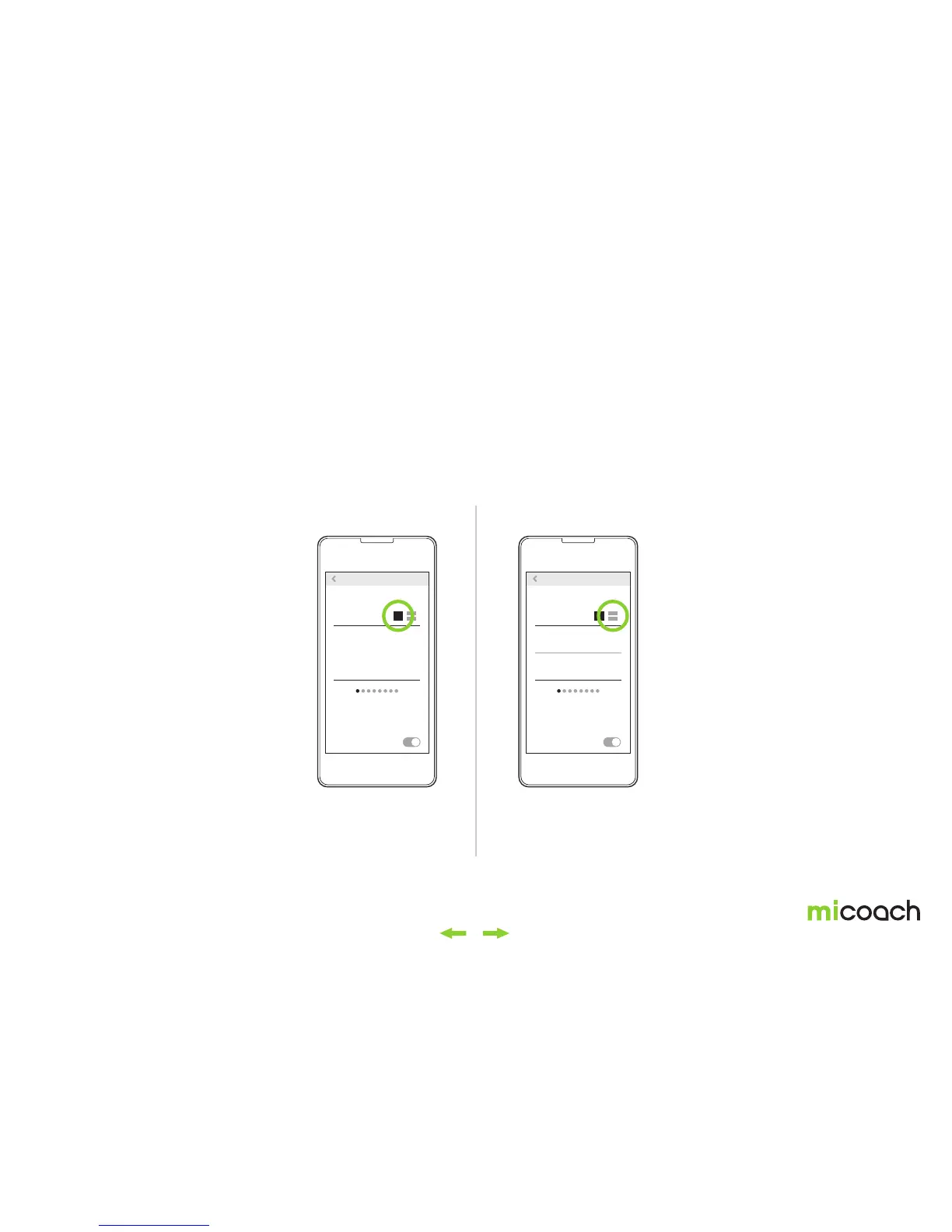
To set up your Stats screen on your FITSMART, you can choose either the single
or double metrics view. This specifies how many metrics you see on each screen
on your device. Next, you can choose the metrics you want to see on your device
in the order you want to see them by swiping through the different screens. To
change the unit of your metric, tap on the drop-down menu and choose your unit
preference.
Double metricsSingle metrics
Choose sets of two
metrics that you want to
see in the double metrics
view.
Choose the metrics that
you want to see in the
single metrics view.
SETTINGS
SHOW METRIC NAMES
SETTINGS
SHOW METRIC NAMES
WORKOUT TIME
WORKOUT TIME
HEART RATE
SCREEN 1
SCREEN LAYOUT
SCREEN 1
SCREEN LAYOUT
DISPLAY DISPLAY


 To Next Page