50
5.1 Auto Laps
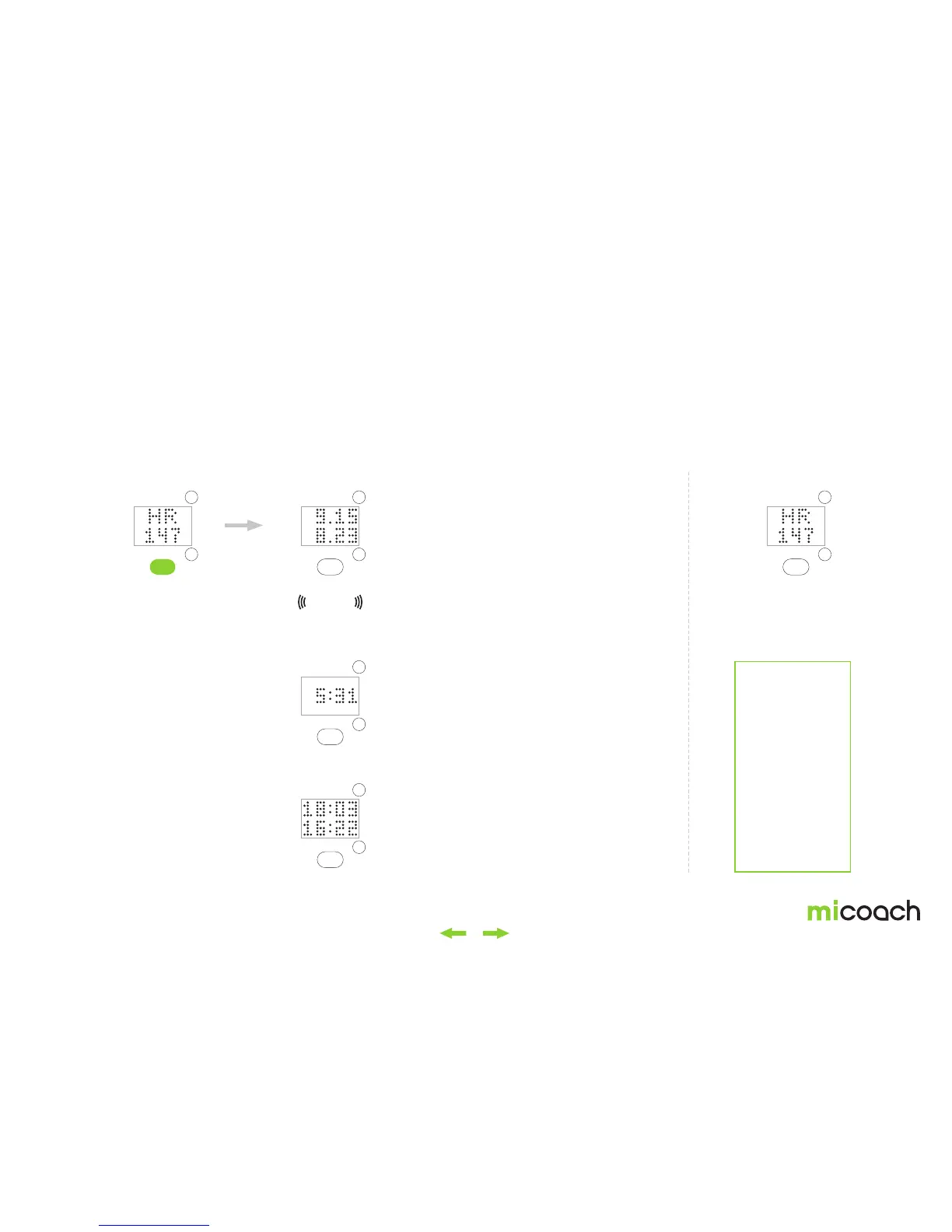
Auto Laps can be set based on time or distance. They need to be configured from the miCoach train & run app. Auto Laps and manual splits are two separate functions. For
information on setting manual splits, see section 3.2.8. When recording both manual splits and Auto Laps, Auto Laps will be tracked in the background and uploaded after a
workout with the workout file to your mobile device for review. Distance is the metric used to measure time-based laps/splits, and time is used to measure distance-based laps/
splits. All lap data needs to be synced to the app for review.
1. Workout screen 2a Lap view – time-based: distance
2b First lap view – Time-based: distance
2c Lap view – distance-based: time
3. Workout screen
Pressing the button once
creates a manual split
during a workout.
After 4 seconds, the view
goes back to workout
metrics.
Current lap distance
Shows distance for the most recent split.
Units are based on type set on Settings.
The split metric is placed on the first line.
Current split time
Shows the time of the most recent split.
Last lap distance
Shows distance for the previous split.
Last split time
Shows the time of the previous split.
Units are based on type set in Settings.
When you make a split for the first time,
Duration: 0.2s. Repeats: 1 time.
Vibration
Note:
If a lap is taken
during a coaching
prompt, the
coaching prompt
isn’t interrupted,
and the lap data
is shown after the
coaching prompt
has ended. In
case a lap collides
with a low battery
warning, the lap is
shown first and low
battery right after.


 To Next Page