4-16 ADS TRITON+ Manual
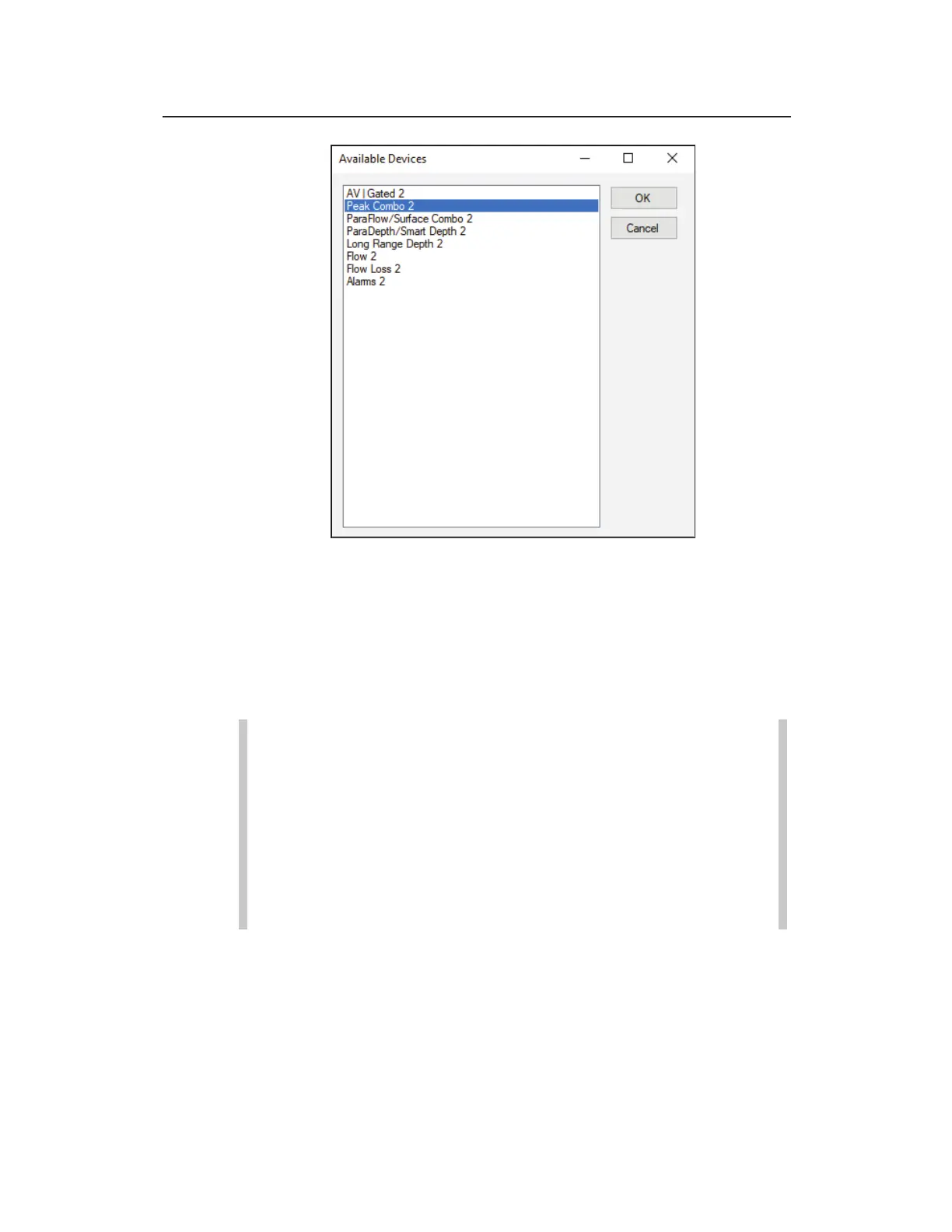
TRITON+ Monitoring Point 2 - Available Devices list
2. Select the devices that you want to assign to Monitoring Point
1. To select multiple devices simultaneously, press and hold
down the Control (Ctrl) key while selecting the individual
devices. To choose consecutive devices in the list, select the
first device you want to assign, press and hold down the Shift
key, and then click on the last device you want to include.
Note: Do not assign two devices of the same type to the
same monitoring point. When data collection occurs,
Qstart
XML
will overwrite the collected data from the first
device with the data from the second device of the same
type. This also will occur when collecting data using other
ADS software products. Therefore, assign only one of the
two devices (of the same type) to a single monitoring
point.
3. Click on the OK button.
4. Select a device in the Devices box, and click on the View
button.
The device dialog displays the default or existing parameters
for the selected device.



 To Next Page