Sensor Installation and Connection 5-97
Connecting the Sensors and Sampler
to the Monitor
After installing the ring and sensors and securing the sensor cables
to the pipe and manhole wall, connect the sensor cables to the
appropriate ports on the top of the monitor. The ports that receive
the sensors are labeled Channel 1 and Channel 2.
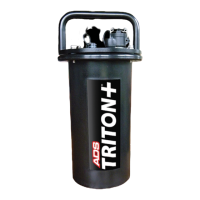
The TRITON+ supports the connection of two sensors in any
combination, including two of the same sensor type to the channel
ports. However, to simplify the installation and configuration
process, ADS recommends developing a system or convention to
ensure consistency when attaching the sensors to the channel ports
and assigning the corresponding channels to the sensor devices in
Qstart
XML
.
Establish a priority or order in which particular sensors are assigned
to a specific channel and, when applicable and possible, correspond
the channel number to the monitoring point. For example, consider
always assigning the AV|Gated Sensor to Channel 1 and the second
sensor to Channel 2.
The TRITON+ also enables the user to connect a water quality
sampler to the monitor for flow proportional or level-based
sampling operations. ADS offers three 25-foot (7.6-m) cable
options for connecting the sampler to the monitor based on the type
of sampling. The No Pre-Wired Connector option can allow for
other types of applications, such as triggering a camera.
z No Pre-Wired Connector (ADS p/n 8000-0348) on application
(non-monitor) end of the cable
z Flow Proportional (ADS p/n 8000-0348-01)
z Level Actuation (ADS p/n 8000-0348-02)
Note: For more information on Sampler Cable
connections and specifications, see Appendix E.
Note: A converter may be necessary to attach the sampler
cable to the monitor.
Connect the sensor and sampler (when applicable) cables to the
monitor ports in the following way:


 To Next Page