Getting to know your telephone
8AL91446ENAA ed02 26 /113
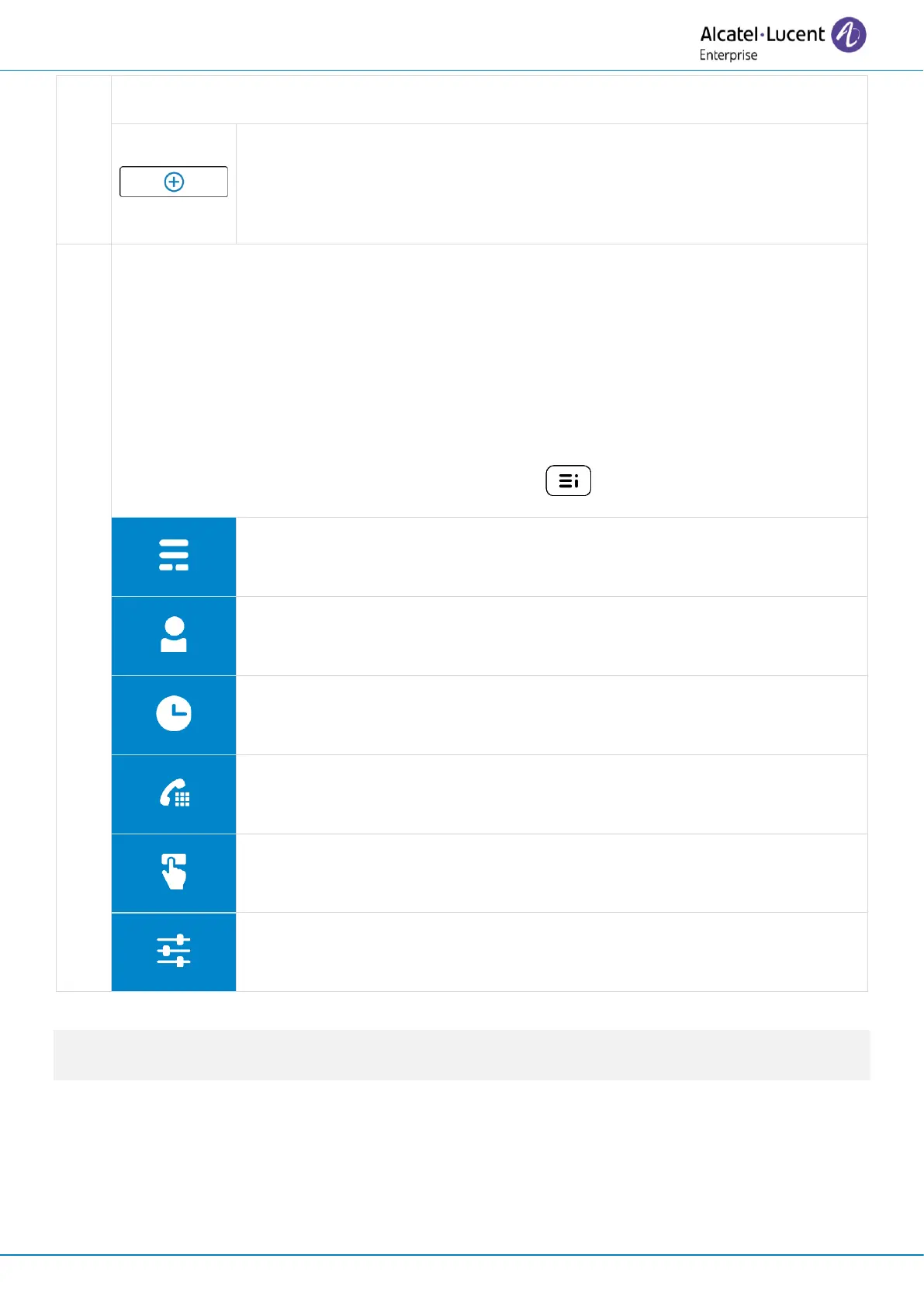
The first programmable keys of the virtual add-on are shown on the
dashboard. The number of programmable keys displayed on the
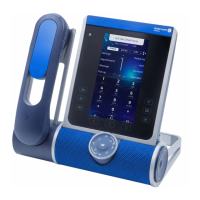
dashboard will depend on your desk phone model (ALE-500: 6, ALE-400: 4,
ALE-300: 2).
App bar
Depending on your desk phone, the app bar is displayed on the homepage (at the bottom
of the screen for the ALE-500 at the left of the screen for the ALE-400). The App bar
enhances user navigation and improves usability by offering convenient and easily
accessible controls. It provides quick access to various features: Dashboard, Call Routing,
Contacts, Call logs, User keys, Settings, Search. All features of the app bar are detailed in
this user manual.
You can also use the user local menu key to open it: .
Dashboard
Display your dashboard.
Contact
Display your personal directory.
Call log
Display your entire call history sorted by timestamp.
Dial pad (only available on the ALE-500)
Open the dialpad.
Prog keys
Open virtual add-on with programmed keys .
Settings
Open the desk phone settings.
The default homepage is the dashboard,but you can choose another page in the settings (call log,
contacts or programmable keys).


 To Next Page