14
-EN
Sound Settings
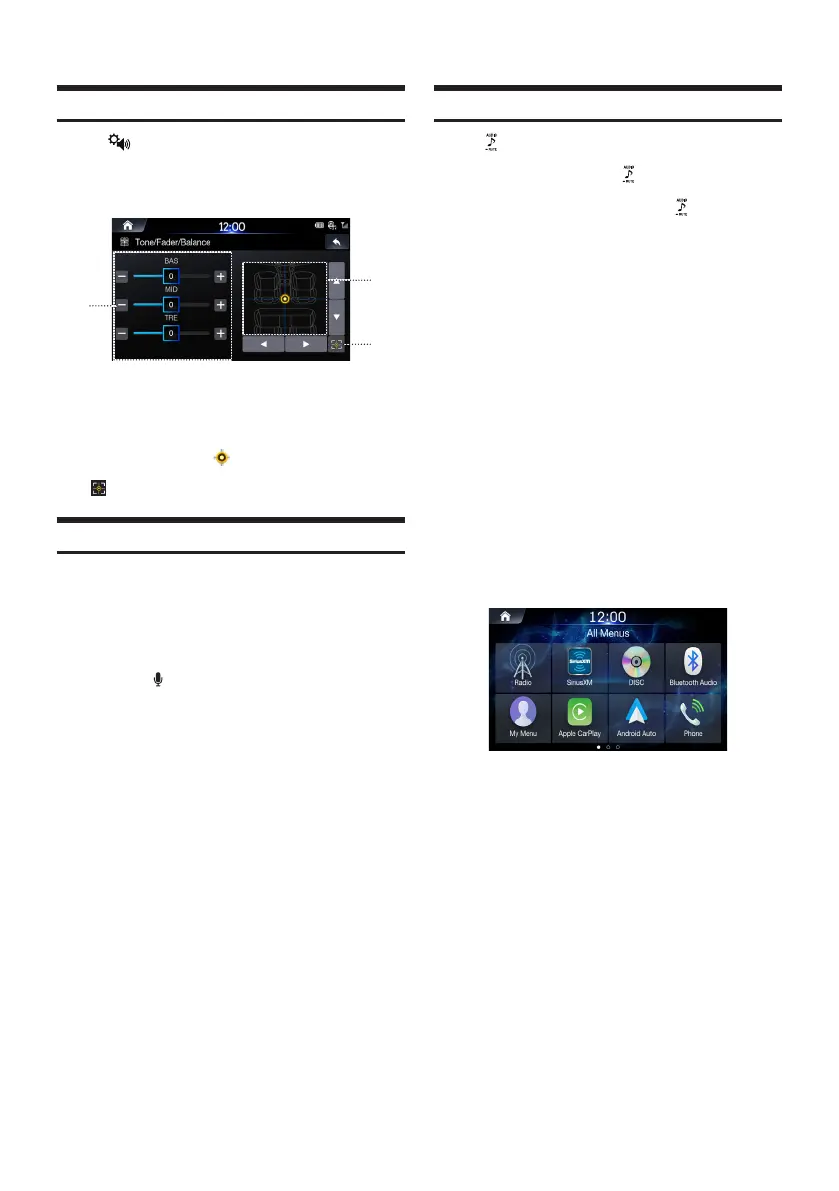
Press the (Sound Settings) button to adjust sounds.
The Tone/Fader/Balance settings screen will be displayed.
①
②
③
〇①〇
Buttons for Tone Level
〇②〇
Balance/Fader Area
〇③〇
Button for Center Position
Use the +, -,
▲
,
▼
,
◀
,
▶
, and buttons to adjust settings.
Touch to restore sound to the Center position.
Voice Recognition
You can use the Siri or Google Assistant voice function of your
iPhone/Android phone.
Connect your phone and activate Apple CarPlay
or Android Auto.
Press the Voice button to start voice
recognition.
Say the command.
Switching Sources
Press the (AUDIO) button to change the source.
Switching Sources Using the AUDIO button
During audio/visual playback, press the (AUDIO) button
repeatedly to switch to the desired source.
Radio
→
USB Music
→
USB Video
→
AUX
→
HDMI
→
Disc
→
Bluetooth Audio
→
Radio
*1 When no USB flash drive/iPod/HDMI device/Smartphone/Bluetooth
compatible device is connected, USB Music will be skipped.
*2 The name of the HDMI or AUX device will be displayed.
*3 When AUX is set to “Off,” USB Music will be skipped.
*4 Available when Apple CarPlay is used/Android smartphone which
installed Android Auto App is connected.
To play Apple CarPlay music shall impact iPod source when an
iPhone 5 or later is connected and vice versa. Refer to “Setting
Apple CarPlay”.
Switching Sources from the All Menus Screen
Press the All Menus button.
The menu screen is displayed.
• You can also display the menu screen by touching [All
Menus] on home screen.
Touch your desired media source.









 To Next Page