84
-EN
■
Turning Guideline Display On/Off
1. Select the guideline.
2. Touch [On/Off].
The currently selected guide will turn off.
3. To turn the guideline on, touch [On/Off] again.
• Guidelines that are turned off are still adjustable.
■
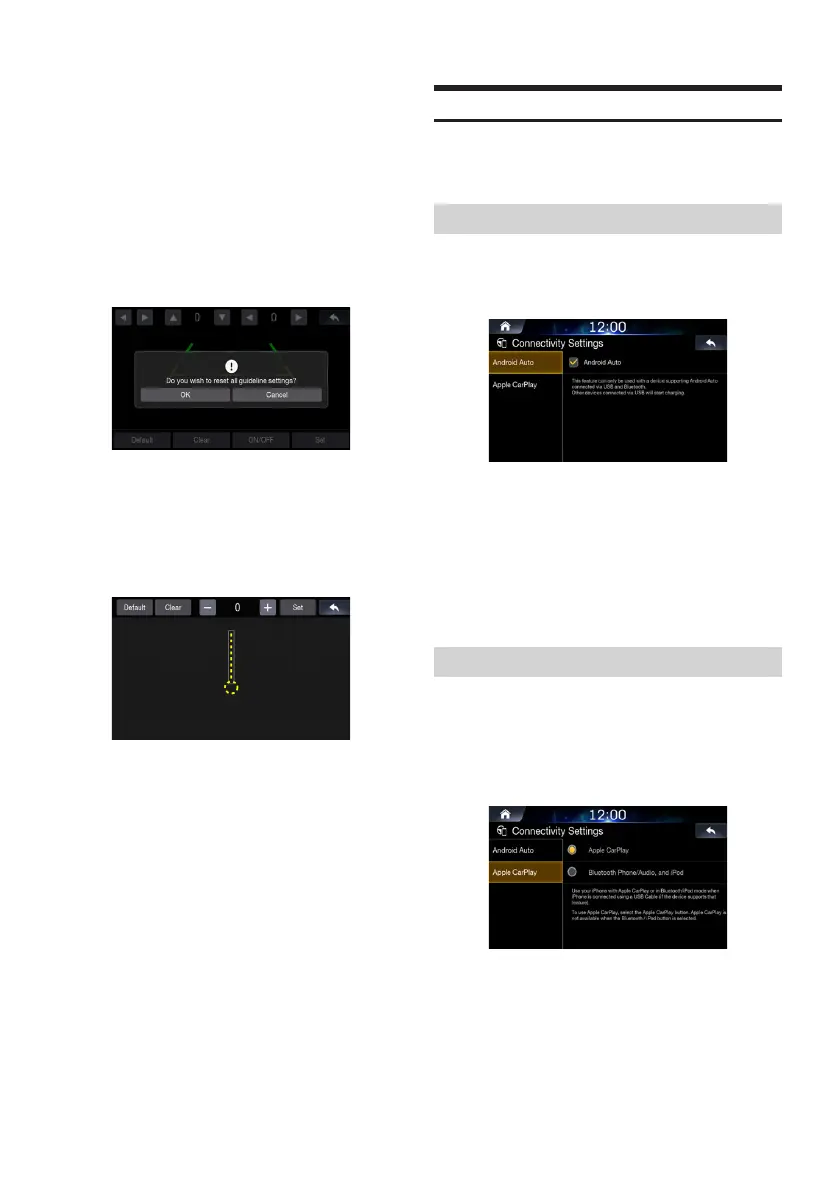
Returning Guideline to Default
1. Touch [Default]
2. Touch [OK].
Adjusted values will return to default settings
■
Setting Hitch Guideline
1. In the Camera Settings screen, touch [Hitch Guideline
Adjustment].
2. Touch the guideline you intend to adjust.
Guideline can also be selected by touching [
▲
,
▼
].
3. Touch [
+
,
-
] to adjust the position of the guideline.
4. After the adjustment is completed, touch [Set].
Connectivity Settings
This menu allows you to set the car connectivity of your system.
In the Setup screen, touch [Connectivity].
Setting Android Auto
In the Connectivity Settings screen, touch
[Android Auto].
Check to use your Android phone with Android
Auto.
If Android Auto is checked, you can use the functions of your Android
phone with a USB cable and Bluetooth connected. It enables the
Android Auto functions.
• While Android Auto is running, you cannot use Bluetooth Audio.
Setting Apple CarPlay
This menu allows you to set connectivity When iPhone is connected
using a USB cable.
In the Connectivity Settings screen,
touch [Apple CarPlay].
Select the desired option.
• Apple CarPlay: uses your iPhone with Apple CarPlay
• Bluetooth Phone/Audio and iPod: uses your iPhone in
Bluetooth/iPod mode.
• This setting is invalid for music playing of iPhone 4S and iPod.







 To Next Page