6 SOFTWARE UPGRADE THROUGH WEB-ADMIN AND CUSTOMIZATION
The firmware can be upgraded by selecting Firmware Update under the field of
Administrations in the menu bar respectively. The firmware also allow user to upload a
customized logo and configuration profile. Please note that the connection link should be
maintained during file transfer to prevent interruption to the system.
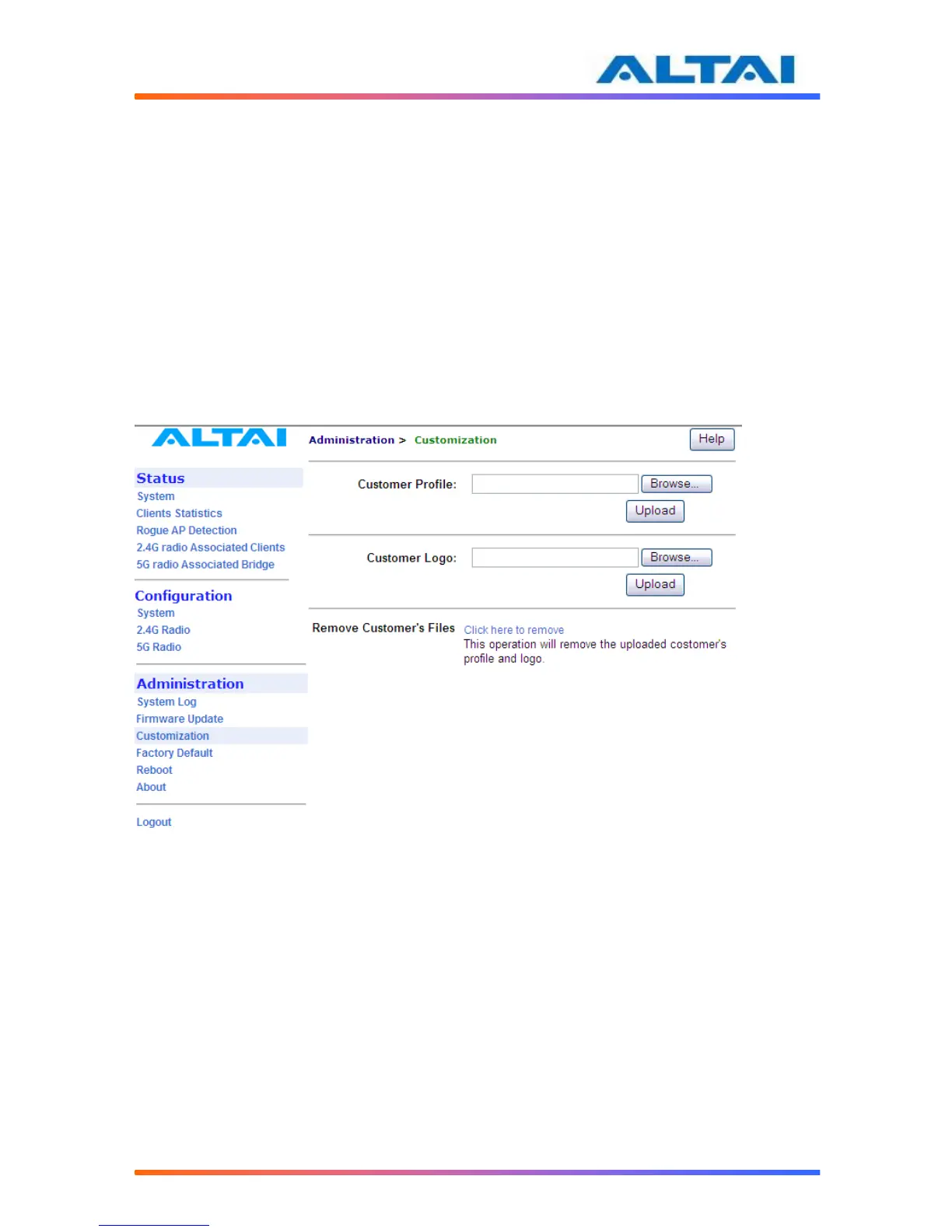
6.1 CUSTOMIZATION PROFILE AND LOGO
User can request a sample of pre-configured profile from Altai Technologies Technical Support
Team and modify the parameters if he or she wishes to, then upload the configuration profile
and reboot the AP. Take same procedures apply to a customized logo as well. If user wants to
reset it to factory default configuration, remove both logo and profile in the same page. Refer to
Figure 374.
Figure 38 Customization
6.2 FIRMWARE UPDATE THROUGH HTTP OR HTTPS
Follow the steps below to perform the Firmware Update with a firmware image file (.bin) in
local directory through HTTP or HTTPS.
1. Click the Browse… bottom to bring up a file chooser dialog which you can specify the
name and location of the firmware image you want to import see Figure 395.
2. Click the Update Firmware bottom to start uploading the new firmware from the local
directory, see Figure 406.
3. If the firmware upgrade is successful, a window will appear as Figure 417. A2 will
reboot automatically.
4. Type in URL with https://<ip address of A2>, note ‘http’ cannot link to the web admin
of A2 under the new firmware version.


 To Next Page