Configuring Communication
29
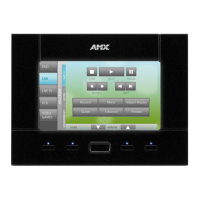
NXD-500i 5" Modero Wall/Flush Mount Touch Panel with Intercom
Step 3: Configure an Ethernet Connection Type
When using Ethernet as the selected communication method, the NetLinx Master must first be set up with either a Static
IP or DHCP Address obtained from either NetLinx Studio or your System Administrator.
Before beginning:
1. Verify that the panel has been configured to communicate through an Ethernet cable connected from the panel to a
valid Ethernet Hub.
2. Verify that the NetLinx Master is receiving power and is communicating via an Ethernet connection with the PC
running NetLinx Studio.
3. Verify that the green Ethernet LED on the rear Ethernet port on the Master is illuminated, indicating a proper
connection.
4. Verify that the yellow LED on the rear Ethernet port on the Master is blinking, indicating communication with the
device.
5. After the panel powers-up, press and hold the Front Setup Access button for 3 seconds to proceed to the Setup
page.
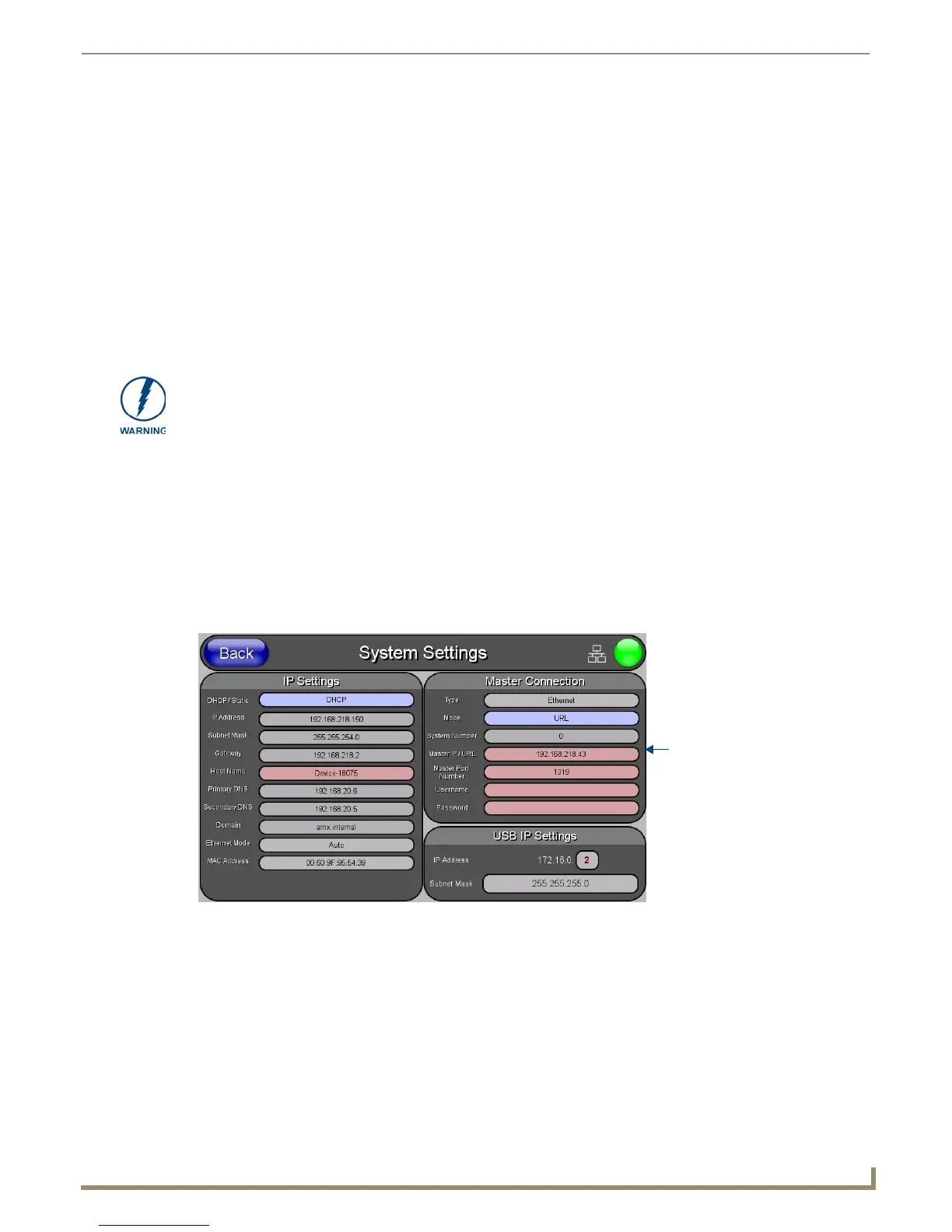
6. Select Protected Setup > System Settings (located on the lower-left) to open the System Settings page (FIG. 26).
Master Connection Section - Virtual Master communication over Ethernet
When configuring the panel to communicate with a Virtual Master (on your PC) via Ethernet, the Master IP/URL field
must be configured to match the IP Address of the PC. Make sure to use the Virtual System value assigned to the Virtual
Master within NetLinx Studio.
Before beginning:
1. Verify that the panel has been configured to communicate through an Ethernet cable connected from the panel to a
valid Ethernet Hub.
2. Launch NetLinx Studio (default location is Start > Programs > AMX Control Disc > NetLinx Studio).
• AUTO is used to instruct the Modero to search for a Master that uses the same System Number
(assigned within the Master Connection section) and resides on the same Subnet as itself. In this case,
the Master has its UDP feature enabled.
This UDP (User Datagram Protocol) is a protocol within the TCP/IP protocol suite that is used in place
of TCP when a reliable delivery is not required. This UDP enabling is done through a Telnet session on
the Master. Refer to the installation manual for the particular NetLinx Master for more detailed
information.
Before commencing, verify that the NetLinx Master is using the latest available
version of its firmware.
FIG. 26 System Connection page
Obtained from
NetLinx Master


 To Next Page
 Loading...