User Manual
Ascom Myco Smartphone
Basics
• Tap and hold a letter to select an alternate character from the pop-up menu.
• Tap the Shift, ?123, or =\<-buttons to change to uppercase, number, or special character entry modes.
Edit Text
Do the following to edit text:
1. Tap and hold the text to enter the text selection mode. The text editing tools appear in the application
bar at the top of the screen, see Figure 6. The text editing tools in the application bar, page 17.
2. Drag the selection handles left, or right to select more, or less text.
3. Tap the respective icon in the application bar to select all, cut, copy, or paste text.
Figure 6. The text editing tools in the application bar
4.7 The User Interface
With the handset user interface you can access functionality such as alert handling, messaging, and apps. It
replaces the standard Android user interface, while still providing access to Android functionality.
The user interface is divided into three separate views. To change view, swipe left, or right, or tap one of
the icons in the upper left, or upper right corners of the screen (
, , or ).
• Alert view
: Respond, and get complete information on alerts, see 4.7.1 Alert View, page 17 .
• App view
: View apps, see 4.7.2 App View, page 18.
• Conversation view
: Send and receive messages, see 4.7.3 Conversation View, page 19.
4.7.1 Alert View
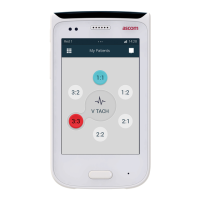
The Alert view is the default view in the user interface. Here you get complete information on alerts, and
can respond to them.
• Press the Home button to return to the Alert view.
Figure 7. Alert view
TD 93066EN / 14 December 2018 / Ver. N
17



 To Next Page