Basics
User Manual
Ascom Myco Smartphone
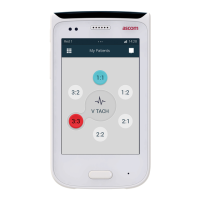
Figure 16. Login reminder on a locked and unlocked screen
To Log In from a Locked Handset
• Double tap on the login reminder.
• Depending on configuration, PIN or password can be required to unlock the handset.
• Continue with step 4-6 in 4.12.1 Log In, page 25.
To Log In from an Unlocked Handset
• Tap on the login reminder.
• Continue with step 4-6 in 4.12.1 Log In, page 25.
4.12.3 Log Out
TIP: The handset can be configured to automatically log out when placed in a Charging Rack, see the
Configuration Manual, Ascom Myco Smartphone.
To log out and restrict access to the alert, messaging, and My Services functionality:
1. Swipe down from the top of the screen to open the notification drawer (see 11.7 Notification Drawer,
page 73). Tap theTap to change status or log out.
28 TD 93066EN / 14 December 2018 / Ver. N



 To Next Page