Notifications
User Manual
Ascom Myco Smartphone
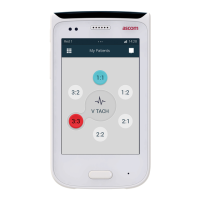
Notifications with system dependent information can be shown in the dedicated area on the lock
screen above standard notifications. These notifications are provided by the system and cannot be
removed
1
1. This only applies to the Ascom Myco 2 handset used in DECT environment.
Figure 55. Lock screen notifications
Depending on configuration, the amount of shown content of the notifications on the lock screen can be set
to:
• Show all notification content – Notifications and all of their content are shown on the lock screen.
• Show all notifications but hide sensitive content – Notifications are shown on the lock screen, but the
content is hidden so that only the name of the source of the notification is shown. For example, “Myco
Launcher – Contents hidden” is shown for all alerts.
• Do not show notifications – Notifications are not shown on the lock screen, but are still indicated with
sound and vibration from the handset.
See to the Configuration Manual, Ascom Myco Smartphone for instructions on how to configure the notifica-
tions on the lock screen.
11.4.1 Interacting with Notifications on the Lock Screen
Open a Message or Alert
To open a notification directly from the lock screen, do the following:
1. Tap a notification to highlight it, then immediately tap the notification again to open it. If screen lock is
enabled, you will be prompted for the code to unlock the handset.
2. You are now taken straight to the message/alert that prompted the notification.
Interact with a Message or Alert Directly on the Lock Screen
Tap and hold on a notification and swipe downwards to reveal different ways to interact with the notification.
In the example below, this will reveal the options Accept and Busy. The handset does not have to be
unlocked to access these options.
70 TD 93066EN / 14 December 2018 / Ver. N



 To Next Page