Basics
User Manual
Ascom Myco Smartphone
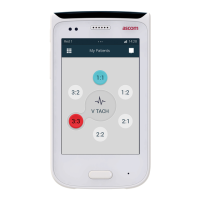
Figure 10. Shortcut drawer containing four apps
Reveal the Shortcut Drawer
On an unlocked handset, the shortcut drawer can be accessed from anywhere in the user interface except
for when the notification drawer, see 11.7 Notification Drawer, page 73, is revealed.
To reveal the shortcut drawer:
• Swipe up from the middle and bottom of the screen (above the home button)
When pressing the home button on an unlocked screen, half of the shortcut drawer pops up from
the bottom of the screen before it slides down again.
Hide the Shortcut Drawer
A revealed shortcut drawer is automatically hidden after four seconds of no interaction.
To manually hide the shortcut drawer, do one of the following:
• Swipe down anywhere on the screen.
• Tap anywhere on the screen except for on the shortcut drawer.
• Press the home button (this directs the user to the Alert view).
• Press the back button.
The shortcut drawer is hidden during an incoming call. It is still possible to swipe up from the
middle and bottom of the screen to reveal the shortcut drawer again.
4.8 Use Apps
App Navigation with Back and Overview Buttons
15
The Back and Overview hardware buttons, right below the screen, provide functionality for navigating in, or
switching between, apps.
•
: Returns to the previous screen within an app, or close the app.
•
: Opens a list of recently used apps. Tap to switch to an app. Remove an app by swiping left, or right.
20 TD 93066EN / 14 December 2018 / Ver. N
15. Only available for Ascom Myco 2.



 To Next Page