Page 39
Production Programming
Settings
If you want to perfectly verify your production to make
sure that the device is correctly programmed, you can
use the Program settings ➙ Programming ➙ Verify
with two supply voltages option and to apply the
lowest and the highest voltage allowed for the device as
the limits. Some manufacturers recommend this option
for the production programming. However, it is only
available if the application is supplied with power from
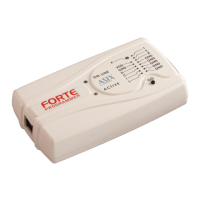
FORTE.
Program settings ➙ Panels ➙ Show mass production
counter in status bar could be a useful tool visibly
monitoring numbers of successfully and unsuccessfully
programmed devices. The counter can be reset in Device
➙ Program ➙ Mass production ➙ Counter reset.
Program settings ➙ Serial numbers ➙ Log to file can
be used as another convenient assistant. With this option
selected, information on the programming progress of
individual devices gets recorded (logged) in a selected
file.
If you wish to automatically include the serial number
during production programming, you have a great range
of possibilities concerning what the number should look
like and where it should be positioned in the memory. All
serial number settings can be found on the Serial
numbers tab.
For further information on serial numbers see Serial
Numbers.
Settings for Programming
During Development
If you are frequently changing the content of the
programming data such as during application
development, for example, you can simplify your work by
using the GO button, which typically serves for
programming and verification of the whole memory
content. The function of this button is programmable and
can be set up under the Options ➙ Key shortcuts menu
in the GO button section.
The use of the GO button for programming should be
accompanied by Options ➙ Program settings ➙
Programming ➙ Reload file before every
programming option.
Options ➙ Program settings ➙ Programming ➙ Keep
manually modified data causes that manually modified
data are not rewritten using the automatical file reload
before programming.
Options ➙ Program settings ➙ Programming ➙ Warn
before file load, when data in some editor have
been changed causes that a warning appears if data
have been changed in any editors and automatic file
reloading option is set.
Options ➙ Program settings ➙ Programming ➙
Warn, when the loaded file has not changed causes
that a warning appears if the file loaded before
programming has not changed.
The following option can also be useful: Program
settings ➙ Programming ➙ After programming:
Close status window if there is no error.
There are special cases when developers do not have the
device's voltage supply pin available in an application
powered by an external source. In order to feed the
programmer's output circuits, power supply from the
programmer must be switched on in such a case and its
voltage set at the same value as used in the application.
Yet as some voltage still “sneaks” into the programmer
from the application through the programming pins, the
programmer “sees” that there is some voltage present
and refuses to activate its own output voltage. For such a
case the following option is available: Program settings
➙ Others ➙ Allow internal and external supply
voltages collision.
WARNING: Activating this option in other situations
could damage the programmer!


 To Next Page