Page 48
such a file opens as well.
File ➙ Save project...
Keyboard shortcut: Shift+Ctrl+S
Using the Windows standard dialog, the program saves
the current project under a new name. Saving of the
project under the same name is done automatically as
well as saving the program settings, for example.
File ➙ Close project
Keyboard shortcut: Shift+Ctrl+W
The program terminates the work with the currently open
project, saves the project file on the disc and returns to
the state in which it was before the new project was
opened.
File ➙ Recent projects
This function remembers the last 10 opened projects.
Clicking the name of one of them opens the project.
File ➙ Read calibration data...
Using the Windows standard dialog, the program opens a
file with the calibration data and loads the data in the
memory.
File ➙ Save calibration data...
Using the Windows standard dialog, the program creates
a file with the device's calibration data previously read
from the device connected to the programmer. This
calibration data can be reloaded using Read calibration
data if the device gets erased in the meantime.
For further information on the program's support of work
with the calibration memory see Calibration Memory
Support.
File ➙ Export to bin...
This command saves binary data from the code/main
memory, from the data memory or from ID positions in a
selected file.
16 or 8 bits word width can be selected for the data to be
saved.
File ➙ Exit
Standard Windows keyboard shortcut: Alt+F4
Keyboard shortcut: Alt+X
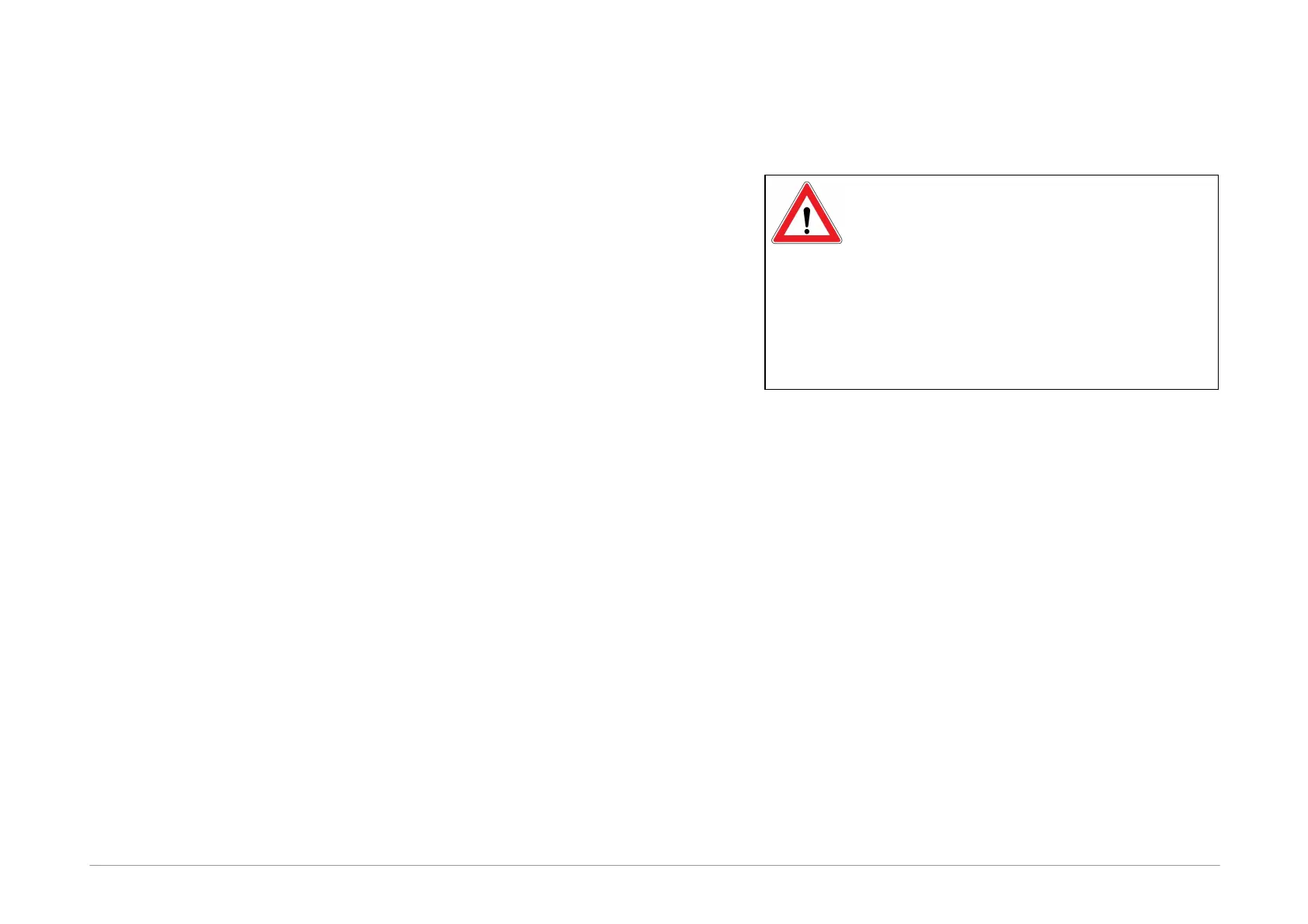
Warning
If closing of the program is forced by the Turn
Computer Off command and the program
does not receive the user's confirmation, the
system closes it forcibly after some time
without saving the open file or settings.
If the program is currently working with the
hardware, it refuses all system's requests to
turn off and can be seen as “not responding”
by the system.
This command closes the program. If the open file has
changed, the program prompts the user to save the
changes.
Edit Menu
Edit ➙ Fill with value...
The program fills a memory location with a specified
value. This command is used especially for erasing (filling
with ones) or zeroing (filling with zeros) a particular
location. Yet it can be filled with any value or with random
data.
When the Fill with value... command is called, the
program presets the selected memory according to the
active window. If a memory location was highlighted
before calling this command, the program presets the
marked location for filling in.
A memory location can be selected by holding the Shift
key and clicking by mouse or moving by means of the
cursor keys (arrows). For further information on
highlighting a location see HEX Editor Windows.


 To Next Page