EasyManua.ls Logo

AudioCodes 405HD - User Manual

AudioCodes 405HD
102 pages
Print Icon
To Next Page IconTo Next Page
Loading...
AudioCodes 400HD Series of High Definition IP Phones
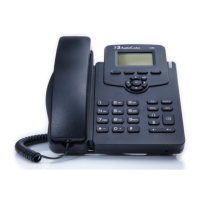
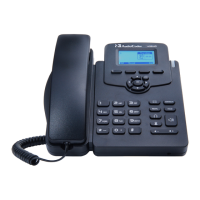
HD VoIP 405HD IP Phone
User’s Manual
405HD IP Phone for Microsoft
®
Skype
for Business
Version 3.0.1

Table of Contents

Other manuals for AudioCodes 405HD

Questions and Answers

  • L
    Laurie FriedmanAug 19, 2025
    What to do if AudioCodes 405HD IP Phone becomes unusable after power failure during firmware upgrade?
    • A
      aaron51Aug 19, 2025
      If your AudioCodes IP Phone becomes unusable because it was powered off during a firmware upgrade, you can recover the firmware. Ensure your DHCP server supports Options 66 (TFTP server address) and 67 (firmware file) and that these options are configurable. Verify that the TFTP server is running and the firmware file for recovery is in the correct location before connecting the phone. Connect the phone to the IP network, and then to the power outlet. The phone will send a TFTP request to the IP address indicated in DHCP Option 66 to retrieve the firmware file indicated in DHCP Option 67. After the firmware upgrade completes, the phone should boot up successfully.
  • J
    Jennifer SpearsAug 21, 2025
    What to do if AudioCodes 405HD shows 'Failed to validate certificate' or 'Failed to obtain user certificate'?
    • M
      Mrs. Cynthia WestAug 21, 2025
      If your AudioCodes IP Phone displays a certificate error, first ensure that DHCP Option 43, sub-option 5, is enabled on your DHCP server. Also, verify you can access the Skype for Business Web service URL: https://lyncsvrWebPoolFQDN:443/CertProv/CertProvisioningService.svc. Finally, check that querying the LDAP server (_ldap._tcp.) is enabled to obtain the root certificate.
  • A
    Alex AustinAug 23, 2025
    What to do if AudioCodes IP Phone shows 'PIN invalid phone info'?
    • V
      vsandersAug 23, 2025
      If your AudioCodes IP Phone displays this notification, ensure the information entered on the phone screen and in the Skype for Business server interface is correct and matches. Also, verify in the Skype for Business server interface that the PIN is enabled; if not, enable it.
  • M
    Michael ComptonAug 26, 2025
    How to fix 'Cannot find SIP server' error on AudioCodes 405HD IP Phone?
    • J
      Jonathan WilliamsAug 26, 2025
      If your AudioCodes IP Phone can't find the SIP server, make sure at least one of the following is enabled in the DNS server: _sipinternaltls._tcp. (for TLS), DHCP results (Option 120) (for TLS), _sipinternal._tcp. (for TCP), DHCP results (Option 120) (for TCP), _sip._tls. (for TLS), or _sip._tcp. (for TCP).
  • M
    Michael VazquezAug 28, 2025
    What to do if AudioCodes IP Phone shows 'PIN not set'?
    • J
      Jorge LawrenceAug 28, 2025
      If your AudioCodes IP Phone shows 'PIN not set', make sure a PIN was configured for the user account in the Skype for Business server interface. If not, create a PIN for the account.
  • F
    Frank PriceAug 30, 2025
    How to fix AudioCodes IP Phone if it is not initializing?
    • A
      Amanda NelsonAug 30, 2025
      If your AudioCodes IP Phone is not initializing, make sure DHCP is enabled.
  • C
    Chris StokesSep 1, 2025
    What to do if AudioCodes 405HD shows 'PIN expired'?
    • J
      Jo MoralesSep 1, 2025
      If your AudioCodes IP Phone displays 'PIN expired', renew the PIN expiration policy in the Skype for Business server interface.
  • C
    Christopher OliverSep 3, 2025
    What to do if AudioCodes 405HD shows 'PIN account disabled'?
    • M
      Mary HenrySep 3, 2025
      If your AudioCodes IP Phone displays 'PIN account disabled', make sure the account is enabled in the Skype for Business server interface. If it isn't, enable it.
  • R
    Rebecca MillerSep 5, 2025
    What to do if AudioCodes 405HD displays 'Duplicate IP'?
    • A
      Abigail FrazierSep 5, 2025
      If your AudioCodes IP Phone displays a 'Duplicate IP' message, delete the duplicate IP address in the DHCP server and request another one.
  • A
    Anne WilsonSep 7, 2025
    What to do if AudioCodes 405HD shows 'Location look-up failed'?
    • M
      Marcia FordSep 8, 2025
      If your AudioCodes IP Phone displays 'Location look-up failed', ensure that 'Location look up' is configured by the management shell in the Skype for Business server.

Summary

Introducing the 405 HD IP Phone

About AudioCodes Series of High Definition IP Phones

Overview of AudioCodes' High Definition IP Phone series and its market positioning for IP Telephony.

Cutting Edge Voice Quality & HD VoIP

Details on the phone's advanced software, wideband coders, and HD VoIP features for enhanced call quality.

Setting up the Phone

Unpacking

Instructions for unpacking the phone and verifying all components are present and undamaged.

Device Description

Identifies and describes the phone's hardware functions, including front and rear views.

Cabling

Step-by-step instructions for connecting the phone's cables for power and network.

Mounting the Phone

Guidance on how to mount the phone on a desk or a wall.

Getting Started

Getting Acquainted with the Phone Screen

Explains the phone's screen layout and key elements in idle state.

Softkeys

Details the function and usage of the softkeys available on the phone interface.

Navigating the Phone Menu

Describes how to navigate through the phone's menu structure for settings and information.

Displayed Messages

Lists and explains various messages displayed on the phone screen during operation.

Signing In

Signing in with PIN Code

Step-by-step guide to signing into the phone using a PIN code.

Signing in with User Name and Password

Instructions for signing into the phone using username and password credentials.

Signing in with the Cloud PBX Web Option

Explains how to sign in using the Cloud PBX Web option for device pairing.

Switching from Letters to Numbers;Symbols

Guide on how to switch between alphabet, number, and symbol input modes on the keypad.

Signing Out

Procedure for signing out of the phone session.

Signing out when the Sign out Softkey is Removed from the Screen

Method to sign out using the Web interface when the softkey is not visible.

Unlocking a Locked Phone

Customizing the Phone

Changing the Screen Language

How to change the phone's display language from the default English.

Selecting Ring Tone

Steps to choose a ring tone from the available options to indicate incoming calls.

Enabling Call Waiting

Instructions to enable or disable the call waiting feature on the phone.

Managing Simultaneous Incoming Calls

How the phone displays and handles multiple incoming calls concurrently.

Defining Call Forwarding

How to configure automatic call forwarding to another number or voicemail.

Setting Date and Time

Steps to configure the phone's date and time settings, including timezone.

Changing Screens Contrast Level

How to adjust the screen's contrast level for better visibility.

Defining Screens Backlight Timeout

Setting the duration for which the phone's backlight remains active when idle.

Selecting an Answering Device

Choosing the default audio device (speaker or headset) for calls.

Defining Location

Manual setting of the geographical location for emergency call identification.

Defining an Outbound Proxy

Configuring the Outbound Proxy address for hosted LHP environments.

Adjusting Volume

Covers Ring, Tones, Handset, Speaker, and Headset volume adjustments.

Managing Phone Directories

Covers managing contacts in Favorites, Corporate, Personal, and Outlook directories.

Searching for a Contact in the Corporate Directory using T9

Using T9 for efficient searching of contacts within the corporate directory.

Defining a Speed Dial

Steps to define phone keys as speed dials for quick calling.

Defining Phone Keys as Paging Dials

Configuring phone keys for group paging functionality.

Changing your Presence Status

How to set and change your presence status (Available, Busy, etc.) on the phone.

Viewing Microsoft Exchange Calendar in the Phone Screen

Displaying Microsoft Exchange calendar items directly on the phone screen.

Receiving Meeting Reminders

How the phone displays reminders for scheduled meetings.

Performing Basic Operations

Using Audio Devices

How to use the handset, speaker, or headset for calls.

Making Calls

Covers Dialing, Redialing, and Dialing a Missed Call methods.

Answering Calls

Procedures for answering incoming calls using different audio devices.

Rejecting Incoming Calls

How to reject an incoming call.

Silencing Incoming Calls

How to silence the ringing of an incoming call without answering.

Making a New Call Even Though a Call is Coming in

How to initiate a new call while an incoming call is present.

Ending an Established Call

Methods to terminate an active call.

Viewing Missed, Received and Dialed Calls

Accessing the call history log for missed, received, and dialed calls.

Performing Advanced Operations

Answering Waiting Calls

How to accept a call when another call is already active.

Placing a Call On Hold

Steps to put an active call on hold.

Handling Multiple Incoming Calls

Managing several simultaneous incoming calls.

Calling a Contact from Favorites

How to call contacts listed in the 'Favorites' directory.

Using a Speed Dial to Place a Call

How to use a pre-defined speed dial to initiate a call.

Transferring Calls

Covers Blind, Consultative, Semi-Consultative, and Merging call transfers.

Parking a Call

How to place a call in a 'parking lot' for later retrieval.

Configuring Group Call Pickup (GCP)

Setting up the Group Call Pickup feature for answering calls for other users.

Initiating a Multi-Party Skype for Business Remote Conference

How to start a conference call with multiple participants.

Muting Calls

How to mute the microphone during a call or conference.

Paging

Covers performing outgoing and receiving incoming paging calls.

Setting up Better Together over Ethernet (BToE)

Covers installation, configuration, pairing, and initial setup of the BToE feature.

Using BToE Functions

Covers signing in, making calls, and call actions via BToE integration.

Switching Primary Audio Device

How to switch the primary audio device between phone, headset, or speaker.

Routing Voice from a Video Call to the Phone

How to route voice from a video call to the phone.

Viewing and Playing Voicemail Messages

Covers viewing messages and sending calls directly to voicemail.

Troubleshooting

Uploading Logs to Microsoft Server for Support Purposes

Procedure for uploading phone logs to a Microsoft server for technical support.

AudioCodes 405HD Specifications

General IconGeneral
Cables includedLAN (RJ-45)
AC adapter includedYes
Number of handles included1 pc(s)
Voice codecsG.711Mu, G.711a, G.722, G.729A, G.729B, OPUS
CertificationFCC 15 B, ICES-003 B, EN55032 B, EN61000-3-2, EN61000-3-3, UL-60950-1, EN60950-1, IEC-60950-1 (CB), CE, cTUVus RCM, KC, Anatel, CCC, ICASA, EAC, IC, ACTA, VCCI, BSMI
Storage temperature (T-T)-20 - 70 °C
Operating temperature (T-T)0 - 40 °C
Lines quantity2 lines
Phonebook capacity- entries
Wi-FiNo
Security algorithmsHTTPS, SRTP, SSL/TLS
Networking standardsIEEE 802.1Q, IEEE 802.1p, IEEE 802.1x, IEEE 802.3af
Ethernet LAN data rates10, 100, 1000 Mbit/s
Ethernet LAN interface typeGigabit Ethernet
Supported network protocolsIPv4, TCP, UDP, ICMP, ARP, RTP, SRTP, RTCP-XR, 802.1x, IP/DHCP IP, IEEE 802.1p/Q, QoS/ToS, HTTP/HTTPS/DHCP, NTP, FTP/TFTP, CDP/LLDP VLAN, LDAP
Display resolution132 x 64 pixels
Dual-Tone Multi-Frequency (DTMF) modesSIP info
AC adapter input voltage100 - 240 V
Volume controlButtons
Number of programmable keys4
USB 2.0 ports quantity1
Ethernet LAN (RJ-45) ports2
Handset typeWired handset
Product typeIP Phone
Product colorBlack
Weight and Dimensions IconWeight and Dimensions
Depth180 mm
Width191 mm
Height153 mm
Weight680 g
Package depth200 mm
Package width210 mm
Package height100 mm
Package weight900 g

Related product manuals