EasyManua.ls Logo

AudioCodes 420HD - User Manual

AudioCodes 420HD
84 pages
Print Icon
To Next Page IconTo Next Page
Loading...
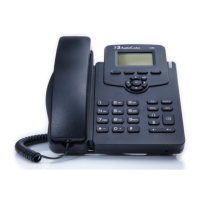
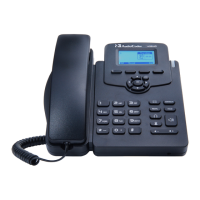
AudioCodes 400HD Series of High Definition IP Phones
HD VoIP 420HD IP Phone
User’s Manual
420HD IP Phone for Microsoft
®
Skype
for Business
Version 2.0.13

Table of Contents

Other manuals for AudioCodes 420HD

Questions and Answers

  • J
    Jasmin RamosSep 18, 2025
    How to improve LCD screen display on AudioCodes IP Phone?
    • J
      Jason OconnorSep 18, 2025
      If the LCD screen display on your AudioCodes IP Phone is poor, try adjusting the phone’s screen contrast level. You may also want to adjust the screen’s backlight timeout.
  • C
    Colin EricksonAug 25, 2025
    How to renew expired PIN on AudioCodes IP Phone?
    • Q
      qdiazAug 25, 2025
      If your AudioCodes IP Phone displays 'PIN expired', renew the PIN expiration policy in the Lync server interface.
  • M
    Michelle McclureAug 25, 2025
    What to do if AudioCodes 420HD shows 'PIN account disabled'?
    • S
      sullivansuzanneAug 26, 2025
      If your AudioCodes IP Phone displays 'PIN account disabled', verify that the account is enabled in the Lync server interface. If it is not enabled, enable it.
  • T
    Tammy FoxAug 26, 2025
    How to fix 'Failed to validate certificate' on AudioCodes 420HD IP Phone?
    • M
      Michael JonesAug 27, 2025
      If your AudioCodes IP Phone displays 'Failed to validate certificate' or 'Failed to obtain user certificate', ensure DHCP Option 43, sub-option 5, is enabled on your DHCP server. Also, verify access to the Lync Web service URL: https://lyncsvrWebPoolFQDN:443/CertProv/CertProvisioningService.svc. Finally, ensure the LDAP server (_ldap._tcp.) is enabled to obtain the root certificate.
  • S
    Sean NguyenSep 18, 2025
    What to do if AudioCodes 420HD IP Phone shows 'Registration...' and calls fail?
    • J
      James SolomonSep 18, 2025
      If your AudioCodes IP Phone displays a 'Registration…' message and you cannot make or receive calls, it means the line is not registered to the network. Contact your system administrator for assistance.
  • J
    Jessica RamosSep 23, 2025
    Why is my AudioCodes 420HD IP Phone not turning on?
    • M
      Michelle HensonSep 23, 2025
      If your AudioCodes IP Phone is off, with no LCD displays or LEDs, the phone is likely not receiving power. Verify the AC/DC power adapter is firmly attached to the DC input on the rear of the phone and plugged into a functional electrical outlet. If you're using Power over Ethernet (PoE), contact your system administrator to ensure the switch is supplying power.
  • K
    Kelly GarrettSep 9, 2025
    How to fix poor LCD display on AudioCodes 420HD IP Phone?
    • T
      Timothy LewisSep 9, 2025
      To fix a poor LCD display on your AudioCodes IP Phone, adjust the phone’s screen contrast level and the screen’s backlight timeout.
  • S
    skeithSep 10, 2025
    What to do if my AudioCodes IP Phone is off (no LCD displays and LEDs)?
    • L
      Lucas WellsSep 10, 2025
      If your AudioCodes IP Phone is off, meaning there are no LCD displays and LEDs, it indicates the phone isn't receiving power. Here's what you should check: * Ensure the AC/DC power adapter is firmly connected to the DC input on the phone's rear. * Confirm the AC/DC power adapter is properly plugged into a functional electrical outlet. * If you're using Power over Ethernet (PoE), contact your system administrator to ensure the switch is providing power to the phone.
  • L
    Lauren SimmonsSep 3, 2025
    How to troubleshoot no audio in headset connected to AudioCodes IP Phone?
    • A
      Amanda SheaSep 3, 2025
      If you have no audio in your headset when connected to your AudioCodes IP Phone, consider the following: * Ensure your headset is securely plugged into the headset port on the side of the phone. * Verify that the headset volume level is adjusted adequately (see Section 4.9.5).
  • D
    Dawn UnderwoodSep 1, 2025
    What to do if AudioCodes IP Phone displays 'LAN Link Failure'?
    • R
      Robert AlvaradoSep 1, 2025
      If your AudioCodes IP Phone displays a 'LAN Link Failure' message, it indicates there is no LAN connection. Here’s how to troubleshoot: * Verify that the LAN cable is securely connected to the LAN port on the rear of the phone. * Ensure the other end of the LAN cable is connected to the network switch. If it is not, inform your system administrator.

Summary

Introducing the 420 HD IP Phone

About AudioCodes Series of High Definition IP Phones

Overview of AudioCodes' HD IP Phone series for enhanced voice quality.

Cutting Edge Voice Quality & HD VoIP

Details on advanced voice technology, wideband coders, and audio enhancements.

Setting up the Phone

Unpacking

Guide to unpacking phone components and checking for presence and damage.

Device Description

Introduction to the phone's hardware features and components.

Front View

Description of the front panel layout and its components.

Rear View

Description of the rear panel ports and connections.

Cabling

Instructions for connecting cables to the phone for network and power.

Mounting the Phone

Options for mounting the phone on a desk or wall.

Mounting the Phone on a Desktop

Step-by-step guide for placing the phone on a desk or flat surface.

Routing the Handset Cable

Instructions on how to route the handset cable for neatness.

Mounting the Phone on a Wall

Step-by-step guide for mounting the phone securely on a wall.

Getting Started

Getting Acquainted with the LCD

Familiarization with the phone's LCD display in idle state.

Softkeys

Explanation of various softkey functions available on the phone's LCD.

Navigating the Phones Menu

Guide to navigating the phone's menu structure for configuration and information.

Displayed Messages

List of messages displayed on the LCD during phone processes.

Signing In

Switching from Letters to Numbers;Symbols

How to switch input modes on the keypad for entering characters and symbols.

Signing Out

Instructions on how to sign out of the phone session.

Signing out if the Sign out Softkey is Removed from the LCD

Method to sign out using the Web interface when the softkey is unavailable.

Customizing the Phone

Changing the LCD Language

How to change the display language on the phone's LCD.

Selecting Ring Tone

How to choose and set a ring tone for incoming calls.

Enabling Call Waiting

How to enable or disable the call waiting feature.

Managing Simultaneous Incoming Calls

How the phone displays and handles multiple incoming calls.

Configuring Busy on Busy

Setting the phone to reject calls when busy.

Defining Call Forwarding

How to automatically redirect incoming calls to another number or voicemail.

Setting Date and Time

Configuring date, time, and time zone settings, often via NTP.

Changing LCD Contrast Level

Adjusting the contrast of the phone's LCD screen for better visibility.

Defining LCD Backlight Timeout

Setting the duration the phone's backlight remains on when idle.

Selecting an Answering Device

Choosing between speaker or headset for call activation.

Defining Location

Setting or displaying geographical location information for calling parties.

Defining an Outbound Proxy

Configuring the outbound proxy for hosted Lync environments.

Adjusting Volume

Adjusting volume levels for various audio outputs like ring, tones, handset.

Adjusting Ring Volume

How to adjust the volume of the incoming call ring.

Adjusting Tones Volume

How to adjust the volume for dial tones and call progress tones.

Adjusting Handset Volume

Adjusting the volume for the handset during calls.

Adjusting Speaker Volume

Adjusting the volume for the speakerphone during calls.

Adjusting Headset Volume

Adjusting the volume for a connected headset during calls.

Managing Your Personal Directory

Adding, editing, and managing contacts in the personal directory.

Accessing the Directory

How to access the phone's contact directories.

Adding Contacts to the Personal Directory

Step-by-step guide to adding new contacts to the personal directory.

Editing Contact Information

How to modify existing contact details in the personal directory.

Deleting a Contact

How to remove contacts from the personal directory.

Searching for a Contact

Methods for quickly locating contacts within the directory.

Searching Corporate Directory with T9

Using T9 predictive text for searching corporate contacts.

Changing T9 to A;a;1 Input Mode

Switching between T9 and standard input modes for directory search.

Defining a Speed Dial

Setting up phone keys for quick dialing of contacts.

Defining a Phone Key as Speed Dial

Step-by-step process to assign a speed dial key to a contact.

Editing a Speed Dial

How to modify existing speed dial entries.

Deleting Speed Dials

How to remove assigned speed dial entries.

Defining Phone Keys as Paging Dials

Configuring phone keys for group paging functionality.

Changing your Presence Status

Setting and managing your availability status visible to others.

Performing Basic Operations

Using Audio Devices

Instructions on using the handset, speaker, and headset for calls.

Making Calls

Various methods for initiating phone calls.

Dialing Numbers and URLs

How to dial regular numbers and URLs.

Redialing

How to redial previously dialed numbers.

Dialing a Missed Call

How to dial a number from the list of missed calls.

Answering Calls

Procedures for answering incoming calls using different devices.

Rejecting Incoming Calls

How to decline an incoming call.

Silencing Incoming Calls

How to mute the ringing of an incoming call.

Ending an Established Call

Methods for terminating an active call.

Viewing Call History

Accessing call logs for missed, received, and dialed calls.

Performing Advanced Operations

Answering Waiting Calls

How to handle and switch between multiple incoming calls.

Placing a Call On Hold

How to put an active call on hold and retrieve it.

Calling a Contact from the Directory

How to initiate a call to a contact stored in the directory.

Using a Speed Dial to Place a Call

How to use pre-configured speed dial keys to make calls.

Transferring Calls

Procedures for transferring calls to other parties.

Performing a Consultative Transfer

How to perform a transfer after speaking with the recipient.

Consultative Transfer Using Softkeys Only

Performing consultative transfers using only softkeys.

Performing a Blind Transfer

How to perform a transfer without speaking to the recipient first.

Parking a Call

How to place a call in a parking lot for later retrieval.

Configuring Group Call Pickup (GCP)

Setting up group call pickup to answer calls for other users.

Hosting 3-Way Conference Calls

How to set up and manage conference calls with multiple participants.

Muting Calls

How to mute the microphone during calls.

Paging

Functionality for broadcasting audio messages to a group.

Performing Outgoing Paging Calls

How to initiate paging calls to a group.

Receiving Incoming Paging Calls

How to receive and respond to paging calls.

Setting up Better Together over Ethernet

Integrating the IP phone with Skype for Windows client via BTOE.

Installing the BToE PC Application

Step-by-step guide to installing the BTOE software on a PC.

Making Sure BToE is Correctly Installed

Verifying the successful installation of the BTOE application.

Configuring the BTOE TCP Port

How to configure the TCP port for BTOE communication.

Pairing the BToE PC Application with the IP Phone

Process of pairing the BTOE PC application with the IP phone.

Generating a Pair Code

How to generate a unique pair code for device connection.

Connecting the IP Phone with the BToE PC Application

Steps to connect the IP phone and PC application using the pair code.

Connecting Skype for Windows Client with IP Phone

Linking the Skype for Windows client to the IP phone via login.

Verifying IP Phone;Skype Client Pairing

Verifying the successful pairing between the IP phone and Skype client.

Verifying Skype for Windows Client Pairing

Checking if the Skype for Windows client is correctly paired with the phone.

Verifying IP Phone Pairing

Checking the phone's status to confirm pairing with the Skype client.

Using BToE Functions

Utilizing BTOE features for enhanced unified communications.

Signing In

Signing into the IP phone from the Skype for Windows PC client.

Making a Call (Click-to-Dial)

Making calls from the PC client or IP phone, with mirrored operations.

Making a Conference Call

How to initiate and manage conference calls using BTOE.

Answering a Call

Answering calls via the Skype client or IP phone for convenience.

Transferring a Call

Transferring calls from either the PC client or the IP phone.

Retrieving Voice Mail Messages

How to access and listen to voice mail messages on the phone.

Troubleshooting

AudioCodes 420HD Specifications

General IconGeneral
BrandAudioCodes
Model420HD
CategoryIP Phone
LanguageEnglish

Related product manuals