IFD500 Series Pilot Guide
3-18 FMS Subsystem
EDITING A WAYPOINT
From the FPL tab, the bottom right knob on the IFD can be used
to edit an existing waypoint. Using the knob, scroll up or down the
flight plan until an edit cursor surrounds the waypoint to be
modified. Use the inner knob to highlight one of the editable fields
with reverse video. Pushing the knob provides a drop down box
from which the changes can be made. Alternatively, touching the
field to be edited will display a virtual keyboard which can be used
to enter the desired data/changes.
ADDING ALTITUDE CONSTRAINTS
Most legs allow for the entry of an altitude constraint (e.g. cross
the waypoint at or above a specific altitude). Non-window
constraints are defined by the kind of constraint, the altitude, and
a “cross” distance prior to the waypoint at which the constraint is
to be met. Window constraints are defined only by the two
altitudes, meaning that the constraint applies at the waypoint (no
distance prior field). Altitude constraints are depicted on the map.
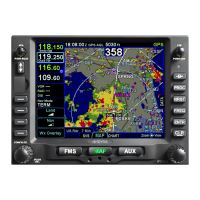
Altitude Constraint fields
Numeric field
representing the
distance prior to the
waypoint that the
constraint is to be
achieved
At Or Below
At
At or Above
Between
(“window”)
Numeric field
representing the
target altitude.
Minimum allowable
value is 100 feet.
Window constraints
have an upper and
lower altitude field.
Altitude Constraint Fields


 To Next Page