142
PC Service Home Guide
E-Book Editor
3.4.4 Loading an animation
Select “Section 1” or to add a new page.
Click from the tool bar.
Tick “Use system image library”.
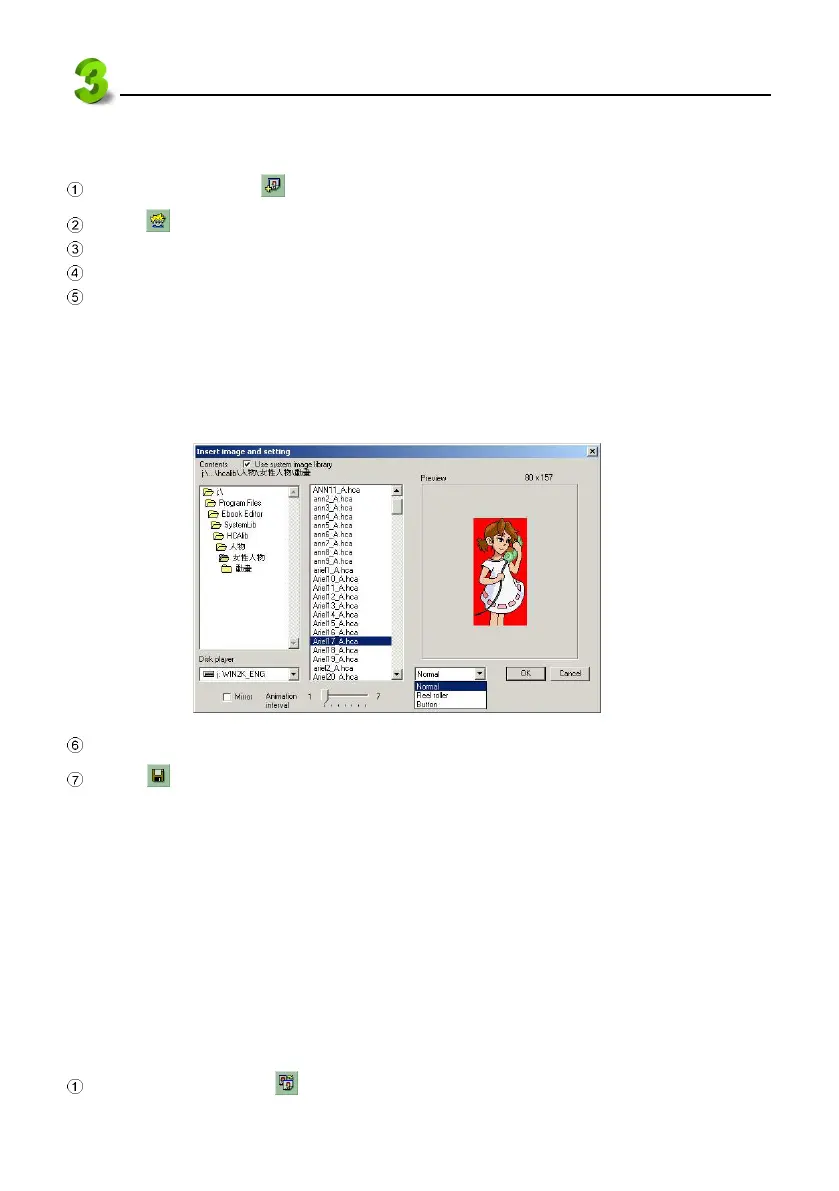
Select a animation file from the file folder list.
Select image variety mode from the check box at the bottom of the preview area: Normal, Reel
roller, Button, as shown in picture 38.
* “Normal” : set Mirror, Animation interval, Repeat or not.
* “Reel roller” : set Mirror, Animation interval, Direction, Time interval and Move step.
* “Button” : set Mirror, interval and link.
38
Click “OK”.
Click from the tool bar to save the file.
3.4.5 Converting a batch of BMP static files into HCA animated files
Place a group of BMP files in the same file folder. All the files must be of the same resolution (for
example: all are 100 × 100 pixel) and type (for example: all are 16 color). It is recommendable that
you name the files in sequence according to the order, and end with number and put an underline
between letter and digit. For example, the first one is named Act_001.bmp, the second one is named
Act_002.bmp, the third one is named Act_003.bmp. If you do not follow the rule above to name files,
you may arrange files according to the play order. Besides, you must make sure that all file with 16
colors must be limited under 15 colors. For animation of 256 colors, make sure the colors of the files
is under 255.
In “Index” screen, click .


 To Next Page