59
Report by Patient
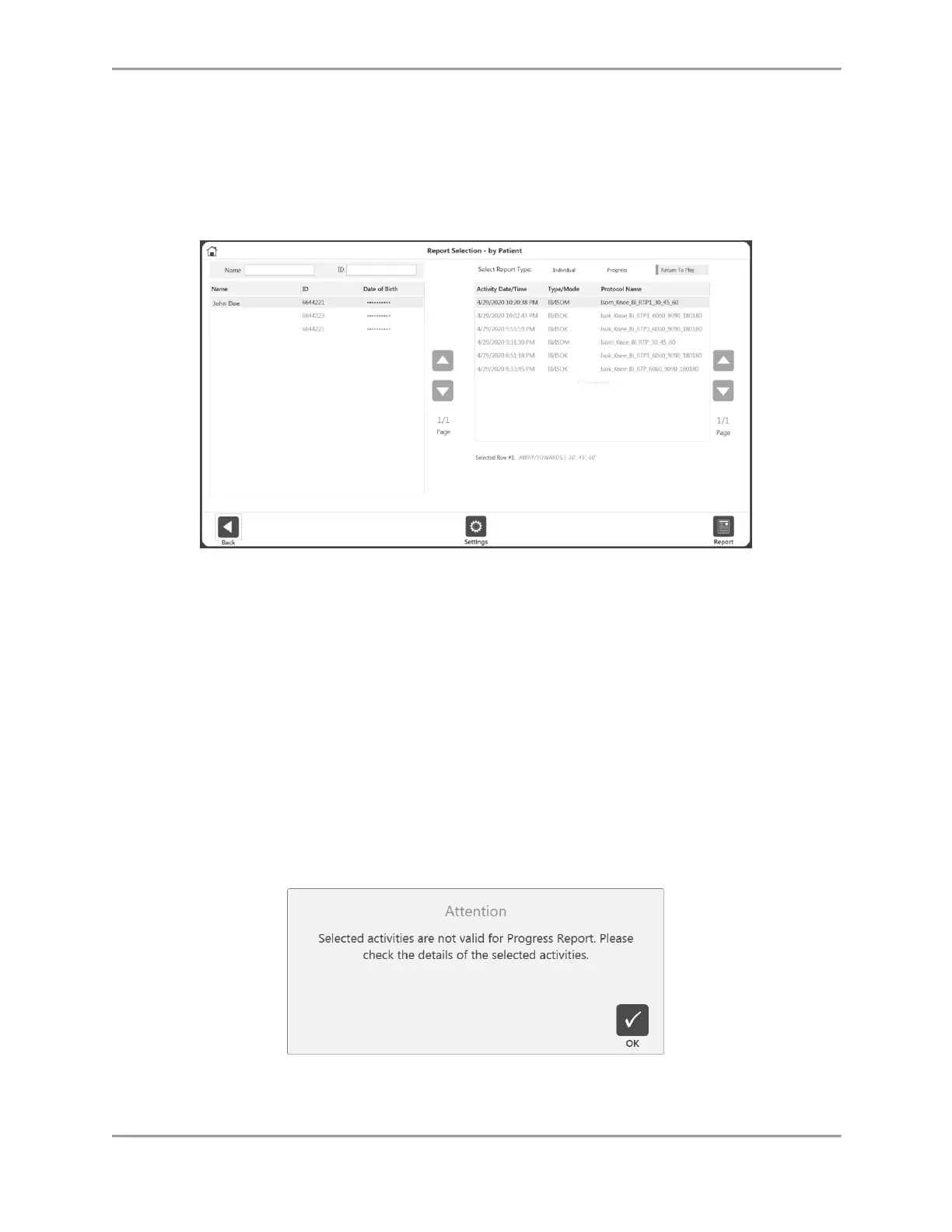
Use the Report by Patient option to access a report for an individual patient.
1. Select the Report by Patient icon. The Report Selection – by Patient screen displays.
2. Select a patient.
NOTE: You may also search by typing the patient’s name into the Name field or the
patient’s ID into the ID field.
3. Select a Report Type: Individual, Progress, or Return to Play (see Return to Play section).
Individual Report
4. Select an activity from the list.
5. Select Summary Report or Comprehensive Report. The Report icon will display.
6. Select the Report icon. The report will load and the Report Viewer screen will display.
7. Select the Print icon to print the report or the Save PDF icon to save the report.
NOTE: The Back and Home icons can be utilized at any time.
Progress Report
4. Select two activities from the list. Clicking a selected row will deselect it.
NOTE: The activities must each have a different date. The Type/Mode, Speed, and
details of the two selected activities must be matching. If any of these conditions are not
met, an error message will display explaining that the report is not available.
5. Choose Left or Right side for a Bilateral progress report. For Unilateral, this option is not
required.



 To Next Page