84
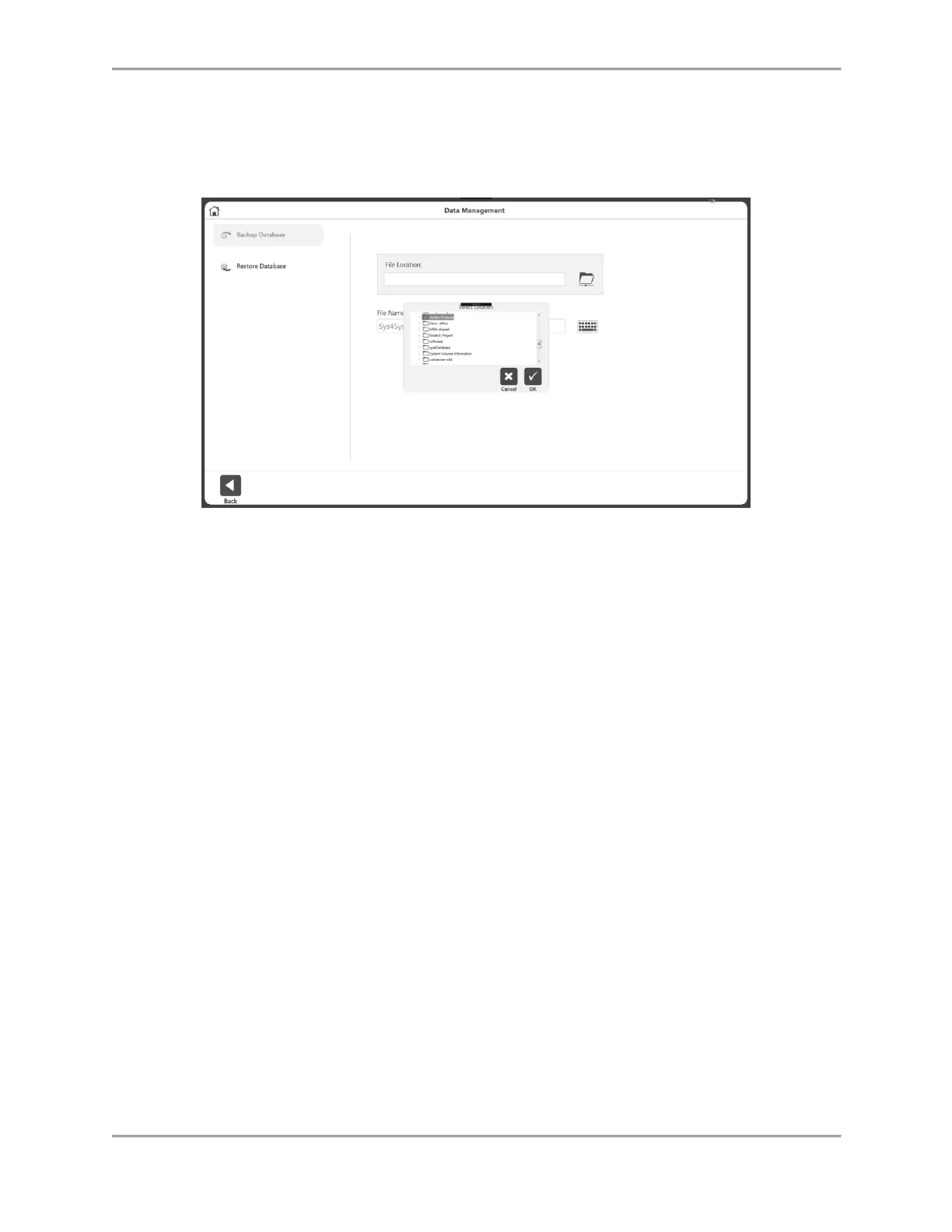
Backup Database
The backup database will back up the unit’s database and the changes made to the settings of
that unit. It is not a data export option.
1. Enter the Access Code 159 and select the OK icon.
2. Select Backup Database.
3. Select the folder icon. A pop-up for location selection displays. The pop-up will display
all the local drives, removable drives and mapped network drives.
4. Select a location and select the OK icon.
NOTE: Once a folder is selected, it will be remembered the next time.
5. Application will display an auto generated File Name. User can change the filename if
desired.
6. Click on the Backup button.
7. It will display message notifying the process’s progress or outcome.
NOTE: We recommend periodic backups.



 To Next Page