22 CT-600-2
8 Software installation and update
The programmable electrical components used for ACP have different data structures, typically containing
firmware, program and configuration data (parameters). Under normal conditions, the firmware and program
do not need to be modified.
When updates for the components or new options are released, the existing firmware and program can be
updated.
NOTICE
Stop operation and secure ACP unit against unintended start by disconnecting the power supply to the
motors, before making any firmware or program updates.
Program updates do not normally erase all configuration data, but it is recommended to back up the
configuration data of the component nonetheless.
NOTICE
New firmware on the ACP LINK PLC and HMI always means that all data is lost, so it is imperative to back
up the configuration by means of storing a configuration on portable media, taking notes or taking pictures
of the relevant screens.
The necessary files for said updates can be obtained from BITZER when they are released.
8.1 ACP LINK panel PLC
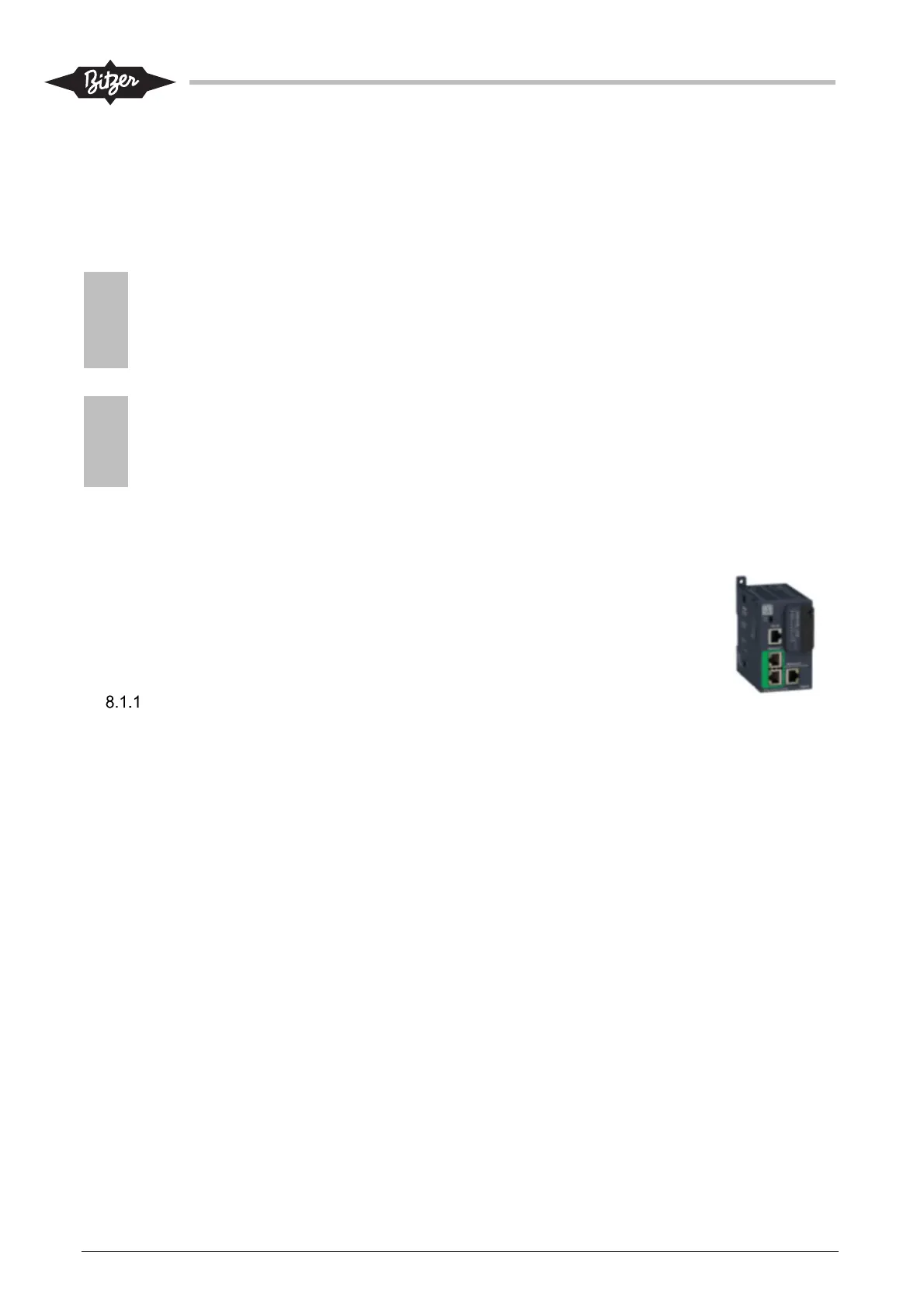
The ACP LINK PLC (Schneider Electric type M251) can be updated using an SD-card
that can be inserted in the slot on the front of the PLC. Firmware update must be done
on new PLC’s and can also be required in relation to certain program updates. Firmware
update will remove all data and settings. Backup configuration and settings before
firmware update.
Update Schneider firmware, ACP LINK panel PLC
1. If ACP is in operation, then stop operation and secure against unintended start of motors/
compressors.
2. Firmware can be delivered by BITZER in a zipped file or as files in a folder (typical folder name:
“sd_card_firmware_M251_v40511”.
3. If zipped, take the zip-file and extract directly onto a formatted SD-card (FAT32). Root folder shall
contain two folders “sys” and “usr” and two separate files.
Alternatively, copy all the files found in the folder for the software onto the SD-Card.
4. Make sure to have documentation of the configuration, parameters, settings and communication
settings (IP-addresses and PLC node name).
5. Shut-off the power to the PLC (can be done by disconnecting the connector at the bottom of the PLC)
and wait 5 sec.
6. Take the SD-card with the firmware and insert it into the slot on the PLC.
7. Turn on the power to the PLC. The SD-LED will be blinking. After about 60 sec it should stop blinking
and continue to be on.
8. Turn off the power to the PLC again.
9. Take out the SD-card.
10. Turn on the power to the PLC again.
11. The PLC is now updated with new firmware and ready to receive new software.
!
!
!
!



 To Next Page