38 CT-600-2
To download and restore files from SD-card to the PLC:
1. The program to download files from an SD-card to the PLC is very much the same as the program to
upload. One line in a script must be changed. Open the folder “Cmd” in the folder structure on the
SD-card to find the file “Script.cmd”.
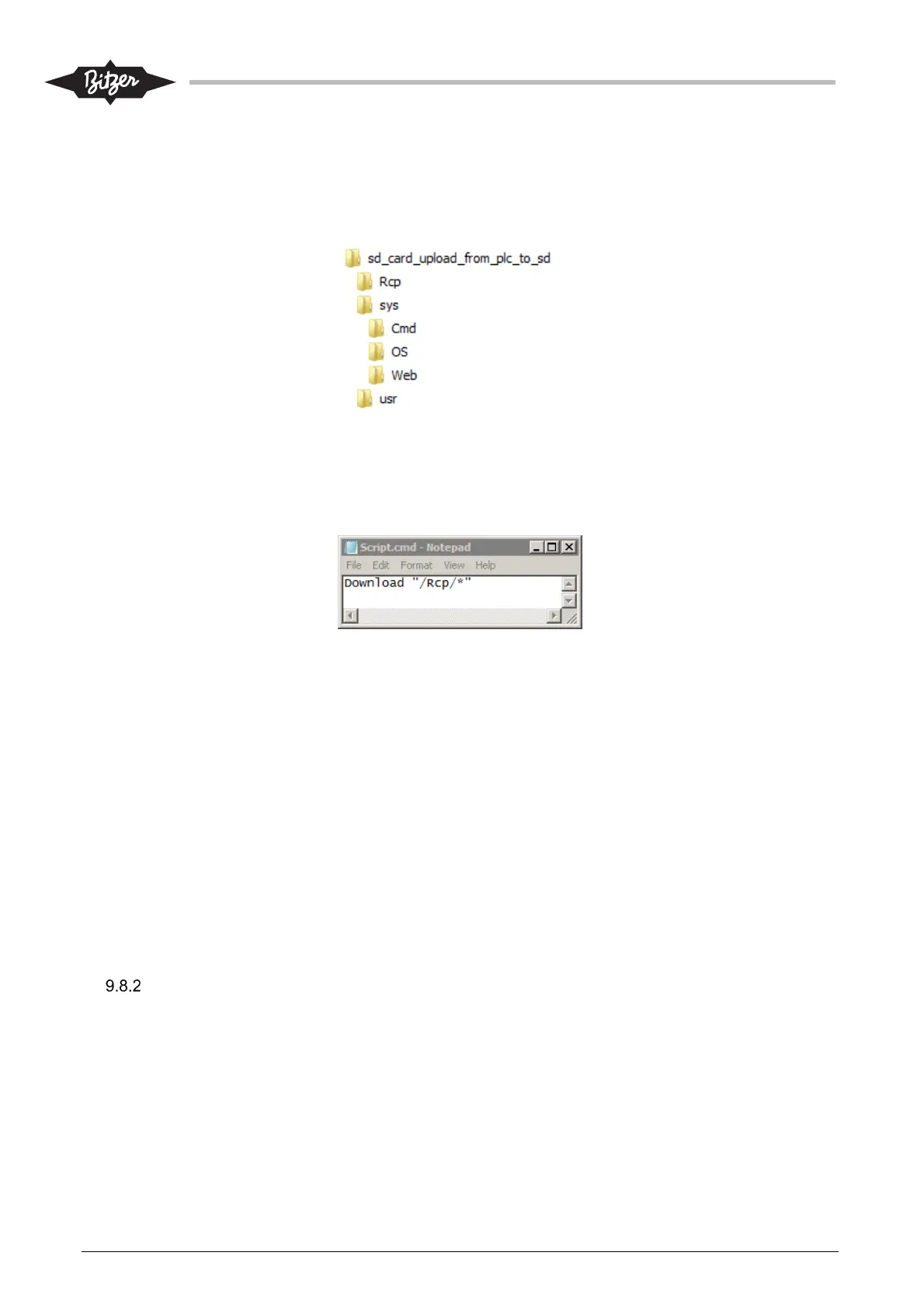
The files on the SD-card will have this structure. Open folder “Cmd”
2. Open the file “Script.cmd” in a text editor (In Windows: right mouse click \ Edit). The File will contain
one line : Upload “/Rcp/*”.
3. Change the word “Upload” to “Download”. The line in the file should now look like:
The file Script.cmd after modification
4. Save the file to the SD-card (In Windows: File \ Save).
5. Take the SD-card with the program with modified script (and containing the correct .rcp files in the
folder “Rcp”) and insert it into the slot on the PLC (this can be done, while the PLC is in operation).
6. The SD-LED will be blinking a few seconds. Wait about 30 sec. The SD-LED should stop blinking
and continue to be on.
7. Take out the SD-card.
8. The .rcp files have been download to the PLC and can now be used.
9. To restore the settings from one of the files: User setup #1, #2 and #2: Param. => Save/Restore =>
Restore User Setup and restore the configuration and settings from one of the three files.
10. If the same SD-card is to be used again or later for upload of files from PLC to SD-card, then change
the line in the script file back to its original (change “Download” back to “Upload”).
Compressor, oil and economizer system modules (CM-SW-01 & CM-IO)
The configuration for the CM-SW-01 and CM-IO module can be stored in a BEST file. This file can also
contain the data log with historical operating data.
1. Connect to the Module with the BEST software. More information can be found in section 8.4.
2. Download the device datalog (if needed). Select “Datalogs” and “Download Datalogs…” from the top
menu bar.



 To Next Page