33
1. 87 7. 8 7 7. 2 2 6 9 BLACKBOX.COM
NEED HELP?
LE AVE THE TECH TO US
LIVE 24/7
TECHNICAL
SUPPORT
1. 87 7. 87 7. 2 26 9
CHAPTER 7: DEVICES
Video Source Opt: Select from Off, DVI Optimized, VGA - High-Performance, VGA - Optimized, VGA - Low Bandwidth (only applied in
case of a single-head transmitter).
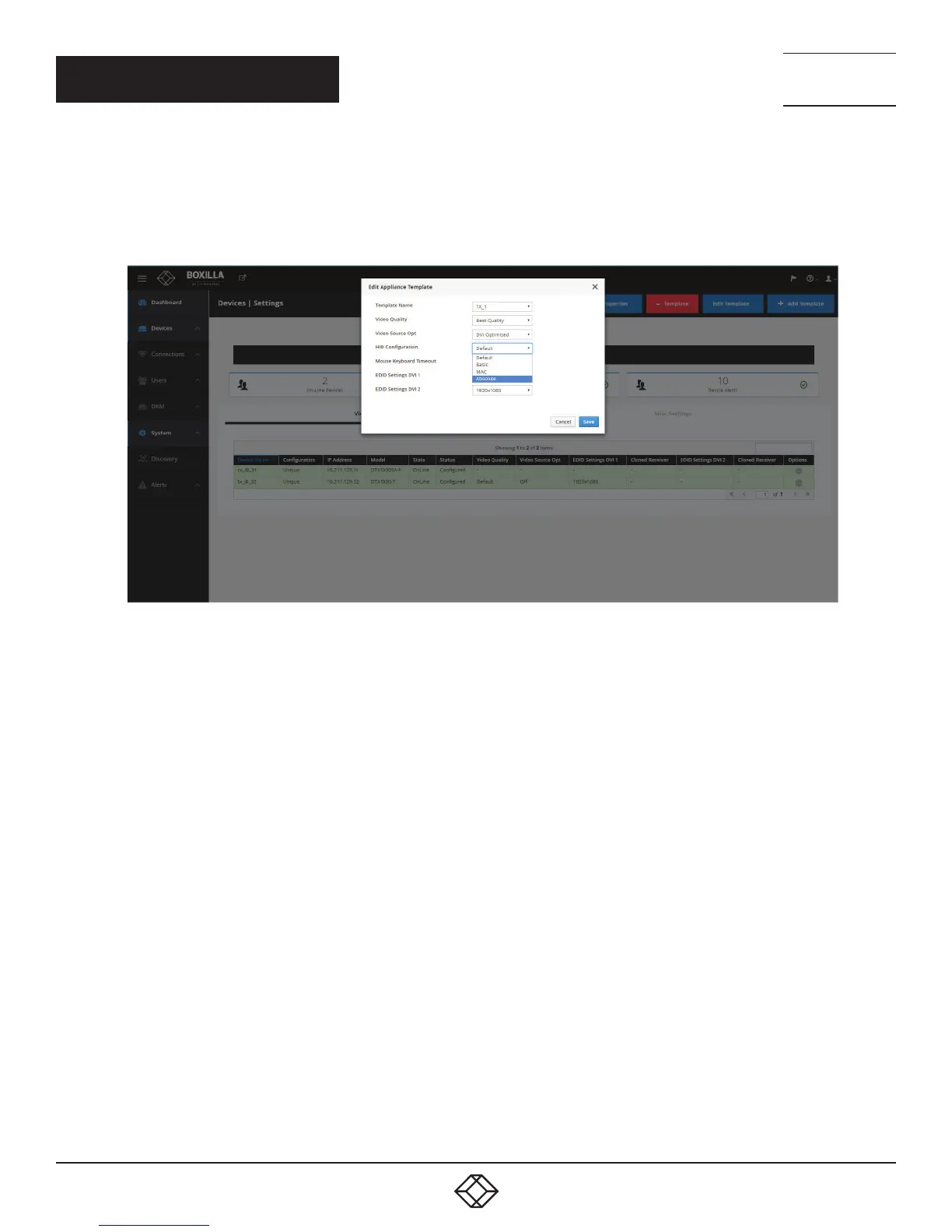
HID Configuration: Select from Default, Basic, MAC, or Absolute. The Absolute Mouse feature can be used to enable interoperability
with KM switches with built-in “Glide & Switch” capability such as ServSwitchTC and Freedom.
FIGURE 24. TEMPLATE SETTINGS SCREEN
Mouse Keyboard Timeout: Choose an option from 0 to 5 seconds.
EDID Settings DVI 1: Choose from 1920 x 1080, 1920 x 1200, 1680 x 1050, 1280 x 1024, or 1024 x 768.
EDID Settings DVI 2: Choose from 1920 x 1080, 1920 x 1200, 1680 x 1050, 1280 x 1024, or 1024 x 768.
To save the settings, click the Save button. Otherwise, click the Cancel button.
To edit a device template, click on the blue Edit Template button at the top of the Devices —> Settings screen. The Edit Appliance
Template screen pops up. Select the desired template from the drop-down menu, then select the desired options for the Template
Name, Video Quality, Video Source Opt, HID Configuration, Mouse Keyboard Timeout, EDID Settings DVI 1 and EDID Settings DVI 2
settings. Click the Save button to save your changes, or click the Cancel button to cancel the settings.


 To Next Page