Chapter 4: Configuration
724-746-5500 | blackbox.com
Page 25
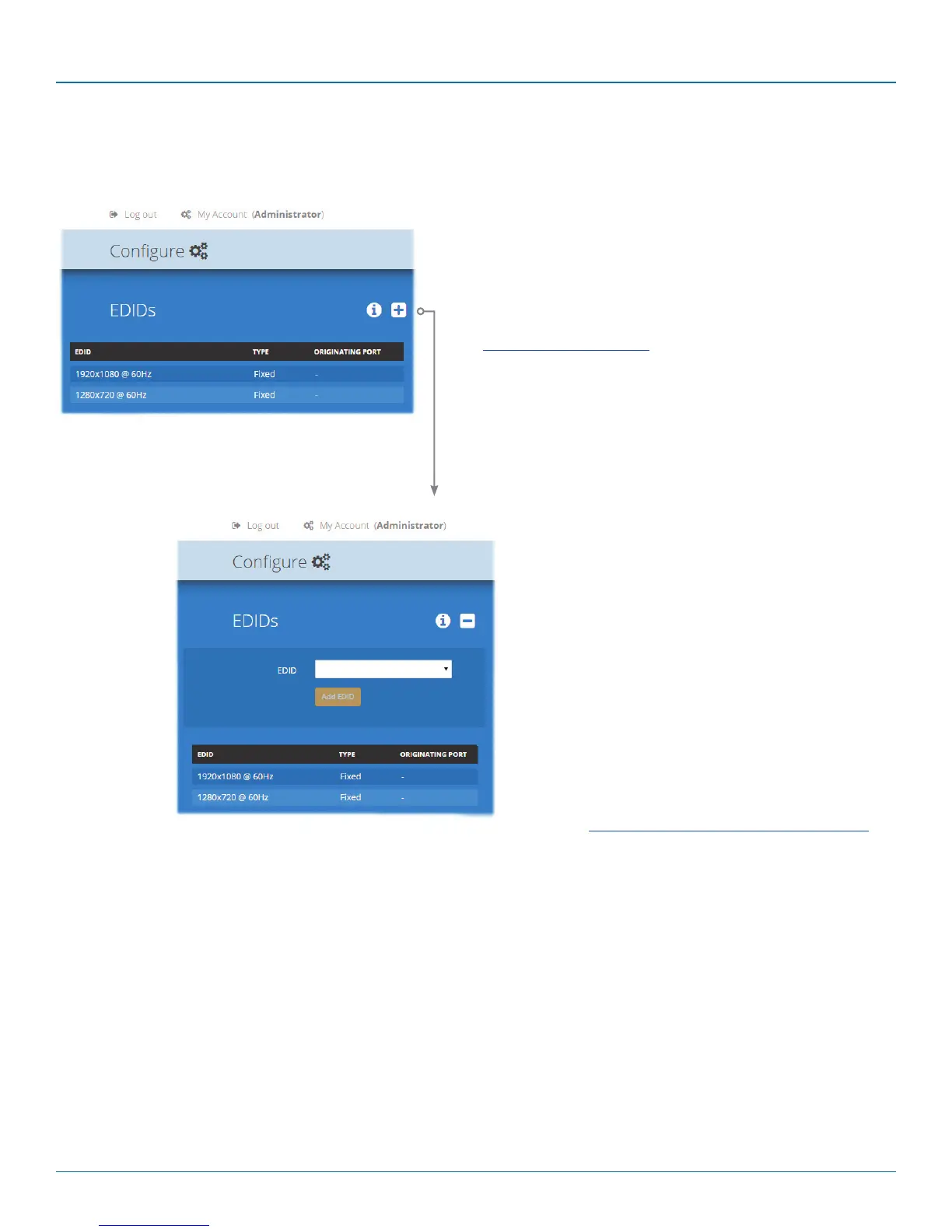
4.5.4 Central Switch > Manage EDIDs
This page lists the EDID (Extended Display Identification Data) profiles that are currently available:
4.5.4.1 Add EDID
If additional EDID definitions are required for your installa-
tion, you can clone new definitions from connected video
displays and add these to the list of available definitions.
Click the [+] icon to begin collecting a new EDID from a
display attached (via a DCX3000 Remote module) to one
of the switch ports.
Click the EDID dropdown list and choose the appropriate
receiver (DCX3000 Remote module) from which you wish
to clone a new EDID profile. Then click the Add EDID but-
ton.
For details about applying an EDID to a particular com-
puter, see Configure > Computers > Transmitters.
• EDID - shows the resolutions and refresh rates for all EDID
profiles that are currently stored.
• Type - indicates where each EDID profile originated: Fixed
EDIDs are included within the switch firmware and cannot
be removed. User EDIDs are those that have been cloned
from particular video displays attached to DCX3000 Remote
modules - these can be deleted if required. On the main
Central Switch/General page you can select the ‘Default
System EDID’ from the list of fixed and user EDIDs.
• Originating Port - indicates which switch port supplied each
user EDID.
Note: The DCX3000 Switch will modify the EDID, if a Dual link
monitor is connected, to list only the video resolutions that it is
capable of supporting.








 To Next Page