DCX3000 Switch
724-746-5500 | blackbox.com
Page 34
4.10 Reallocating ports
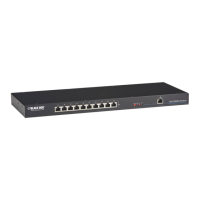
By default the DCX3000 Switch provides 20 computer ports along its rear panel and 10 user console ports along its front panel. If
your installation has a greater number of computers or a need for more user consoles, you can alter the allocation of these stan-
dard ports:
• Any of the 20 rear panel computer ports can be reallocated as user console ports, or
• Three of the front panel ports (labeled 21 to 23) can be used as computer ports.
When reallocating a port, it is usually necessary to delete it from its default role before using it in its new mode, as follows:
4.10.1 To reallocate a computer port as a user console port
1 Access the Configure > Computers page.
2 Click the entry for the computer port you wish to change.
3 Click the Delete button and then confirm your action in the resulting popup.
4 Access the Configure > Consoles page.
5 Either:
• Click the [+] button to create a new console entry, or
• Click an existing console entry to add the new port to it.
6 Click the Ports down arrow to view the available ports and choose the number of the port that you previously made
available.
7 Add/edit any other details for the console entry and click either the Add Console button or Update button, as appropriate.
4.10.2 To reallocate a user console port as a computer port
1 Access the Configure > Consoles page.
2 Click the entry for the user console port you wish to change.
3 Click the Delete button and then confirm your action in the resulting popup.
4 Access the Configure > Computers page.
5 Either:
• Click the [+] button to create a new computer entry, or
• Click an existing computer entry to add the new port to it.
6 Click the Ports down arrow to view the available ports and choose the number of the port that you previously made
available.
7 Add/edit any other details for the computer entry and click either the Add button or Update button, as appropriate.








 To Next Page