Chapter 5: Operation
724-746-5500 | blackbox.com
Page 41
5. Operation
The DCX system is designed to be transparent in operation. A simple OSD (On Screen Display) interface allows each user to view
and select from the available host computers.
5.1 Viewing the OSD
5.1.1 To view the matrix
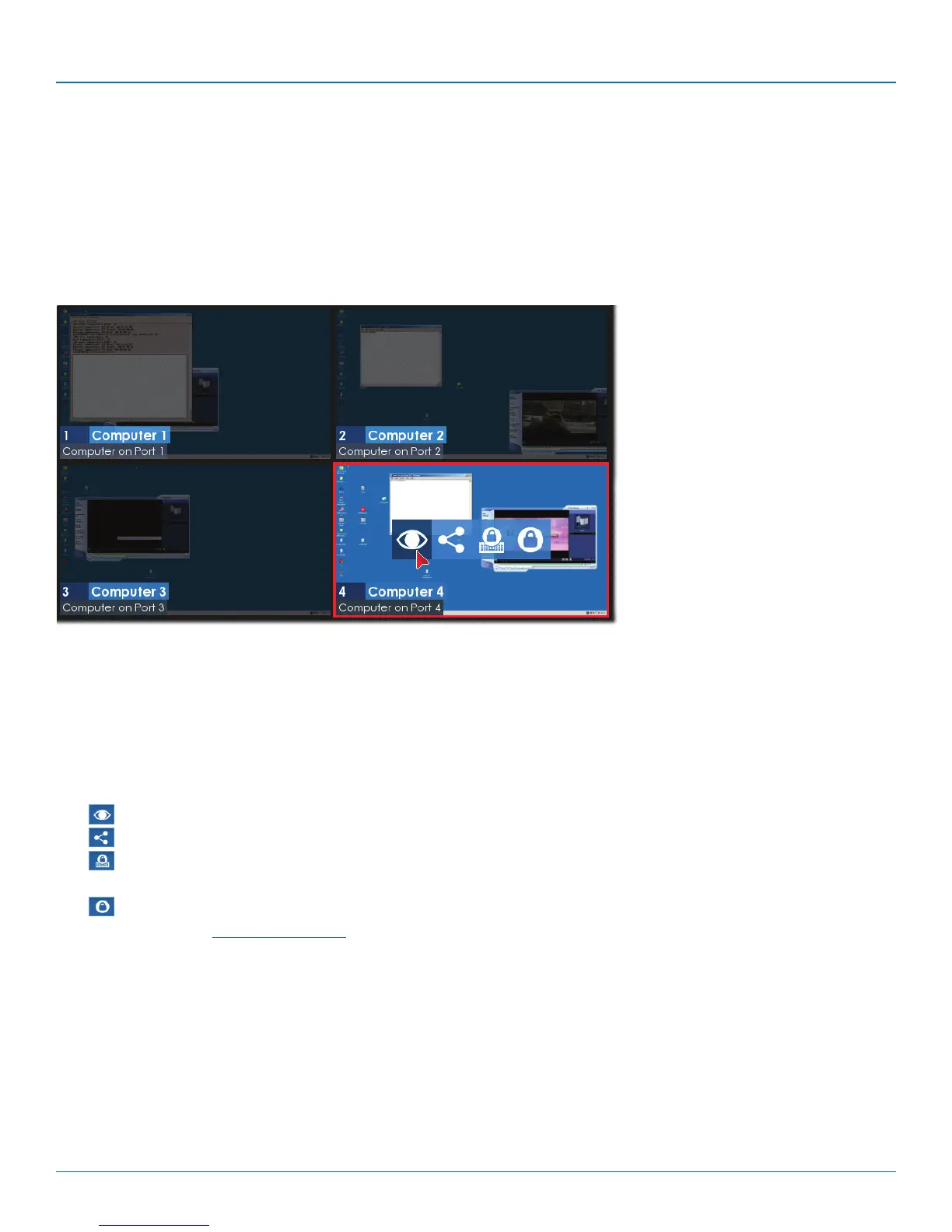
1 From a console keyboard, press CTRL + ALT + M to display the matrix:
The outputs of the available host computers will be displayed within live thumbnail images.
Note: If video is not available for a computer, or the thumbnail feature has been disabled by the admin user, a black image will be
shown.
5.2 Choosing a computer
5.2.1 To choose a computer using the mouse
1 Hover the mouse pointer over the required screen image. A set of popup connection icons will be displayed:
•
View only - you can view a computer’s output but not alter it,
•
Shared access - you can view and control a computer along with other consoles,
•
Exclusive - multiple users can view a computer but only one (the first to make connection) can control it,
or
•
Private - you can view and control the computer privately while other users are locked out.
For more details, see Access permissions.
Note: If an icon is grayed out, that access method is not available.
2 Click the required connection method. The video output from the chosen computer will be displayed full screen and you
can use it as normal.
5.2.2 To choose a computer using hotkeys
• Press and hold Ctrl + Alt and type the number of the required computer. The video output from the chosen computer will
be displayed full screen and you can use it as normal.
Note: Shared mode is always used when access is made via hotkeys.








 To Next Page