Page 103
877-877-2269 | blackbox.com
Chapter 5: Configuring the Router
5.21.1 Time Settings
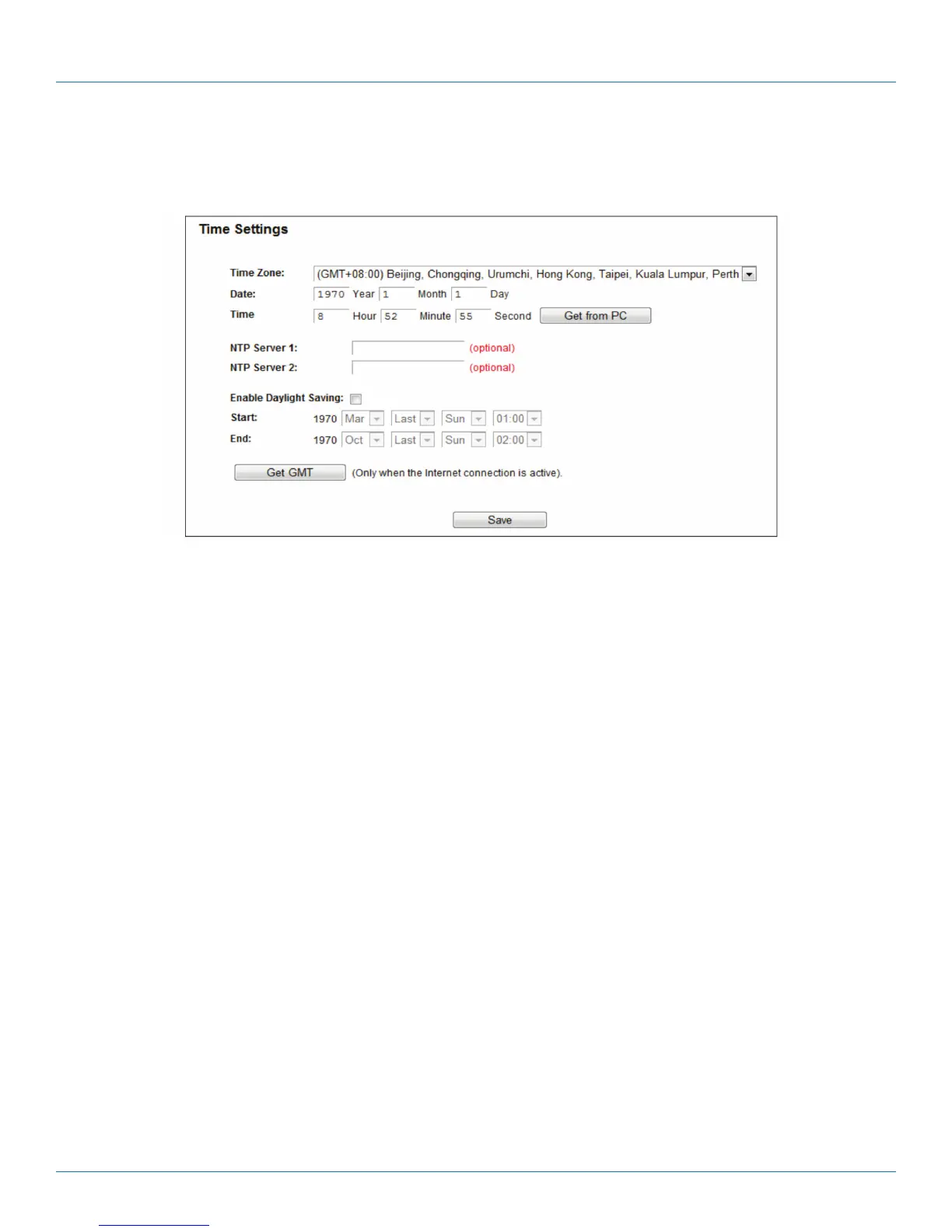
Choose “System Tools―Time Settings,” then you can configure the time on the following screen.
Figure 5-115. Time settings.
• Time Zone—Select your local time zone from this pull down list.
• Date—Enter your local date in MM/DD/YY into the right blanks.
• Time—Enter your local time in HH/MM/SS into the right blanks.
• Get From PC—Enter your PC’s current time into the right blanks.
• NTP Server 1 / NTP Server 2—Enter the address or domain of the NTP Server 1 or NTP Server 2, and then the router will get the
time from the NTP Server. In addition, the router has some built-in common NTP Servers, so it can get time automatically once it
connects to the Internet.
• Enable Daylight Saving—Check the box to enable the Daylight Saving function.
• Start—The time to start the Daylight Saving. Select the month in the first field, the week in the second field, the day in the third
field, and the time in the last field.
• End—The time to end the Daylight Saving. Select the month in the first field, the week in the second field, the day in the third
field, and the time in the last field.
To set time manually:
1. Select your local time zone.
2. Enter the Date in Month/Day/Year format.
3. Enter the Time in Hour/Minute/Second format.
4. Click Save.
To set time automatically:
1. Select your local time zone.
2. Enter the address or domain of the NTP Server 1 or NTP Server 2.
3. Click the Get GMT button to get system time from Internet if you are connected to the Internet.



 To Next Page