877-877-2269 | blackbox.com
Page 106
Chapter 5: Configuring the Router
• Firmware Version—Displays the current firmware version.
• Hardware Version—Displays the current hardware version. The hardware version of the upgrade file must be higher than the
router’s current hardware version.
To upgrade the router's firmware, follow these instructions:
1. Enter or select the path name where you save the upgrade file on the computer into the Firmware File Path blank.
2. Click the Upgrade button.
3. The router will reboot while upgrading finishes.
NOTES:
1. When you upgrade the router's firmware, you may lose its current configurations, so before upgrading the firmware, write
down some of your customized settings to avoid losing important settings.
2. Do not turn off the router or press the Reset button while the firmware is being upgraded. Loss of power during the upgrade
could damage the router.
3. The firmware version must correspond to the hardware.
4. The upgrade process takes a few moments and the router restarts automatically when the upgrade is complete.
5.21.4 Factory Defaults
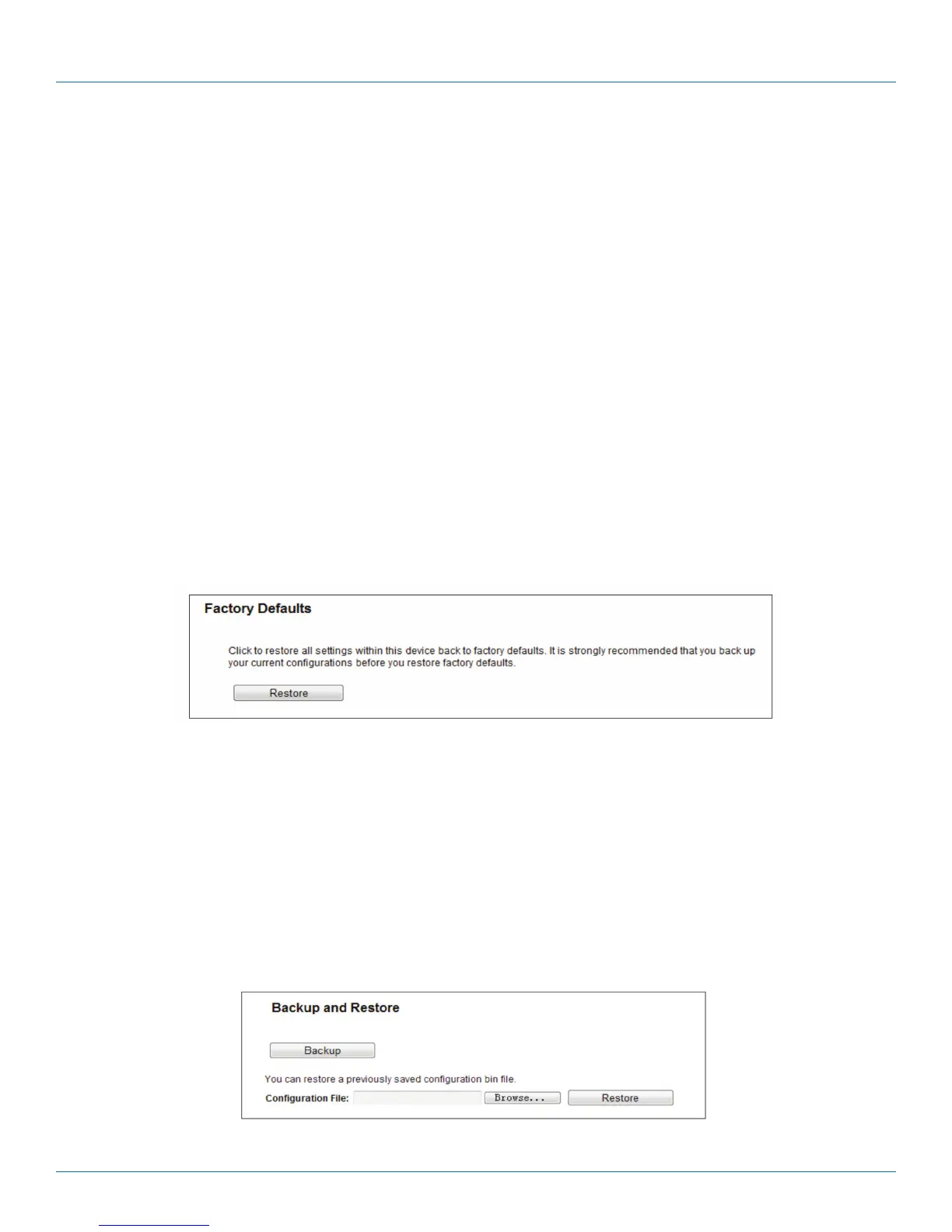
Choose “System Tools —> Factory Defaults,” then you can restore the configurations of the router to factory defaults on the fol-
lowing screen.
Figure 5-120. Restore Factory Default.
Click the Restore button to reset all configuration settings to their default values.
• The default User Name: admin
• The default Password: admin
• The default Subnet Mask: 255.255.255.0
NOTE: All changed settings will be lost when defaults are restored.
5.21.5 Backup & Restore
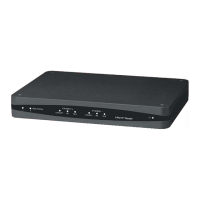
Choose “System Tools—> Backup & Restore,”then you can save the current configuration of the router as a backup file and
restore the configuration via a backup file.
Figure 5-121. Backup & Restore Configuration.


 To Next Page