9
i5100 Conguration Manual
2.6 Driver Installation
If using Brady Workstation for creating labels, the drivers for i5100 will automatically be installed on the computer. If using
LabelMark™ or any third party software, the drivers need to be installed manually
If Bonjour is not installed on your machine and is supported by your printer, it will be installed as part of the setup process
The printer driver install instructions cover two different manual installation scenarios
• Ethernet of Wi-Fi printing (network printer)
• USB driver only (local printer)
InstructionsforNetworkInstallation(Wi-FiorEthernet)
Use this installation process if you intend to send print jobs to the printer from the computer over a network. The printer
must have Wi-Fi or Ethernet support in order to use this installation method.
Attention!
Do not connect cables until instructed to do so!
1. Either insert the printer driver CD into the computer or double-click on the printer driver that you downloaded.
2. Select the desired language from the drop-down menu, then click Next.
3. Click Install.
4. Select the Printer Model for which the drivers are being installed, then click Next.
5. Power up the printer (if not already powered on) and wait for the printer to reach its home screen/ready screen.
6. Select Wireless or Ethernet network connection, then click Next.
• Follow the instructions in your printer’s user manual for setting up a network connection and connecting cables.
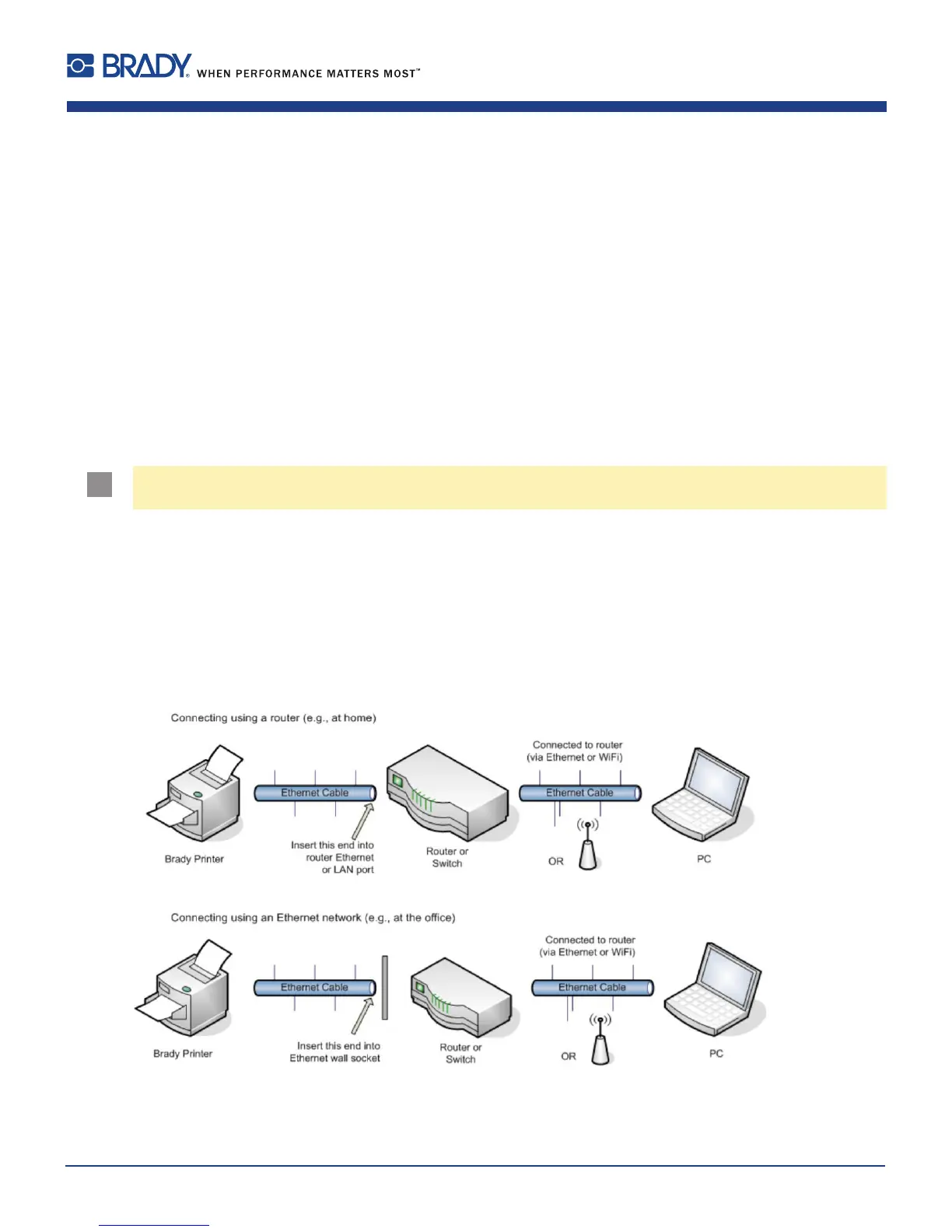
• Refer to connection guidelines, shown below, to verify that the printer and PC are on the same network.
Figure 3 Connecting to a network
2 Connecting Label Printer to Computer












 To Next Page