21
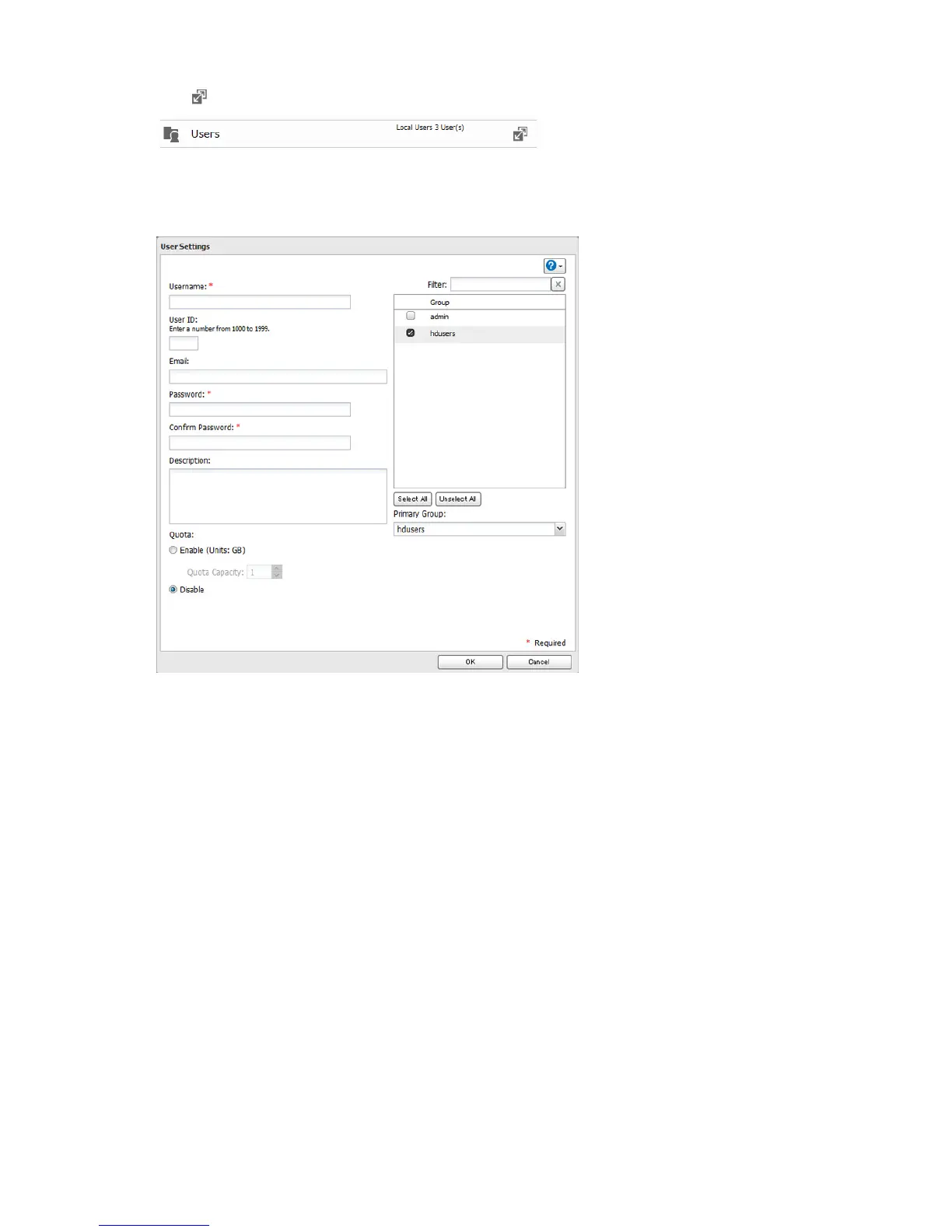
2 Click to the right of "Users".
3 Click Create User.
4 Enter the desired settings, then click OK.
Notes:
• Usernames may contain up to 128 characters, including hyphens (-), underscores (_), periods (.), !, #, &, @, $, *,
^, and %. Do not use a symbol as the first character.
• The user ID should be a number from 1000 to 1999. Each user ID should be unique. If this field is left blank, a
user ID is assigned automatically.
• When you log in to Settings as a registered user, you can see the LinkStation's name, IP address, workgroup,
and disk status, and modify the password.
• Do not duplicate user IDs, group IDs, usernames, or group names. Each should be distinct and unique.
• The description may contain up to 75 alphanumeric characters, hyphens (-), underscores (_), and spaces. Do
not use a symbol or space as the first character.
• Passwords may contain up to 20 alphanumeric characters and the following characters: - _ @ ! # $ % & ' ( ) * + ,
. / ; < > = ? " [ ] ^ { } | ~. Do not use a symbol other than an underscore (_) as the first character.
• Use the same username and password for both Windows and the LinkStation or you may not be able to
access shared folders.
• If a user belongs to multiple groups, the most strict access restrictions will apply. For example, if a user is
added to a group with read and write access, and also to a read-only group, the user will effectively have
read-only access.





 To Next Page