57
1 Tap the "SmartPhone Navigator" icon on your mobile device.
2 Tap Open Settings.
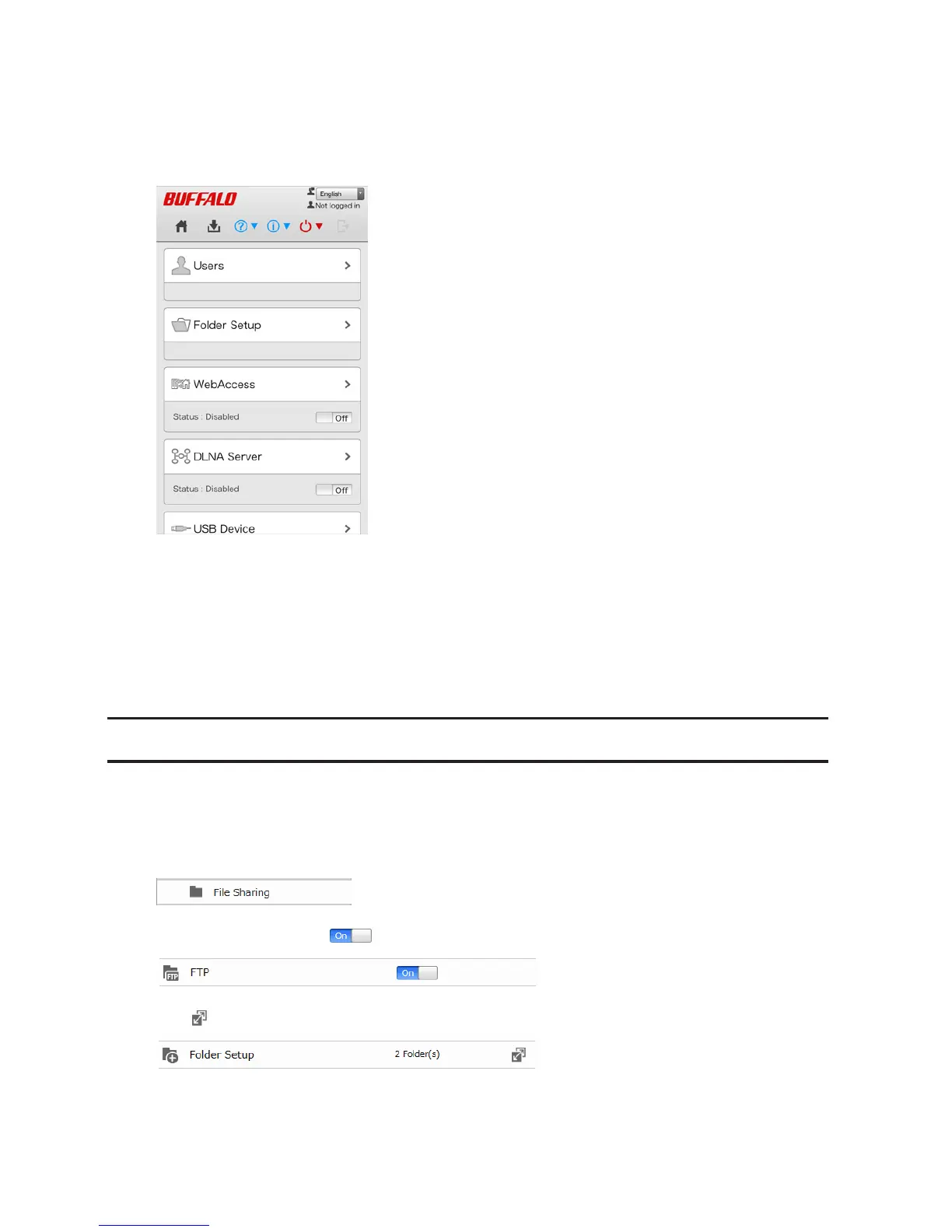
3 Tap WebAccess.
4 Select the access level from the drop-down list and tap Apply.
5 Tap OK.
6 Enter the desired BuffaloNAS.com name.
7 Select "Configure router's port settings manually", enter the router's port number, and tap Apply.
FTP
By default, the LinkStation's shares are only accessible by users connected to the same network or router as the
LinkStation. The optional FTP server allows users outside the local network to access the LinkStation.
Note: FTP is intended for users who already have FTP client software and have experience with it.
1 In Advanced Settings, click File Sharing.
2 Move the FTP switch to the position to enable FTP.
3 Click to the right of "Folder Setup".
4 Choose a folder to enable remote FTP access on.
5 Click Edit.





 To Next Page